Introduction to Docker

Ref:
In this room, you’ll get your first hands-on experience deploying and interacting with Docker containers.
Namely, by the end of the room, you will be familiar with the following:
- The basic syntax to get you started with Docker
- Running and deploying your first container
- Understanding how Docker containers are distributed using images
- Creating your own image using a Dockerfile
- How Dockerfiles are used to build containers, using Docker Compose to orchestrate multiple containers
- Applying the knowledge gained from the room into the practical element at the end.
Please note: It is strongly recommended that you are at least familiar with basic Linux syntax (such as running commands, moving files and familiarity with how the filesystem structure looks). If you have completed the Linux Fundamentals Module - you will be all set for this room!
Additionally, it is important to remember that you will need internet connectivity to pull Docker images. If you are a free user and wish to practice the commands in this room, you will need to do this in your own environment.
Task 2 Basic Docker Syntax
Docker can seem overwhelming at first. However, the commands are pretty intuitive, and with a bit of practice, you’ll be a Docker wizard in no time.
The syntax for Docker can be categorised into four main groups:
- Running a container
- Managing & Inspecting containers
- Managing Docker images
- Docker daemon stats and information
We will break down each of these categories in this task.
Managing Docker Images
Docker Pull Before we can run a Docker container, we will first need an image. Recall from the “Intro to Containerisation” room that images are instructions for what a container should execute. There’s no use running a container that does nothing!
In this room, we will use the Nginx image to run a web server within a container. Before downloading the image, let’s break down the commands and syntax required to download an image. Images can be downloaded using the docker pull command and providing the name of the image.
For example, docker pull nginx. Docker must know where to get this image (such as from a repository which we’ll come onto in a later task).
Continuing with our example above, let’s download this Nginx image!
A terminal showing the downlo
1
2
3
4
5
6
cmnatic@thm:~$ docker pull nginx
Using default tag: latest
latest: Pulling from library/nginx
-- omitted for brevity --
Status: Downloaded newer image for nginx:latest
cmnatic@thm:~$
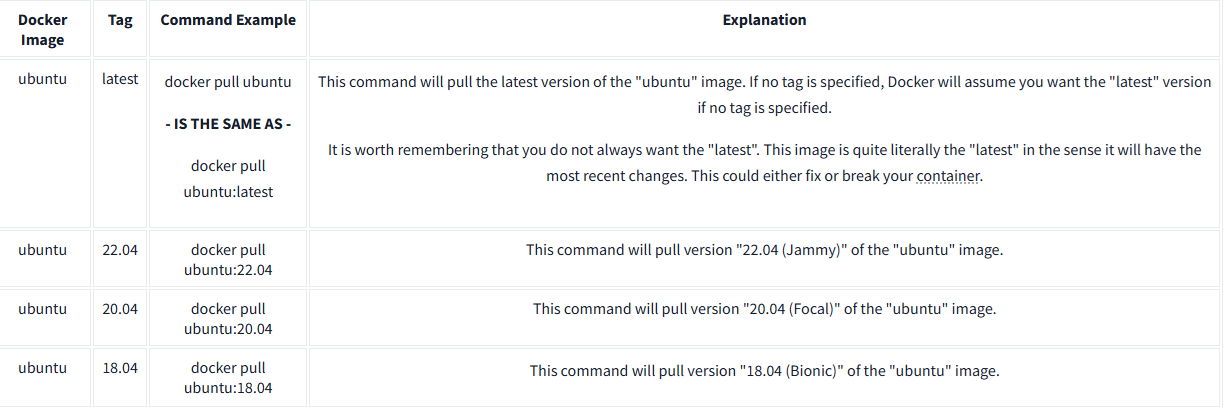
By running this command, we are downloading the latest version of the image titled “nginx”. Images have these labels called tags. These tags are used to refer to variations of an image. For example, an image can have the same name but different tags to indicate a different version. I’ve provided an example of how tags are used within the table below: