<?xml version="1.0" encoding="utf-8"?><feed xmlns="http://www.w3.org/2005/Atom" ><generator uri="https://jekyllrb.com/" version="3.9.5">Jekyll</generator><link href="https://szehoyeu.github.io/blog/feed.xml" rel="self" type="application/atom+xml" /><link href="https://szehoyeu.github.io/blog/" rel="alternate" type="text/html" /><updated>2024-02-16T02:21:42+00:00</updated><id>https://szehoyeu.github.io/blog/feed.xml</id><title type="html">Happy Learning</title><subtitle>Learning is fun.</subtitle><entry><title type="html">THM: Walking An Application</title><link href="https://szehoyeu.github.io/blog/2024/02/15/walking-an-app.html" rel="alternate" type="text/html" title="THM: Walking An Application" /><published>2024-02-15T18:00:00+00:00</published><updated>2024-02-15T18:00:00+00:00</updated><id>https://szehoyeu.github.io/blog/2024/02/15/walking-an-app</id><content type="html" xml:base="https://szehoyeu.github.io/blog/2024/02/15/walking-an-app.html"><![CDATA[<p>Ref:</p>
<ul>
  <li><a href="https://tryhackme.com/room/walkinganapplication?path=undefined">THM Walking An Application:</a></li>
</ul>

<hr />

<h2 id="task1-introduction">Task1: Introduction</h2>
<p>Learn how to manually review a web application for security issues using only the in-built tools in your browser. More often than not, automated security tools and scripts will miss many potential vulnerabilities and useful information.</p>

<p>Here is a short breakdown of the in-built browser tools you will use throughout this room:</p>

<ul>
  <li>View Source - Use your browser to view the human-readable source code of a website.</li>
  <li>Inspector - Learn how to inspect page elements and make changes to view usually blocked content.</li>
  <li>Debugger - Inspect and control the flow of a page’s JavaScript</li>
  <li>Network - See all the network requests a page makes.
Start the virtual machine on this task, wait 2 minutes, and visit the following URL: https://LAB_WEB_URL.p.thmlabs.com (this URL will update 2 minutes from when you start the machine)</li>
</ul>

<h2 id="task2-exploring-the-website">Task2: Exploring The Website</h2>
<p>As a penetration tester, your role when reviewing a website or web application is to discover features that could potentially be vulnerable and attempt to exploit them to assess whether or not they are. These features are usually parts of the website that require some interactivity with the user.</p>

<p>Finding interactive portions of the website can be as easy as spotting a login form to manually reviewing the website’s JavaScript. An excellent place to start is just with your browser exploring the website and noting down the individual pages/areas/features with a summary for each one.</p>

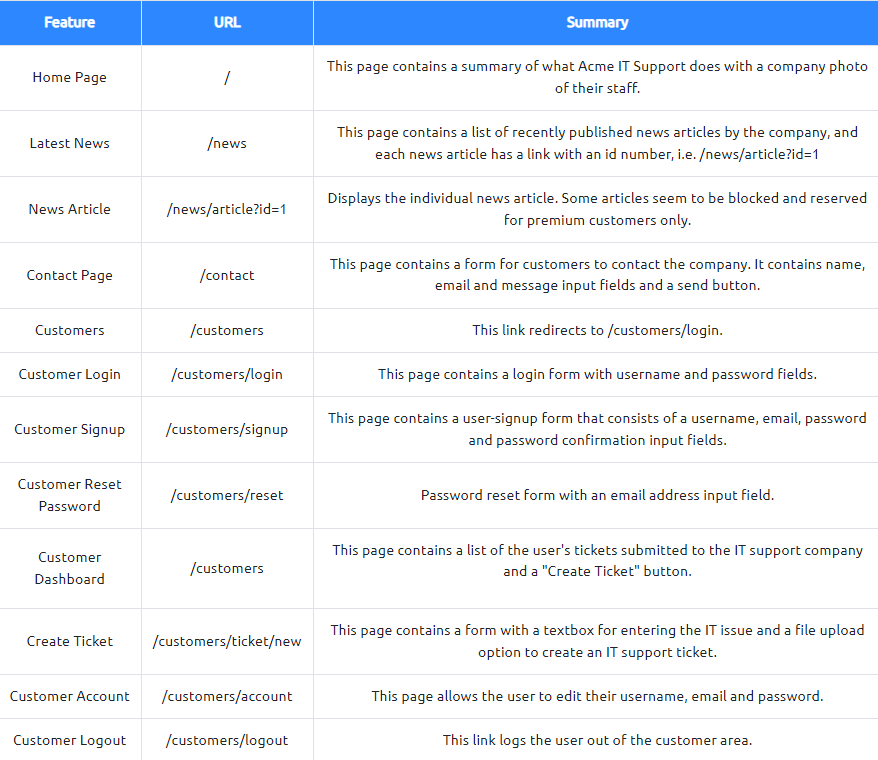
<p>An example site review for the Acme IT Support website would look something like this:</p>

<p><img src="/blog/assets/img/walk-an-app02.png" alt="Walking An App" /></p>

<h2 id="tasks3-viewing-the-page-source">Tasks3: Viewing The Page Source</h2>
<p>The page source is the human-readable code returned to our browser/client from the web server each time we make a request.</p>

<p>The returned code is made up of HTML ( HyperText Markup Language), CSS ( Cascading Style Sheets ) and JavaScript, and it’s what tells our browser what content to display, how to show it and adds an element of interactivity with JavaScript.</p>

<p>For our purposes, viewing the page source can help us discover more information about the web application.</p>

<h4 id="how-do-i-view-the-page-source">How do I view the Page Source?</h4>
<hr />
<p>While viewing a website, you can right-click on the page, and you’ll see an option on the menu that says View Page Source.
Most browsers support putting view-source: in front of the URL for example, view-source:https://www.google.com/
In your browser menu, you’ll find an option to view the page source. This option can sometimes be in submenus such as developer tools or more tools.</p>

<h4 id="lets-view-some-page-source">Let’s view some Page Source!</h4>
<hr />
<p>Try viewing the page source of the home page of the Acme IT Support website. Unfortunately, explaining everything you can see here is well out of the scope of this room, and you’ll need to look into website design/development courses to understand it fully. What we can do, is pick out bits of information that are of importance to us.</p>

<p>At the top of the page, you’ll notice some code starting with <code class="language-plaintext highlighter-rouge">&lt;!-- and ending with --&gt;</code>these are comments. Comments are messages left by the website developer, usually to explain something in the code to other programmers or even notes/reminders for themselves. These comments don’t get displayed on the actual webpage. This comment describes how the homepage is temporary while a new one is in development. View the webpage in the comment to get your first flag.</p>

<p>Links to different pages in HTML are written in anchor tags ( these are HTML elements that start with &lt;a ), and the link that you’ll be directed to is stored in the href attribute.</p>

<hr />
<p>If you view further down the page source, there is a hidden link to a page starting with <code class="language-plaintext highlighter-rouge">"secr"</code>, view this link to get another flag. You obviously wouldn’t get a flag in a real-world situation, but you may discover some private area used by the business for storing <code class="language-plaintext highlighter-rouge">company/staff/customer</code> information.</p>

<p>External files such as <code class="language-plaintext highlighter-rouge">CSS, JavaScript and Images can be included using the HTML code</code>. In this example, you’ll notice that these files are all stored in the same directory. If you view this directory in your web browser, there is a configuration error. What should be displayed is either a blank page or a 403 Forbidden page with an error stating you don’t have access to the directory. Instead, the directory listing feature has been enabled, which in fact, lists every file in the directory. Sometimes this isn’t an issue, and all the files in the directory are safe to be viewed by the public, but in some instances, backup files, source code or other confidential information could be stored here. In this instance, we get a flag in the <code class="language-plaintext highlighter-rouge">flag.txt</code> file.</p>

<p>Many websites these days aren’t made from scratch and use what’s called a <code class="language-plaintext highlighter-rouge">framework</code>. A framework is a collection of premade code that easily allows a developer to include common features that a website would require, such as <code class="language-plaintext highlighter-rouge">blogs, user management, form processing, and much more, saving the developers hours or days of development.</code></p>

<p>Viewing the page source can often give us clues into whether a framework is in use and, if so, which framework and even what version. Knowing the framework and version can be a powerful find as there may be <code class="language-plaintext highlighter-rouge">public vulnerabilities</code> in the framework, and the website might not be using the most up to date version. At the bottom of the page, you’ll find a comment about the framework and version in use and a link to the framework’s website. Viewing the framework’s website, you’ll see that our website is, in fact, out of date. Read the update notice and use the information that you find to discover another flag.
Answer the questions below</p>

<p>What is the flag from the HTML comment?</p>
<div class="language-plaintext highlighter-rouge"><div class="highlight"><pre class="highlight"><code>view-source:https://10-10-185-187.p.thmlabs.com/new-home-beta

THM{HTML_COMMENTS_ARE_DANGEROUS}
</code></pre></div></div>

<p>What is the flag from the secret link?</p>
<div class="language-plaintext highlighter-rouge"><div class="highlight"><pre class="highlight"><code>view-source:https://10-10-185-187.p.thmlabs.com/secret-page
</code></pre></div></div>

<p>What is the directory listing flag?</p>
<div class="language-plaintext highlighter-rouge"><div class="highlight"><pre class="highlight"><code>view-source:http://10-10-185-187.p.thmlabs.com/assets/flag.txt

THM{INVALID_DIRECTORY_PERMISSIONS}
</code></pre></div></div>

<p>What is the framework flag?</p>
<div class="language-plaintext highlighter-rouge"><div class="highlight"><pre class="highlight"><code>view-source:https://10-10-185-187.p.thmlabs.com/tmp.zip

THM{KEEP_YOUR_SOFTWARE_UPDATED}
</code></pre></div></div>

<h2 id="task4-developer-tools---inspector">Task4: Developer Tools - Inspector</h2>

<h4 id="developer-tools">Developer Tools</h4>

<p>Every modern browser includes developer tools; this is a tool kit used to aid web developers in debugging web applications and gives you a peek under the hood of a website to see what is going on. As a pentester, we can leverage these tools to provide us with a much better understanding of the web application. We’re specifically focusing on three features of the developer tool kit, Inspector, Debugger and Network.</p>

<h4 id="opening-developer-tools">Opening Developer Tools</h4>
<p>The way to access developer tools is different for every browser. If you’re not sure how to access it, click the “View Site” button on the top right of this task to get instructions to how to access the tools for your browser.</p>

<h4 id="inspector">Inspector</h4>
<p>The page source doesn’t always represent what’s shown on a webpage; this is because CSS, JavaScript and user interaction can change the content and style of the page, which means we need a way to view what’s been displayed in the browser window at this exact time. Element inspector assists us with this by providing us with a live representation of what is currently on the website.</p>

<p>As well as viewing this live view, we can also edit and interact with the page elements, which is helpful for web developers to debug issues.</p>

<p>On the Acme IT Support website, click into the news section, where you’ll see three news articles.</p>

<p>The first two articles are readable, but the third has been blocked with a floating notice above the content stating you have to be a premium customer to view the article. These floating boxes blocking the page contents are often referred to as paywalls as they put up a metaphorical wall in front of the content you wish to see until you pay.</p>

<p>Right-clicking on the premium notice ( paywall ), you should be able to select the Inspect option from the menu, which opens the developer tools either on the bottom or right-hand side depending on your browser or preferences. You’ll now see the elements/HTML that make up the website ( similar to the screenshots below ).</p>

<p><img src="/blog/assets/img/walk-an-app02.png" alt="Tools" /></p>

<p>Locate the <code class="language-plaintext highlighter-rouge">DIV element</code> with the class premium-customer-blocker and click on it. You’ll see all the CSS styles in the styles box that apply to this element, such as margin-top: 60px and text-align: center. The style we’re interested in is the display: block. If you click on the word block, you can type a value of your own choice. Try typing none, and this will make the box disappear, revealing the content underneath it and a flag. If the element didn’t have a display field, you could click below the last style and add in your own. Have a play with the element inspector, and you’ll see you can change any of the information on the website, including the content. Remember this is only edited on your browser window, and when you press refresh, everything will be back to normal.</p>

<p>What is the flag behind the paywall?</p>
<div class="language-plaintext highlighter-rouge"><div class="highlight"><pre class="highlight"><code>
![Hidden in CSS](/blog/assets/img/walk-an-app04.png)

THM{not_so_hidden}

</code></pre></div></div>

<h2 id="task5-developer-tools---debugger">Task5: Developer Tools - Debugger</h2>
<h4 id="developer-tools---debugger">Developer Tools - Debugger</h4>

<p>This panel in the developer tools is intended for debugging JavaScript, and again is an excellent feature for web developers wanting to work out why something might not be working. But as penetration testers, it gives us the option of digging deep into the JavaScript code.</p>

<p>In <code class="language-plaintext highlighter-rouge">Firefox and Safari</code>, this feature is called <code class="language-plaintext highlighter-rouge">Debugger</code>, but in <code class="language-plaintext highlighter-rouge">Google Chrome</code>, it’s called <code class="language-plaintext highlighter-rouge">Sources</code>.</p>

<p>On the Acme IT Support website, click on the contact page, each time the page is loaded, you might notice a <code class="language-plaintext highlighter-rouge">rapid flash of red</code> on the screen. We’re going to use the Debugger to work out what this red flash is and if it contains anything interesting. Debugging a red dot wouldn’t be something you’d do in the real world as a penetration tester, but it does allow us to use this feature and get used to the Debugger.</p>

<p>In both browsers, on the left-hand side, you see a list of all the resources the current webpage is using. If you click into the assets folder, you’ll see a file named flash.min.js. Clicking on this file displays the contents of the JavaScript file.</p>

<p>Many times when viewing javascript files, you’ll notice that everything is on one line, which is because it has been minimised, which means all formatting ( tabs, spacing and newlines ) have been removed to make the file smaller. This file is no exception to this, and it has also been obfusticated, which makes it purposely difficult to read, so it can’t be copied as easily by other developers.</p>

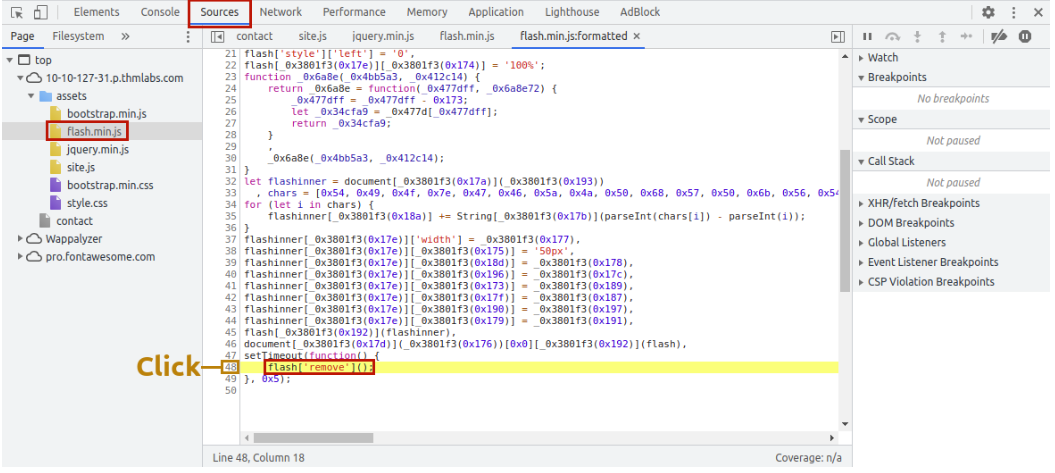
<p>We can return some of the formattings by using the “Pretty Print” option, which looks like two braces { } to make it a little more readable, although due to the obfustication, it’s still difficult to comprehend what is going on with the file. If you scroll to the bottom of the flash.min.js file, you’ll see the line: <code class="language-plaintext highlighter-rouge">flash['remove']();</code></p>

<p><img src="/blog/assets/img/walk-an-app05.png" alt="Tools" /></p>

<p>This little bit of JavaScript is what is removing the red popup from the page. We can utilise another feature of <code class="language-plaintext highlighter-rouge">debugger</code> called <code class="language-plaintext highlighter-rouge">breakpoints</code>. These are points in the code that we can force the browser to <code class="language-plaintext highlighter-rouge">stop processing the JavaScript and pause the current execution</code>.</p>

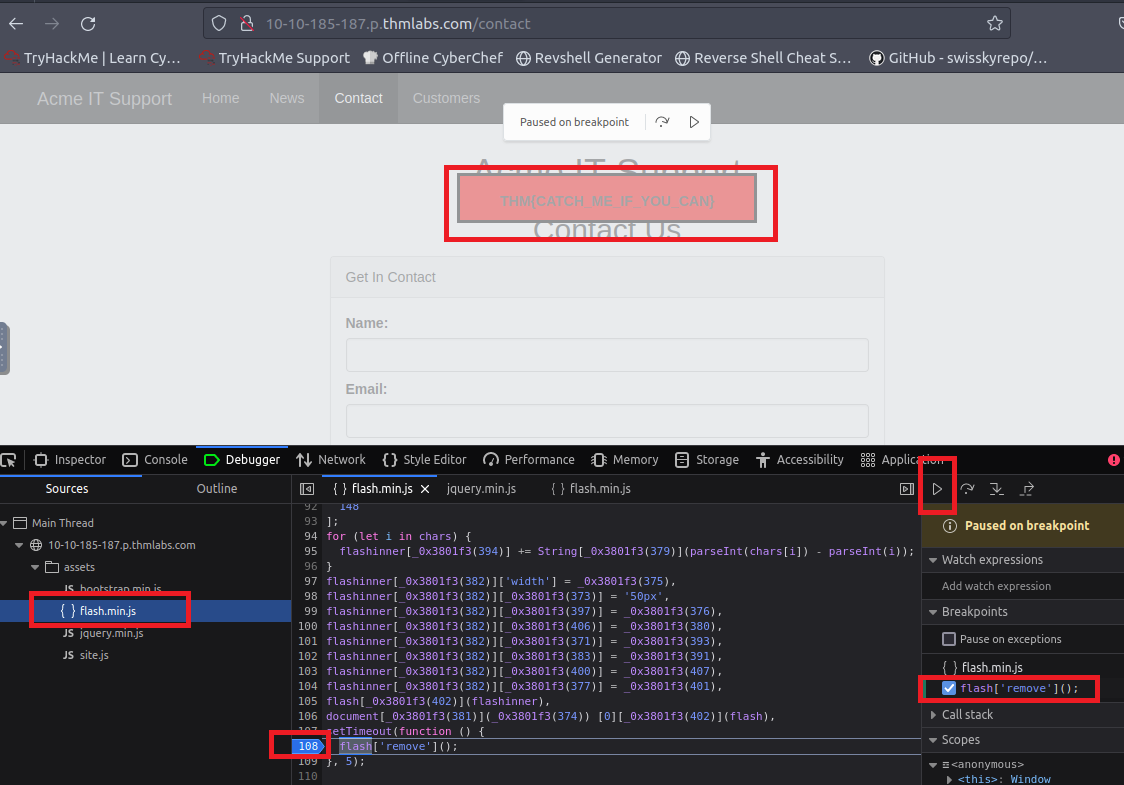
<p>If you click the line number that contains the above code, you’ll notice it turns blue; you’ve now inserted a breakpoint on this line. Now try refreshing the page, and you’ll notice the red box stays on the page instead of disappearing, and it contains a flag.</p>

<p>What is the flag in the red box?
<img src="/blog/assets/img/walk-an-app06.png" alt="Tools" /></p>
<div class="language-plaintext highlighter-rouge"><div class="highlight"><pre class="highlight"><code>THM{catch_Me_If_you_can}
</code></pre></div></div>

<h2 id="task6-developer-tools---network">Task6: Developer Tools - Network</h2>
<h4 id="developer-tools---network">Developer Tools - Network</h4>

<p>The network tab on the developer tools can be used to keep track of every external request a webpage makes. If you click on the Network tab and then refresh the page, you’ll see all the files the page is requesting.</p>

<p>Try doing this on the contact page; you can press the trash can icon to delete the list if it gets a bit overpopulated.</p>

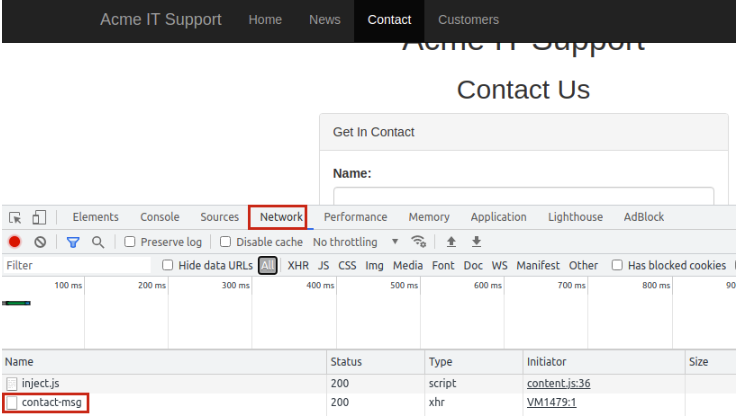
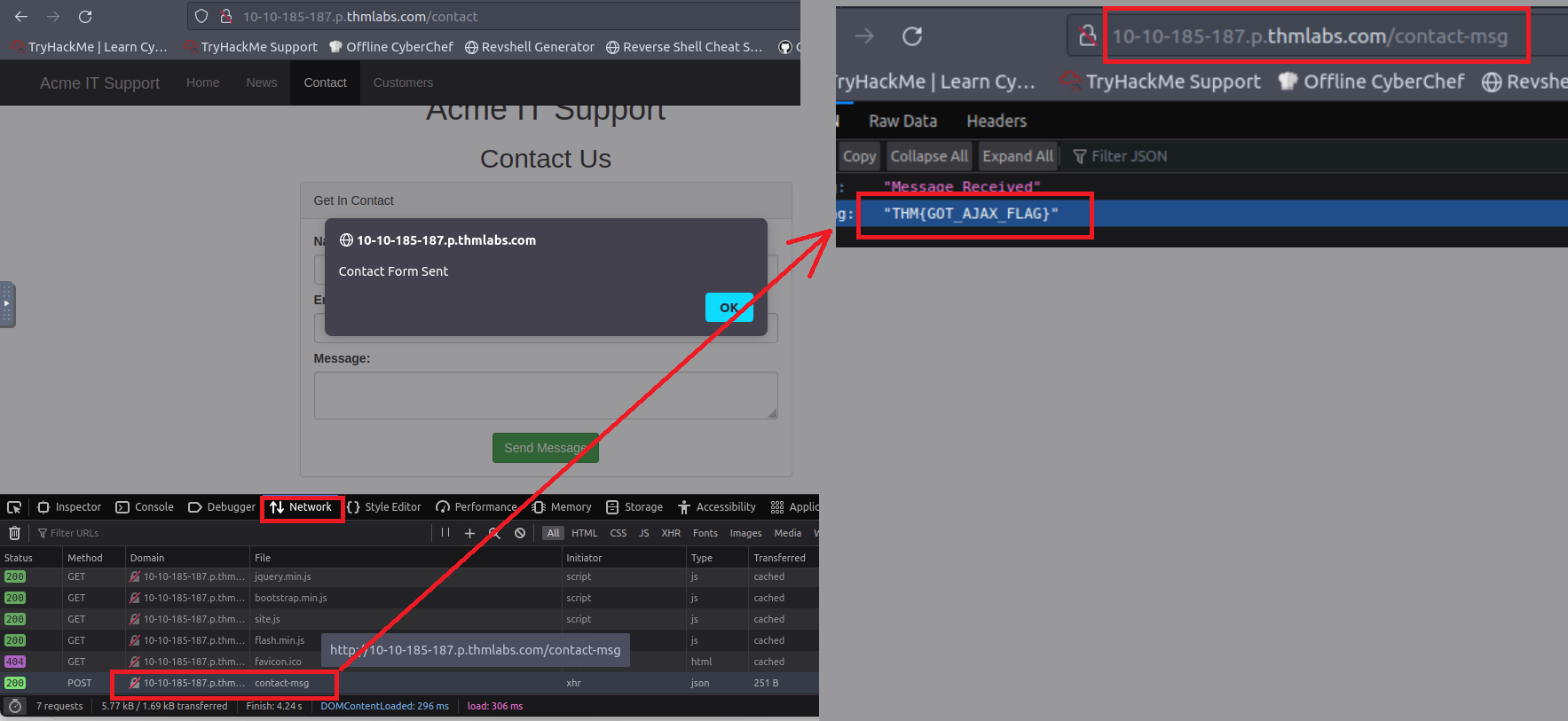
<p>With the network tab open, try filling in the contact form and pressing the Send Message button. You’ll notice an event in the network tab, and this is the form being submitted in the background using a method called AJAX. AJAX is a method for sending and receiving network data in a web application background without interfering by changing the current web page.</p>

<p><img src="/blog/assets/img/walk-an-app07.png" alt="Tools" /></p>

<p>What is the flag shown on the contact-msg network request?</p>

<p><img src="/blog/assets/img/walk-an-app08.png" alt="Tools" /></p>

<div class="language-plaintext highlighter-rouge"><div class="highlight"><pre class="highlight"><code>THM{Got_AJAX_FLAG}
</code></pre></div></div>]]></content><author><name></name></author><summary type="html"><![CDATA[Ref: THM Walking An Application:]]></summary><media:thumbnail xmlns:media="http://search.yahoo.com/mrss/" url="https://szehoyeu.github.io/blog/blog/assets/img/walk-an-app.png" /><media:content medium="image" url="https://szehoyeu.github.io/blog/blog/assets/img/walk-an-app.png" xmlns:media="http://search.yahoo.com/mrss/" /></entry><entry><title type="html">THM: Careers in Cyber</title><link href="https://szehoyeu.github.io/blog/blue/2024/02/14/Career-in-Cyber.html" rel="alternate" type="text/html" title="THM: Careers in Cyber" /><published>2024-02-14T18:00:00+00:00</published><updated>2024-02-14T18:00:00+00:00</updated><id>https://szehoyeu.github.io/blog/blue/2024/02/14/Career-in-Cyber</id><content type="html" xml:base="https://szehoyeu.github.io/blog/blue/2024/02/14/Career-in-Cyber.html"><![CDATA[<p>Ref:</p>
<ul>
  <li><a href="https://tryhackme.com/room/careersincyber?path=undefined">THM Careers in Cyber:</a></li>
</ul>

<hr />

<h2 id="task1-introduction">Task1: Introduction</h2>

<p>Cyber security careers are becoming more in demand and offer high salaries. There are many different jobs within the security industry, from offensive pentesting (hacking machines and reporting on vulnerabilities) to defensive security (defending against and investigating cyberattacks).</p>

<p>Why get a career in cyber:</p>

<ol>
  <li>High Pay - jobs in security have high starting salaries</li>
  <li>Exciting - work can include legally hacking systems or defending against cyber attacks</li>
  <li>Be in demand - there are over 3.5 million unfilled cyber positions</li>
</ol>

<p>This room helps you break into cyber security by providing information about various cyber security roles; it also links to different learning paths that you can use to start building your cyber skills.</p>

<h2 id="task2-security-analyst">Task2: Security Analyst</h2>
<p>Responsible for maintaining the security of an organisation’s data</p>

<p>Security analysts are integral to constructing security measures across organisations to protect the company from attacks. Analysts explore and evaluate company networks to uncover actionable data and recommendations for engineers to develop preventative measures. This job role requires working with various stakeholders to gain an understanding of security requirements and the security landscape.</p>

<h4 id="responsibilities">Responsibilities</h4>
<p>Working with various stakeholders to analyse the cyber security throughout the company
Compile ongoing reports about the safety of networks, documenting security issues and measures taken in response
Develop security plans, incorporating research on new attack tools and trends, and measures needed across teams to maintain data security.</p>
<h4 id="learning-paths">Learning Paths</h4>
<p>TryHackMe’s learning paths will give you both the fundamental technical knowledge and hands-on experience, which is crucial to becoming a successful Security Analyst.</p>

<ul>
  <li>
    <p><a href="https://tryhackme.com/path/outline/introtocyber">Introduction to Cyber Security</a></p>
  </li>
  <li>
    <p><a href="https://tryhackme.com/path/outline/presecurity/">Pre Security</a></p>
  </li>
  <li>
    <p><a href="https://tryhackme.com/path/outline/soclevel1">SOC Level</a></p>
  </li>
</ul>

<h2 id="task3-security-engineer">Task3: Security Engineer</h2>
<p>Design, monitor and maintain security controls, networks, and systems to help prevent cyberattacks</p>

<p>Security engineers develop and implement security solutions using threats and vulnerability data - often sourced from members of the security workforce. Security engineers work across circumventing a breadth of attacks, including web application attacks, network threats, and evolving trends and tactics. The ultimate goal is to retain and adopt security measures to mitigate the risk of attack and data loss.</p>

<h4 id="responsibilities-1">Responsibilities</h4>
<p>Testing and screening security measures across software
Monitor networks and reports to update systems and mitigate vulnerabilities
Identify and implement systems needed for optimal security</p>
<h4 id="learning-paths-1">Learning Paths</h4>
<p>TryHackMe’s learning paths will give you both the fundamental technical knowledge and hands-on experience, which is crucial to becoming a successful Security Engineer.</p>

<ul>
  <li><a href="https://tryhackme.com/path/outline/soclevel1">SOC Level 1</a></li>
  <li><a href="https://tryhackme.com/path/outline/jrpenetrationtester">JR Penetration Tester</a></li>
  <li><a href="https://tryhackme.com/path/outline/pentesting">Offensive Pentesting</a></li>
</ul>

<h2 id="task4-incident-responder">Task4: Incident responder</h2>
<p>Identifies and mitigates attacks whilst an attackers operations are still unfolding</p>

<p>Incident responders respond productively and efficiently to security breaches. Responsibilities include creating plans, policies, and protocols for organisations to enact during and following incidents. This is often a highly pressurised position with assessments and responses required in real-time, as attacks are unfolding. Incident response metrics include MTTD, MTTA, and MTTR - the meantime to detect, acknowledge, and recover (from attacks.) The aim is to achieve a swift and effective response, retain financial standing and avoid negative breach implications. Ultimately, incident responders protect the company’s data, reputation, and financial standing from cyber attacks.</p>

<h4 id="responsibilities-2">Responsibilities</h4>
<ul>
  <li>Developing and adopting a thorough, actionable incident response plan</li>
  <li>Maintaining strong security best practices and supporting incident response measures</li>
  <li>Post-incident reporting and preparation for future attacks, considering learnings and adaptations to take from incidents
    <h4 id="learning-paths-2">Learning Paths</h4>
    <p>TryHackMe’s learning paths will give you both the fundamental technical knowledge and hands-on experience, which is crucial to becoming a successful Incident Responder.</p>
  </li>
  <li><a href="https://tryhackme.com/path/outline/soclevel1">SOC Level 1</a></li>
</ul>

<h2 id="task5-digital-forensics-examiner">Task5: Digital Forensics Examiner</h2>
<p>Responsible for using digital forensics to investigate incidents and crimes</p>

<p>If you like to play detective, this might be the perfect job. If you are working as part of a law-enforcement department, you would be focused on collecting and analysing evidence to help solve crimes: charging the guilty and exonerating the innocent. On the other hand, if your work falls under defending a company’s network, you will be using your forensic skills to analyse incidents, such as policy violations.</p>

<h4 id="responsibilities-3">Responsibilities</h4>
<ul>
  <li>Collect digital evidence while observing legal procedures</li>
  <li>Analyse digital evidence to find answers related to the case</li>
  <li>Document your findings and report on the case</li>
</ul>

<h2 id="task6-malware-analyst">Task6: Malware Analyst</h2>
<p>Analyses all types of malware to learn more about how they work and what they do</p>

<p>A malware analyst’s work involves analysing suspicious programs, discovering what they do and writing reports about their findings. A malware analyst is sometimes called a <code class="language-plaintext highlighter-rouge">reverse-engineer</code> as their core task revolves around converting compiled programs from machine language to readable code, usually in a low-level language. This work requires the malware analyst to have a <code class="language-plaintext highlighter-rouge">strong programming background</code>`, especially in low-level languages such as assembly language and C language. The ultimate goal is to learn about all the activities that a malicious program carries out, find out how to detect it and report it.</p>

<h4 id="responsibilities-4">Responsibilities</h4>
<ul>
  <li>Carry out static analysis of malicious programs, which entails reverse-engineering</li>
  <li>Conduct dynamic analysis of malware samples by observing their activities in a controlled environment</li>
  <li>Document and report all the findings</li>
</ul>

<h2 id="task7-penetration-tester">Task7: Penetration Tester</h2>
<p>Responsible for testing technology products for security loopholes</p>

<p>You may see penetration testing referred to as pentesting and ethical hacking. A penetration tester’s job role is to test the security of the systems and software within a company - this is achieved through attempts to uncover flaws and vulnerabilities through systemised hacking. Penetration testers exploit these vulnerabilities to evaluate the risk in each instance. The company can then take these insights to rectify issues to prevent a real-world cyberattack.</p>

<h4 id="responsibilities-5">Responsibilities</h4>
<p>Conduct tests on computer systems, networks, and web-based applications
Perform security assessments, audits, and analyse policies
Evaluate and report on insights, recommending actions for attack prevention</p>
<h4 id="learning-paths-3">Learning Paths</h4>
<p>TryHackMe’s learning paths will give you both the fundamental technical knowledge and hands-on experience, which is crucial to becoming a successful Penetration Tester.</p>

<ul>
  <li><a href="https://tryhackme.com/path/outline/jrpenetrationtester">JR Penetration Tester</a></li>
  <li><a href="https://tryhackme.com/path/outline/pentesting">Offensive Pentesting</a></li>
</ul>

<h2 id="task8-red-teamer">Task8: Red Teamer</h2>
<p>Plays the role of an adversary, attacking an organisation and providing feedback from an enemies perspective</p>

<p>Red teamers share similarities to penetration testers, with a more targeted job role. Penetration testers look to <code class="language-plaintext highlighter-rouge">uncover many vulnerabilities across systems to keep cyber-defence in good standing</code>, whilst red teamers are enacted to test the company’s detection and response capabilities. This job role requires imitating cyber criminals’ actions, emulating malicious attacks, retaining access, and avoiding detection. Red team assessments can run for up to a month, typically by <code class="language-plaintext highlighter-rouge">a team external to the company</code>. They are often best suited to organisations with mature security programs in place.</p>

<h4 id="responsibilities-6">Responsibilities</h4>
<p>Emulate the role of a threat actor to uncover exploitable vulnerabilities, maintain access and avoid detection
Assess organisations’ security controls, threat intelligence, and incident response procedures
Evaluate and report on insights, with actionable data for companies to avoid real-world instances</p>
<h4 id="learning-paths-4">Learning Paths</h4>
<p>TryHackMe’s learning paths will give you both the fundamental technical knowledge and hands-on experience, which is crucial to becoming a successful Red Teamer.</p>

<ul>
  <li><a href="https://tryhackme.com/path/outline/jrpenetrationtester">JR Penetration Tester</a></li>
  <li><a href="https://tryhackme.com/path/outline/pentesting">Offensive Pentesting</a></li>
  <li><a href="https://tryhackme.com/path/outline/redteaming">Red Teamer</a></li>
</ul>

<p><a href="https://tryhackme.com/resources/blog/online-training-for-careers">Leverage online training to land your dream job</a></p>

<p>Security Analyst</p>]]></content><author><name></name></author><category term="Blue" /><summary type="html"><![CDATA[Ref: THM Careers in Cyber:]]></summary><media:thumbnail xmlns:media="http://search.yahoo.com/mrss/" url="https://szehoyeu.github.io/blog/blog/assets/img/careers-in-cyber-hdr.png" /><media:content medium="image" url="https://szehoyeu.github.io/blog/blog/assets/img/careers-in-cyber-hdr.png" xmlns:media="http://search.yahoo.com/mrss/" /></entry><entry><title type="html">THM: Intro to Defensive Security</title><link href="https://szehoyeu.github.io/blog/blue/2024/02/14/Intro-To-Defensive-Security.html" rel="alternate" type="text/html" title="THM: Intro to Defensive Security" /><published>2024-02-14T18:00:00+00:00</published><updated>2024-02-14T18:00:00+00:00</updated><id>https://szehoyeu.github.io/blog/blue/2024/02/14/Intro-To-Defensive-Security</id><content type="html" xml:base="https://szehoyeu.github.io/blog/blue/2024/02/14/Intro-To-Defensive-Security.html"><![CDATA[<p>Ref:</p>
<ul>
  <li><a href="https://tryhackme.com/room/defensivesecurity">THM Intro to Defensive Security:</a></li>
</ul>

<hr />

<h1 id="task1-introduction-to-defensive-security">Task1: Introduction to Defensive Security</h1>

<p>Offensive security focuses on one thing: breaking into systems. Breaking into systems might be achieved through exploiting bugs, abusing insecure setups, and taking advantage of unenforced access control policies, among other things. Red teams and penetration testers specialize in offensive security.</p>

<p>Defensive security is somewhat the opposite of offensive security, as it is concerned with two main tasks:</p>

<ul>
  <li>Preventing intrusions from occurring</li>
  <li>Detecting intrusions when they occur and responding properly</li>
</ul>

<p><code class="language-plaintext highlighter-rouge">Blue teams</code> are part of the defensive security landscape.</p>

<hr />

<p>Some of the tasks that are related to defensive security include:</p>

<ul>
  <li>User cyber security awareness: Training users about cyber security helps protect against various attacks that target their systems.</li>
  <li>Documenting and managing assets: We need to know the types of systems and devices that we have to manage and protect properly.</li>
  <li>Updating and patching systems: Ensuring that computers, servers, and network devices are correctly updated and patched against any known vulnerability (weakness).</li>
  <li>Setting up preventative security devices: firewall and intrusion prevention systems (IPS) are critical components of preventative security. Firewalls control what network traffic can go inside and what can leave the system or network. IPS blocks any network traffic that matches present rules and attack signatures.</li>
  <li>Setting up logging and monitoring devices: Without proper logging and monitoring of the network, it won’t be possible to detect malicious activities and intrusions. If a new unauthorized device appears on our network, we should be able to know.
There is much more to defensive security, and the list above only covers a few common topics.</li>
</ul>

<hr />

<p>In this room, we cover:</p>
<ul>
  <li>Security Operations Center (SOC)</li>
  <li>Threat Intelligence</li>
  <li>Digital Forensics and Incident Response (DFIR)</li>
  <li>Malware Analysis</li>
</ul>

<p>Which team focuses on defensive security?</p>
<div class="language-plaintext highlighter-rouge"><div class="highlight"><pre class="highlight"><code>Blue Team
</code></pre></div></div>

<h1 id="task2-areas-of-defensive-security">Task2: Areas of Defensive Security</h1>
<p>Two main topics related to defensive security:</p>

<ul>
  <li>Security Operations Center (SOC), where we cover Threat Intelligence</li>
  <li>Digital Forensics and Incident Response (DFIR), where we also cover Malware Analysis</li>
</ul>

<h2 id="security-operations-center-soc">Security Operations Center (SOC)</h2>
<p>A Security Operations Center (SOC) is a team of cyber security professionals that monitors the network and its systems to detect malicious cyber security events. Some of the main areas of interest for a SOC are:</p>

<h3 id="vulnerabilities">Vulnerabilities:</h3>
<p>Whenever a system vulnerability (weakness) is discovered, it is essential to fix it by installing a proper update or patch. When a fix is not available, the necessary measures should be taken to prevent an attacker from exploiting it. Although remediating vulnerabilities is of vital interest to a SOC, it is not necessarily assigned to them.</p>

<h3 id="policy-violations">Policy violations:</h3>
<p>We can think of a security policy as a set of rules required for the protection of the network and systems. For example, it might be a policy violation if users start uploading confidential company data to an online storage service.
Unauthorized activity: Consider the case where a user’s login name and password are stolen, and the attacker uses them to log into the network. A SOC needs to detect such an event and block it as soon as possible before further damage is done.
Network intrusions: No matter how good your security is, there is always a chance for an intrusion. An intrusion can occur when a user clicks on a malicious link or when an attacker exploits a public server. Either way, when an intrusion occurs, we must detect it as soon as possible to prevent further damage.</p>

<p>Security operations cover various tasks to ensure protection; one such task is threat intelligence.</p>

<h3 id="threat-intelligence">Threat Intelligence</h3>
<p>In this context, intelligence refers to information you gather about actual and potential enemies. A threat is any action that can disrupt or adversely affect a system. Threat intelligence <code class="language-plaintext highlighter-rouge">aims to gather information to help the company better prepare against potential adversaries</code>. The purpose would be to achieve a threat-informed defense. Different companies have different adversaries. Some adversaries might seek to steal customer data from a mobile operator; however, other adversaries are interested in halting the production in a petroleum refinery.</p>

<p>Example adversaries include a nation-state cyber army working for political reasons and a ransomware group acting for financial purposes. Based on the company (target), we can expect adversaries.</p>

<p>Intelligence needs data. Data has to be collected, processed, and analyzed. Data collection is done from local sources such as network logs and public sources such as forums. <code class="language-plaintext highlighter-rouge">Processing of data aims to arrange them into a format suitable for analysis.</code> The analysis phase seeks to find more information about the attackers and their motives; moreover, it aims to create a list of recommendations and actionable steps.</p>

<p><code class="language-plaintext highlighter-rouge">Learning about your adversaries allows you to know their tactics, techniques, and procedures.</code> As a result of threat intelligence, we identify the <code class="language-plaintext highlighter-rouge">threat actor (adversary)</code>, predict their activity, and consequently, we will be able to mitigate their attacks and prepare a response strategy.</p>

<h3 id="digital-forensics-and-incident-response-dfir">Digital Forensics and Incident Response (DFIR)</h3>
<p>This section is about Digital Forensics and Incident Response (DFIR), and we will cover:</p>

<ul>
  <li>Digital Forensics</li>
  <li>Incident Response</li>
  <li>Malware Analysis</li>
</ul>

<h3 id="digital-forensics">Digital Forensics</h3>
<p>Forensics is the application of science to investigate crimes and establish facts. With the use and spread of digital systems, such as computers and smartphones, a new branch of forensics was born to investigate related crimes: computer forensics, which later evolved into, digital forensics.</p>

<p>In defensive security, the focus of digital forensics <code class="language-plaintext highlighter-rouge">shifts to analyzing evidence of an attack</code> and its perpetrators and other areas such as intellectual property theft, cyber espionage, and possession of unauthorized content.</p>

<p>Consequently, digital forensics will focus on different areas such as:</p>

<h4 id="file-system">File System:</h4>
<p>Analyzing a digital forensics image (low-level copy) of a system’s storage reveals much information, such as installed programs, created files, partially overwritten files, and deleted files.</p>
<h4 id="system-memory">System memory:</h4>
<p>If the attacker is running their malicious program in memory without saving it to the disk, taking a forensic image (low-level copy) of the system memory is the best way to analyze its contents and learn about the attack.</p>

<h4 id="system-logs">System logs:</h4>
<p>Each client and server computer maintains different log files about what is happening. Log files provide plenty of information about what happened on a system. Some traces will be left even if the attacker tries to clear their traces.</p>

<h4 id="network-logs">Network logs:</h4>
<p>Logs of the network packets that have traversed a network would help answer more questions about whether an attack is occurring and what it entails.</p>

<h2 id="incident-response">Incident Response</h2>
<p>An incident usually refers to a data breach or cyber attack; however, in some cases, it can be something less critical, such as a misconfiguration, an intrusion attempt, or a policy violation.</p>

<p>Examples of a cyber attack include an attacker making our network or systems inaccessible, defacing (changing) the public website, and data breach (stealing company data). How would you respond to a cyber attack?</p>

<p>Incident response specifies the methodology that should be followed to handle such a case. The aim is to reduce damage and recover in the shortest time possible. Ideally, you would develop a plan ready for incident response.</p>

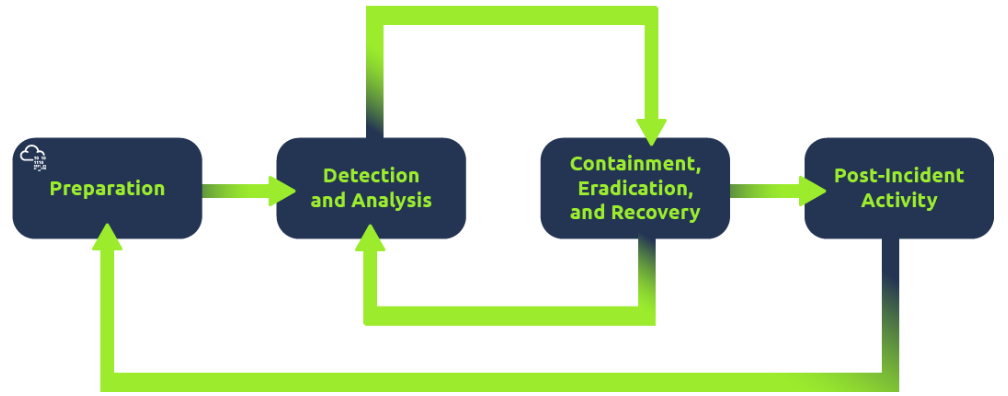
<p>The four major phases of the incident response process are:</p>

<ol>
  <li>
    <p>Preparation: This requires a team trained and ready to handle incidents. Ideally, various measures are put in place to prevent incidents from happening in the first place.</p>
  </li>
  <li>
    <p>Detection and Analysis: The team has the necessary resources to detect any incident; moreover, it is essential to further analyze any detected incident to learn about its severity.</p>
  </li>
  <li>
    <p>Containment, Eradication, and Recovery: Once an incident is detected, it is crucial to stop it from affecting other systems, eliminate it, and recover the affected systems. For instance, when we notice that a system is infected with a computer virus, we would like to stop (contain) the virus from spreading to other systems, clean (eradicate) the virus, and ensure proper system recovery.</p>
  </li>
  <li>
    <p>Post-Incident Activity: After successful recovery, a report is produced, and the learned lesson is shared to prevent similar future incidents.</p>
  </li>
</ol>

<p><img src="/blog/assets/img/incident-response.png" alt="Incident Response" /></p>

<h3 id="malware-analysis">Malware Analysis</h3>
<p><code class="language-plaintext highlighter-rouge">Malware</code> stands for <code class="language-plaintext highlighter-rouge">malicious software</code>. Software refers to programs, documents, and files that you can save on a disk or send over the network. Malware includes many types, such as:</p>

<p><code class="language-plaintext highlighter-rouge">Virus</code> is a piece of code (part of a program) that attaches itself to a program. It is designed to spread from one computer to another; moreover, it works by altering, overwriting, and deleting files once it infects a computer. The result ranges from the computer becoming slow to unusable.</p>

<p><code class="language-plaintext highlighter-rouge">Trojan Horse</code> is a program that shows one desirable function but hides a malicious function underneath. For example, a victim might download a video player from a shady website that gives the attacker complete control over their system.</p>

<p><code class="language-plaintext highlighter-rouge">Ransomware</code> is a malicious program that encrypts the user’s files. Encryption makes the files unreadable without knowing the encryption password. The attacker offers the user the encryption password if the user is willing to pay a “ransom.”</p>

<p>Malware analysis aims to learn about such malicious programs using various means:</p>

<ul>
  <li>
    <p><code class="language-plaintext highlighter-rouge">Static analysis</code> works by inspecting the malicious program <code class="language-plaintext highlighter-rouge">without</code> running it. Usually, this requires solid knowledge of assembly language (processor’s instruction set, i.e., computer’s fundamental instructions).</p>
  </li>
  <li>
    <p><code class="language-plaintext highlighter-rouge">Dynamic analysis</code> works by <code class="language-plaintext highlighter-rouge">running the malware in a controlled environment and monitoring</code> its activities. It lets you observe how the malware behaves when running.</p>
  </li>
</ul>

<p>What would you call a team of cyber security professionals that monitors a network and its systems for malicious events?</p>
<div class="language-plaintext highlighter-rouge"><div class="highlight"><pre class="highlight"><code>security operation center
</code></pre></div></div>

<p>What does DFIR stand for?</p>
<div class="language-plaintext highlighter-rouge"><div class="highlight"><pre class="highlight"><code>Digital Forensics and Incident Response
</code></pre></div></div>

<p>Which kind of malware requires the user to pay money to regain access to their files?</p>
<div class="language-plaintext highlighter-rouge"><div class="highlight"><pre class="highlight"><code>ransomware
</code></pre></div></div>

<h1 id="task3-practical-example-of-defensive-security">Task3: Practical Example of Defensive Security</h1>

<p>You are part of a Security Operations Center (SOC) responsible for protecting a bank. This bank’s SOC uses a <code class="language-plaintext highlighter-rouge">Security Information and Event Management (SIEM)</code> system. A SIEM gathers security-related information and events from various sources and presents them via one system.</p>

<p>For instance, you would be notified if there is a failed login attempt or a login attempt from an unexpected geographic location. Moreover, with the advent of machine learning, a SIEM might detect unusual behavior, such as a user logging in at 3 AM when he usually logs in only during work hours.</p>

<p>In this exercise, we will interact with a SIEM to monitor the different events on our network and systems in real-time. Some of the events are typical and harmless; others might require further intervention from us. Find the event flagged in red, take note of it, and click on it for further inspection.</p>

<p>Next, we want to learn more about the suspicious activity or event. The suspicious event might have been triggered by an event, such as a local user, a local computer, or a remote IP address. To send and receive postal mail, you need a physical address; similarly, you need an IP address to send and receive data over the Internet. An IP address is a logical address that allows you to communicate over the Internet. We inspect the cause of the trigger to confirm whether the event is indeed malicious. If it is malicious, we need to take due action, such as reporting to someone else in the SOC and blocking the IP address.</p>

<p>What is the flag that you obtained by following along?</p>
<div class="language-plaintext highlighter-rouge"><div class="highlight"><pre class="highlight"><code>THM{Threat-Blocked}
</code></pre></div></div>]]></content><author><name></name></author><category term="Blue" /><summary type="html"><![CDATA[Ref: THM Intro to Defensive Security:]]></summary><media:thumbnail xmlns:media="http://search.yahoo.com/mrss/" url="https://szehoyeu.github.io/blog/blog/assets/img/defender-Sec-hdr.png" /><media:content medium="image" url="https://szehoyeu.github.io/blog/blog/assets/img/defender-Sec-hdr.png" xmlns:media="http://search.yahoo.com/mrss/" /></entry><entry><title type="html">THM: Principle of Security</title><link href="https://szehoyeu.github.io/blog/blue/2024/02/14/Principles-of-Security.html" rel="alternate" type="text/html" title="THM: Principle of Security" /><published>2024-02-14T18:00:00+00:00</published><updated>2024-02-14T18:00:00+00:00</updated><id>https://szehoyeu.github.io/blog/blue/2024/02/14/Principles-of-Security</id><content type="html" xml:base="https://szehoyeu.github.io/blog/blue/2024/02/14/Principles-of-Security.html"><![CDATA[<p>Ref:</p>
<ul>
  <li><a href="https://tryhackme.com/room/principlesofsecurity?path=undefined">THM Principle of Security Security:</a></li>
</ul>

<hr />

<h2 id="task1-introduction">Task1: Introduction</h2>

<p>The frameworks used to protect data and systems to the elements of what exactly makes data secure.</p>

<p>The measures, frameworks and protocols discussed throughout this room all play a small part in “Defence in Depth.”</p>

<p>Defence in Depth is the use of multiple varied layers of security to an organisation’s systems and data in the hopes that multiple layers will provide redundancy in an organisation’s security perimeter.</p>

<h2 id="task2-cia-triad">Task2: CIA Triad</h2>
<p>The CIA triad is an information security model that is used in consideration throughout creating a security policy. This model has an extensive background, ranging from being used in 1998.</p>

<p>This history is because the security of information (information security) does not start and/or end with cybersecurity, but instead, applies to scenarios like filing, record storage, etc.</p>

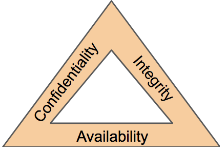
<p>Consisting of three sections: <code class="language-plaintext highlighter-rouge">C</code>onfidentiality, <code class="language-plaintext highlighter-rouge">I</code>ntegrity and <code class="language-plaintext highlighter-rouge">A</code>vailability (CIA), this model has quickly become an industry standard today. This model should help determine the value of data that it applies to, and in turn, the attention it needs from the business.</p>

<p><img src="/blog/assets/img/CIA.png" alt="CIA" /></p>

<p>The CIA triad is unlike a traditional model where you have individual sections; instead, it is a continuous cycle. Whilst the three elements to the CIA triad can arguably overlap, if even just one element is not met, then the other two are rendered useless (similar to the fire triangle). If a security policy does not answer these three sections, it is seldom an effective security policy.</p>

<p>Whilst the three elements to the CIA triad are arguably self-explanatory, let’s explore these and contextualise them into cybersecurity.</p>

<h4 id="confidentiality">Confidentiality</h4>

<p>This element is the protection of data from unauthorized access and misuse. Organisations will always have some form of sensitive data stored on their systems. To provide confidentiality is to protect this data from parties that it is not intended for.</p>

<p>There are many real-world examples for this, for example, employee records and accounting documents will be considered sensitive. Confidentiality will be provided in the sense that only HR administrators will access employee records, where vetting and tight access controls are in place. Accounting records are less valuable (and therefore less sensitive), so not as stringent access controls would be in place for these documents. Or, for example, governments using a sensitivity classification rating system (top-secret, classified, unclassified)</p>

<h4 id="integrity">Integrity</h4>

<p>The CIA triad element of integrity is the condition where information is kept accurate and consistent unless authorized changes are made. It is possible for the information to change because of careless access and use, errors in the information system, or unauthorized access and use. In the CIA triad, integrity is maintained when the information remains unchanged during storage, transmission, and usage not involving modification to the information. Steps must be taken to ensure data cannot be altered by unauthorised people (for example, in a breach of confidentiality).</p>

<p>Many defences to ensure integrity can be put in place. Access control and rigorous authentication can help prevent authorized users from making unauthorized changes. <code class="language-plaintext highlighter-rouge">Hash verifications</code> and <code class="language-plaintext highlighter-rouge">digital signatures</code> can help ensure that transactions are authentic and that files have not been modified or corrupted.</p>

<h4 id="availability">Availability</h4>

<p>In order for data to be useful, it must be available and accessible by the user.</p>

<p>The main concern in the CIA triad is that the information should be available when authorised users need to access it.</p>

<p>Availability is very often a key benchmark for an organisation. For example, having 99.99% uptime on their websites or systems (this is laid out in Service Level Agreements). When a system is unavailable, it often results in damage to an organisations reputation and loss of finances. Availability is achieved through a combination of many elements, including:</p>

<ul>
  <li>
    <p>Having reliable and well-tested hardware for their information technology servers (i.e. reputable servers)</p>
  </li>
  <li>
    <p>Having redundant technology and services in the case of failure of the primary</p>
  </li>
  <li>
    <p>Implementing well-versed security protocols to protect technology and services from attack</p>
  </li>
</ul>

<p>What element of the CIA triad ensures that data cannot be altered by unauthorised people?</p>
<div class="language-plaintext highlighter-rouge"><div class="highlight"><pre class="highlight"><code>Integrity
</code></pre></div></div>

<p>What element of the CIA triad ensures that data is available?</p>
<div class="language-plaintext highlighter-rouge"><div class="highlight"><pre class="highlight"><code>Availability
</code></pre></div></div>
<p>What element of the CIA triad ensures that data is only accessed by authorised people?</p>
<div class="language-plaintext highlighter-rouge"><div class="highlight"><pre class="highlight"><code>Confidentiality
</code></pre></div></div>

<h2 id="task3-principles-of-privileges">Task3: Principles of Privileges</h2>
<p>It is vital to administrate and correctly define the various levels of access to an information technology system individuals require.</p>

<p>The levels of access given to individuals are determined on two primary factors:</p>

<ul>
  <li>The individual’s role/function within the organisation</li>
  <li>The sensitivity of the information being stored on the system</li>
</ul>

<p>Two key concepts are used to assign and manage the access rights of individuals, two key concepts are used: <code class="language-plaintext highlighter-rouge">Privileged Identity Management (PIM)</code> and <code class="language-plaintext highlighter-rouge">Privileged Access Management (or PAM for short)</code>.</p>

<p>Initially, these two concepts can seem to overlap; however, they are different from one another. PIM is used to translate a user’s role within an organisation into an access role on a system. Whereas PAM is the management of the privileges a system’s access role has, amongst other things.</p>

<p>What is essential when discussing privilege and access controls is the principle of least privilege. Simply, users should be given the minimum amount of privileges, and only those that are absolutely necessary for them to perform their duties. Other people should be able to trust what people write to.</p>

<p>As we previously mentioned, PAM incorporates more than assigning access. It also encompasses enforcing security policies such as password management, auditing policies and reducing the attack surface a system faces.</p>

<p>If you wanted to manage the privileges a system access role had, what methodology would you use?</p>
<div class="language-plaintext highlighter-rouge"><div class="highlight"><pre class="highlight"><code>PAM
</code></pre></div></div>

<p>If you wanted to create a system role that is based on a users role/responsibilities with an organisation, what methodology is this?</p>
<div class="language-plaintext highlighter-rouge"><div class="highlight"><pre class="highlight"><code>PIM
</code></pre></div></div>

<h2 id="task4-security-models-continued">Task4: Security Models Continued</h2>
<h4 id="cia-triad">CIA triad:</h4>
<p>Confidentiality, Integrity and Availability. We’ve previously outlined what these elements are and their importance. However, there is a formal way of achieving this.</p>

<p>According to a security model, any system or piece of technology storing information is called an information system, which is how we will reference systems and devices in this task.</p>

<p>Let’s explore some popular and effective security models used to achieve the three elements of the CIA triad.</p>

<hr />

<h2 id="the-bell-la-padula-model">The Bell-La Padula Model</h2>
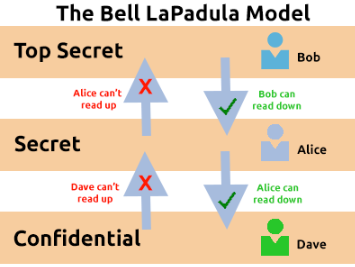
<p>The Bell-La Padula Model is used to achieve <code class="language-plaintext highlighter-rouge">confidentiality</code>. This model has a few assumptions, such as an organisation’s hierarchical structure it is used in, where everyone’s responsibilities/roles are well-defined.</p>

<p>The model works by granting access to pieces of data (called objects) on a strictly need to know basis. This model uses the rule <code class="language-plaintext highlighter-rouge">"no write down, no read up"</code>.</p>

<p><img src="/blog/assets/img/bell-lapadula-model.png" alt="Bell LaPadula Model" /></p>

<p>Advantages</p>
<ul>
  <li>Policies in this model can be replicated to real-life organisations hierarchies (and vice versa)</li>
  <li>Simple to implement and understand, and has been proven to be successful.</li>
</ul>

<p>Disadvantages</p>
<ul>
  <li>Even though a user may not have access to an object, they will know about its existence – so it’s not confidential in that aspect.</li>
  <li>The model relies on a large amount of trust within the organisation.</li>
</ul>

<p>The Bell LaPadula Model is popular within organisations such as governmental and military. This is because members of the organisations are presumed to have already gone through a process called vetting. Vetting is a screening process where applicant’s backgrounds are examined to establish the risk they pose to the organisation. Therefore, applicants who are successfully vetted are assumed to be trustworthy - which is where this model fits in.</p>

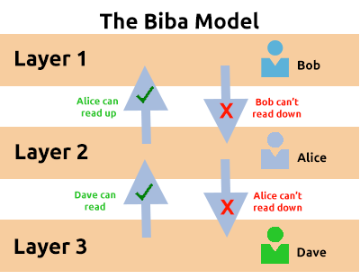
<p>The Biba model is arguably the equivalent of the Bell-La Padula model but for the integrity of the CIA triad.</p>

<p>This model applies the rule to objects (data) and subjects (users) that can be summarised as “no write up, no read down”. This rule means that subjects can create or write content to objects at or below their level but can only read the contents of objects above the subject’s level.</p>

<p>Let’s compare some advantages and disadvantages of this model in the table below:</p>

<p>Advantages</p>
<ul>
  <li>This model is simple to implement.</li>
  <li>Resolves the limitations of the Bell-La Padula model by addressing both confidentiality and data integrity.</li>
</ul>

<p>Disadvantages</p>

<ul>
  <li>There will be many levels of access and objects. Things can be easily overlooked when applying security controls.</li>
  <li>Often results in delays within a business. For example, a doctor would not be able to read the notes made by a nurse in a hospital with this model.</li>
</ul>

<p><img src="/blog/assets/img/biba-model.png" alt="Biba Model" /></p>

<p>The Biba model is used in organisations or situations where <code class="language-plaintext highlighter-rouge">integrity is more important than confidentiality</code>. For example, in software development, developers may only have access to the code that is necessary for their job. They may not need access to critical pieces of information such as databases, etc.</p>

<p>What is the name of the model that uses the rule “can’t read up, can read down”?</p>
<div class="language-plaintext highlighter-rouge"><div class="highlight"><pre class="highlight"><code>The Bell-La Padula Model
</code></pre></div></div>

<p>What is the name of the model that uses the rule “can read up, can’t read down”?</p>
<div class="language-plaintext highlighter-rouge"><div class="highlight"><pre class="highlight"><code>The Biba Model
</code></pre></div></div>

<p>If you were a military, what security model would you use?</p>
<div class="language-plaintext highlighter-rouge"><div class="highlight"><pre class="highlight"><code>The Bell-La Padula Model
</code></pre></div></div>

<p>If you were a software developer, what security model would the company perhaps use?</p>
<div class="language-plaintext highlighter-rouge"><div class="highlight"><pre class="highlight"><code>The Biba Model
</code></pre></div></div>

<h2 id="task5-threat-modelling--incident-response">Task5: Threat Modelling &amp; Incident Response</h2>
<p>Threat modelling is the process of reviewing, improving, and testing the security protocols in place in an organisation’s information technology infrastructure and services.</p>

<p>A critical stage of the threat modelling process is identifying likely threats that an application or system may face, the vulnerabilities a system or application may be vulnerable to.</p>

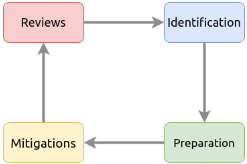
<p>The threat modelling process is very similar to a risk assessment made in workplaces for employees and customers. The principles all return to:</p>

<ul>
  <li>Preparation</li>
  <li>Identification</li>
  <li>Mitigations</li>
  <li>Review</li>
</ul>

<p><img src="/blog/assets/img/threat-model.png" alt="Threat Modelling" /></p>

<p>It is, however, a complex process that needs constant review and discussion with a dedicated team. An effective threat model includes:</p>

<ul>
  <li>Threat intelligence</li>
  <li>Asset identification</li>
  <li>Mitigation capabilities</li>
  <li>Risk assessment</li>
</ul>

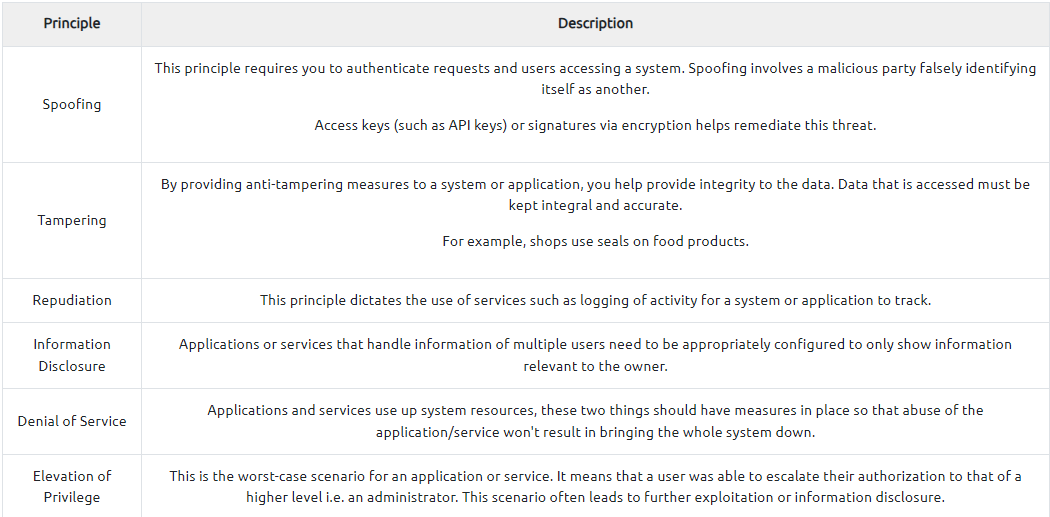
<p>To help with this, there are frameworks such as <code class="language-plaintext highlighter-rouge">STRIDE</code> (Spoofing identity, Tampering with data, Repudiation threats, Information disclosure, Denial of Service and Elevation of privileges) and <code class="language-plaintext highlighter-rouge">PASTA</code> (Process for Attack Simulation and Threat Analysis) infosec never tasted so good!.</p>

<p>Let’s detail STRIDE below. STRIDE, authored by two Microsoft security researchers in 1999 is still very relevant today. STRIDE includes six main principles, which I have detailed in the table below:</p>

<p><img src="/blog/assets/img/stride.png" alt="STRIDE" /></p>

<p><code class="language-plaintext highlighter-rouge">A breach of security is known as an incident.</code>And despite all rigorous threat models and secure system designs, incidents do happen. Actions taken to resolve and remediate the threat are known as <code class="language-plaintext highlighter-rouge">Incident Response (IR)</code> and are a whole career path in cybersecurity.</p>

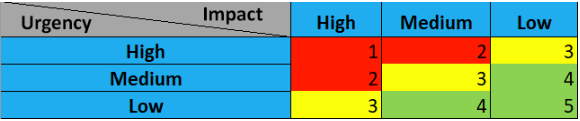
<p>Incidents are classified using a rating of urgency and impact. Urgency will be determined by the type of attack faced, where the impact will be determined by the affected system and what impact that has on business operations.</p>

<p><img src="/blog/assets/img/ir-table.png" alt="IR Table" /></p>

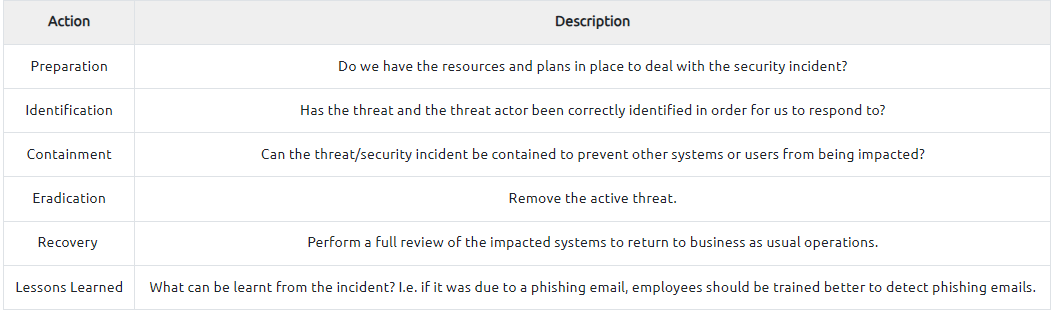
<p>An incident is responded to by a <code class="language-plaintext highlighter-rouge">Computer Security Incident Response Team (CSIRT)</code> which is prearranged group of employees with technical knowledge about the systems and/or current incident. To successfully solve an incident, these steps are often referred to as the six phases of Incident Response that takes place, listed in the table below:</p>

<p><img src="/blog/assets/img/csirt.png" alt="CSIRT Table" /></p>

<p>What model outlines “Spoofing”?</p>
<div class="language-plaintext highlighter-rouge"><div class="highlight"><pre class="highlight"><code>STRIDE
</code></pre></div></div>

<p>What does the acronym “IR” stand for?</p>
<div class="language-plaintext highlighter-rouge"><div class="highlight"><pre class="highlight"><code>Incident Response
</code></pre></div></div>

<p>You are tasked with adding some measures to an application to improve the integrity of data, what STRIDE principle is this?</p>
<div class="language-plaintext highlighter-rouge"><div class="highlight"><pre class="highlight"><code>tampering
</code></pre></div></div>

<p>An attacker has penetrated your organisation’s security and stolen data. It is your task to return the organisation to business as usual. What incident response stage is this?</p>
<div class="language-plaintext highlighter-rouge"><div class="highlight"><pre class="highlight"><code>Recovery
</code></pre></div></div>]]></content><author><name></name></author><category term="Blue" /><summary type="html"><![CDATA[Ref: THM Principle of Security Security:]]></summary><media:thumbnail xmlns:media="http://search.yahoo.com/mrss/" url="https://szehoyeu.github.io/blog/blog/assets/img/principle-security-hdr.png" /><media:content medium="image" url="https://szehoyeu.github.io/blog/blog/assets/img/principle-security-hdr.png" xmlns:media="http://search.yahoo.com/mrss/" /></entry><entry><title type="html">THM: Passive Reconnaissance</title><link href="https://szehoyeu.github.io/blog/red/2024/02/13/Passive-Reconnaissance.html" rel="alternate" type="text/html" title="THM: Passive Reconnaissance" /><published>2024-02-13T18:00:00+00:00</published><updated>2024-02-13T18:00:00+00:00</updated><id>https://szehoyeu.github.io/blog/red/2024/02/13/Passive-Reconnaissance</id><content type="html" xml:base="https://szehoyeu.github.io/blog/red/2024/02/13/Passive-Reconnaissance.html"><![CDATA[<p>Ref:</p>
<ul>
  <li><a href="https://tryhackme.com/room/passiverecon?path=undefined">THM Passive Reconnaissance:</a></li>
</ul>

<hr />

<h1 id="task1-indroduction">Task1: Indroduction</h1>
<p>Welcome to the first room of the Network Security Module. This module covers:</p>

<ol>
  <li><a href="https://tryhackme.com/room/passiverecon">Passive Reconnaissance</a></li>
  <li><a href="https://tryhackme.com/room/activerecon">Active Reconnaissance</a></li>
  <li><a href="https://tryhackme.com/room/nmap01">Nmap Live Host Discovery</a></li>
  <li><a href="https://tryhackme.com/room/nmap02">Nmap Basic Port Scans</a></li>
  <li><a href="https://tryhackme.com/room/nmap03">Nmap Advanced Port Scans</a></li>
  <li><a href="https://tryhackme.com/room/nmap04">Nmap Post Port Scans</a></li>
  <li><a href="https://tryhackme.com/room/protocolsandservers">Protocols and Servers</a></li>
  <li><a href="https://tryhackme.com/room/protocolsandservers2">Protocols and Servers 2</a></li>
  <li><a href="https://tryhackme.com/room/netsecchallenge">Network Security Challenge</a></li>
</ol>

<p>In this room, after we define passive reconnaissance and active reconnaissance, we focus on essential tools related to passive reconnaissance. We will learn three command-line tools:</p>

<ul>
  <li>whois to query WHOIS servers</li>
  <li>nslookup to query DNS servers</li>
  <li>dig to query DNS servers</li>
</ul>

<p>We use whois to query WHOIS records, while we use <code class="language-plaintext highlighter-rouge">nslookup</code> and <code class="language-plaintext highlighter-rouge">dig</code> to query DNS database records. These are all publicly available records and hence do not alert the target.</p>

<p>We will also learn the usage of two online services:</p>

<ul>
  <li>DNSDumpster</li>
  <li>Shodan.io</li>
</ul>

<p>These two online services allow us to collect information about our target without directly connecting to it.</p>

<p>Pre-requisites:</p>

<hr />

<p>This room requires basic networking knowledge along with basic familiarity with the command line. The modules <a href="https://tryhackme.com/module/network-fundamentals">Network Fundamentals</a> and <a href="https://tryhackme.com/module/linux-fundamentals">Linux Fundamentals</a> provide the required knowledge if necessary.</p>

<h2 id="important-notice">Important Notice:</h2>
<p>Please note that if <code class="language-plaintext highlighter-rouge">you're not subscribed</code>, the AttackBox <code class="language-plaintext highlighter-rouge">won't have Internet access</code>, so you will need to use the <code class="language-plaintext highlighter-rouge">VPN to complete the questions that require Internet access</code>.</p>

<h1 id="task2-passive-versus-active-recon">Task2: Passive Versus Active Recon</h1>

<p>This room expects the user to have a working knowledge of computer networks. If you like to brush up on this topic, you are encouraged to study the Network Fundamentals module first.</p>

<p>Before the dawn of computer systems and networks, in the Art of War, Sun Tzu taught, “If you know the enemy and know yourself, your victory will not stand in doubt.”</p>

<p>If you are playing the role of an <code class="language-plaintext highlighter-rouge">attacker</code>, you need to gather information about your target systems.</p>

<p>If you are playing the role of a <code class="language-plaintext highlighter-rouge">defender</code>, you need to know what your adversary will discover about your systems and networks.</p>

<p><code class="language-plaintext highlighter-rouge">Reconnaissance (recon)</code> can be defined as a preliminary survey to <code class="language-plaintext highlighter-rouge">gather information about a target</code>. It is the first step in <a href="https://www.unifiedkillchain.com/">The Unified Kill Chain</a> to gain an initial foothold on a system. We divide reconnaissance into:</p>

<ol>
  <li>Passive Reconnaissance</li>
  <li>Active Reconnaissance</li>
</ol>

<p>In <code class="language-plaintext highlighter-rouge">passive reconnaissance</code>, you rely on <code class="language-plaintext highlighter-rouge">publicly available knowledge</code>. It is the knowledge that you can access from publicly available resources without directly engaging with the target. Think of it like you are looking at target territory from afar without stepping foot on that territory.</p>

<p>Passive reconnaissance activities include many activities, for instance:</p>

<ul>
  <li>Looking up DNS records of a domain from a public DNS server.</li>
  <li>Checking job ads related to the target website.</li>
  <li>Reading news articles about the target company.</li>
</ul>

<p>Active reconnaissance, on the other hand, cannot be achieved so discreetly. It requires direct engagement with the target. Think of it like you check the locks on the doors and windows, among other potential entry points.
Examples of active reconnaissance activities include:</p>

<hr />

<ul>
  <li>Connecting to one of the company servers such as HTTP, FTP, and SMTP.</li>
  <li>Calling the company in an attempt to get information (social engineering).</li>
  <li>Entering company premises pretending to be a repairman.
Considering the invasive nature of active reconnaissance, one can quickly get into legal trouble unless one obtains proper legal authorisation.</li>
</ul>

<p>You visit the Facebook page of the target company, hoping to get some of their employee names. What kind of reconnaissance activity is this? (A for active, P for passive)</p>
<div class="language-plaintext highlighter-rouge"><div class="highlight"><pre class="highlight"><code>P
</code></pre></div></div>
<p>You ping the IP address of the company webserver to check if ICMP traffic is blocked. What kind of reconnaissance activity is this? (A for active, P for passive)</p>
<div class="language-plaintext highlighter-rouge"><div class="highlight"><pre class="highlight"><code>A
</code></pre></div></div>

<p>You happen to meet the IT administrator of the target company at a party. You try to use social engineering to get more information about their systems and network infrastructure. What kind of reconnaissance activity is this? (A for active, P for passive)</p>
<div class="language-plaintext highlighter-rouge"><div class="highlight"><pre class="highlight"><code>A
</code></pre></div></div>

<h1 id="task3-whois">Task3: Whois</h1>
<p>WHOIS is a request and response protocol that follows the <a href="https://www.ietf.org/rfc/rfc3912.txt">RFC 3912</a> specification.</p>

<p>A WHOIS server <code class="language-plaintext highlighter-rouge">listens on TCP port 43 for incoming requests</code>. The domain registrar is responsible for maintaining the WHOIS records for the domain names it is leasing.</p>

<p>The WHOIS server replies with various information related to the domain requested. Of particular interest, we can learn:</p>

<ul>
  <li>Registrar: Via which registrar was the domain name registered?</li>
  <li>Contact info of registrant: Name, organization, address, phone, among other things. (unless made hidden via a privacy service)</li>
  <li>Creation, update, and expiration dates: When was the domain name first registered? When was it last updated? And when does it need to be renewed?</li>
  <li>Name Server: Which server to ask to resolve the domain name?</li>
</ul>

<p>To get this information, we need to use a <code class="language-plaintext highlighter-rouge">whois</code> client or an online service. Many online services provide <code class="language-plaintext highlighter-rouge">whois</code> information; however, it is generally faster and more convenient to use your local whois client.</p>

<p>Using the AttackBox (or your local Linux machine, such as Parrot or Kali), you can easily access your whois client on the terminal. The syntax is <code class="language-plaintext highlighter-rouge">whois DOMAIN_NAME</code>, where DOMAIN_NAME is the domain about which you are trying to get more information.</p>

<p>Consider the following example executing <code class="language-plaintext highlighter-rouge">whois tryhackme.com</code>.</p>
<div class="language-plaintext highlighter-rouge"><div class="highlight"><pre class="highlight"><code>user@TryHackMe$ whois tryhackme.com
[Querying whois.verisign-grs.com]
[Redirected to whois.namecheap.com]
[Querying whois.namecheap.com]
[whois.namecheap.com]
Domain name: tryhackme.com
Registry Domain ID: 2282723194_DOMAIN_COM-VRSN
Registrar WHOIS Server: whois.namecheap.com
Registrar URL: http://www.namecheap.com
Updated Date: 2021-05-01T19:43:23.31Z
Creation Date: 2018-07-05T19:46:15.00Z
Registrar Registration Expiration Date: 2027-07-05T19:46:15.00Z
Registrar: NAMECHEAP INC
Registrar IANA ID: 1068
Registrar Abuse Contact Email: abuse@namecheap.com
Registrar Abuse Contact Phone: +1.6613102107
Reseller: NAMECHEAP INC
Domain Status: clientTransferProhibited https://icann.org/epp#clientTransferProhibited
Registry Registrant ID: 
Registrant Name: Withheld for Privacy Purposes
Registrant Organization: Privacy service provided by Withheld for Privacy ehf
[...]
URL of the ICANN WHOIS Data Problem Reporting System: http://wdprs.internic.net/
&gt;&gt;&gt; Last update of WHOIS database: 2021-08-25T14:58:29.57Z &lt;&lt;&lt;
For more information on Whois status codes, please visit https://icann.org/epp
</code></pre></div></div>

<hr />

<p>We can see plenty of information; we will inspect them in the order displayed. First, we notice that we were redirected to <code class="language-plaintext highlighter-rouge">whois.namecheap.com</code> to get our information. In this case and at the time being, namecheap.com is maintaining the WHOIS record for this domain name. Furthermore, we can see the creation date along with <code class="language-plaintext highlighter-rouge">the last-update date and expiration date</code>.</p>

<p>Next, we obtain <code class="language-plaintext highlighter-rouge">information about the registrar and the registrant</code>. We can find the registrant’s name and contact information unless they are using some privacy service.</p>

<p>Although not displayed above, we get the <code class="language-plaintext highlighter-rouge">admin and tech contacts for this domain</code>.</p>

<p>Finally, we see the domain name servers that we should <code class="language-plaintext highlighter-rouge">query if we have any DNS records to look up</code>.</p>

<p>The information collected can be inspected to find new attack surfaces, such as social engineering or technical attacks.</p>

<p>For instance, depending on the scope of the penetration test, you might consider an <code class="language-plaintext highlighter-rouge">attack against the email server of the admin user or the DNS servers</code>, assuming they are owned by your client and fall within the scope of the penetration test.</p>

<p>It is important to note that due to automated tools abusing WHOIS queries to harvest email addresses, many WHOIS services take measures against this.</p>

<p>They might redact email addresses, for instance. Moreover, many registrants subscribe to privacy services to avoid their email addresses being harvested by spammers and keep their information private.</p>

<p>On the AttackBox, open the terminal and run the <code class="language-plaintext highlighter-rouge">whois tryhackme.com</code> command to get the information you need to answer the following questions.</p>

<div class="language-plaintext highlighter-rouge"><div class="highlight"><pre class="highlight"><code>whois tryhackme.com
   Domain Name: TRYHACKME.COM
   Registry Domain ID: 2282723194_DOMAIN_COM-VRSN
   Registrar WHOIS Server: whois.namecheap.com
   Registrar URL: http://www.namecheap.com
   Updated Date: 2021-05-01T19:43:23Z
   Creation Date: 2018-07-05T19:46:15Z
   Registry Expiry Date: 2027-07-05T19:46:15Z
   Registrar: NameCheap, Inc.
   Registrar IANA ID: 1068
   Registrar Abuse Contact Email: abuse@namecheap.com
   Registrar Abuse Contact Phone: +1.6613102107
   Domain Status: clientTransferProhibited https://icann.org/epp#clientTransferProhibited
   Name Server: KIP.NS.CLOUDFLARE.COM
   Name Server: UMA.NS.CLOUDFLARE.COM
   DNSSEC: unsigned
   URL of the ICANN Whois Inaccuracy Complaint Form: https://www.icann.org/wicf/
&gt;&gt;&gt; Last update of whois database: 2024-02-14T05:29:35Z &lt;&lt;&lt;

For more information on Whois status codes, please visit https://icann.org/epp

NOTICE: The expiration date displayed in this record is the date the
registrar's sponsorship of the domain name registration in the registry is
currently set to expire. This date does not necessarily reflect the expiration
date of the domain name registrant's agreement with the sponsoring
registrar.  Users may consult the sponsoring registrar's Whois database to
view the registrar's reported date of expiration for this registration.

TERMS OF USE: You are not authorized to access or query our Whois
database through the use of electronic processes that are high-volume and
automated except as reasonably necessary to register domain names or
modify existing registrations; the Data in VeriSign Global Registry
Services' ("VeriSign") Whois database is provided by VeriSign for
information purposes only, and to assist persons in obtaining information
about or related to a domain name registration record. VeriSign does not
guarantee its accuracy. By submitting a Whois query, you agree to abide
by the following terms of use: You agree that you may use this Data only
for lawful purposes and that under no circumstances will you use this Data
to: (1) allow, enable, or otherwise support the transmission of mass
unsolicited, commercial advertising or solicitations via e-mail, telephone,
or facsimile; or (2) enable high volume, automated, electronic processes
that apply to VeriSign (or its computer systems). The compilation,
repackaging, dissemination or other use of this Data is expressly
prohibited without the prior written consent of VeriSign. You agree not to
use electronic processes that are automated and high-volume to access or
query the Whois database except as reasonably necessary to register
domain names or modify existing registrations. VeriSign reserves the right
to restrict your access to the Whois database in its sole discretion to ensure
operational stability.  VeriSign may restrict or terminate your access to the
Whois database for failure to abide by these terms of use. VeriSign
reserves the right to modify these terms at any time.

The Registry database contains ONLY .COM, .NET, .EDU domains and
Registrars.
Domain name: tryhackme.com
Registry Domain ID: 2282723194_DOMAIN_COM-VRSN
Registrar WHOIS Server: whois.namecheap.com
Registrar URL: http://www.namecheap.com
Updated Date: 2021-05-01T19:43:23.31Z
Creation Date: 2018-07-05T19:46:15.00Z
Registrar Registration Expiration Date: 2027-07-05T19:46:15.00Z
Registrar: NAMECHEAP INC
Registrar IANA ID: 1068
Registrar Abuse Contact Email: abuse@namecheap.com
Registrar Abuse Contact Phone: +1.9854014545
Reseller: NAMECHEAP INC
Domain Status: clientTransferProhibited https://icann.org/epp#clientTransferProhibited
Registry Registrant ID: 
Registrant Name: Redacted for Privacy
Registrant Organization: Privacy service provided by Withheld for Privacy ehf
Registrant Street: Kalkofnsvegur 2 
Registrant City: Reykjavik
Registrant State/Province: Capital Region
Registrant Postal Code: 101
Registrant Country: IS
Registrant Phone: +354.4212434
Registrant Phone Ext: 
Registrant Fax: 
Registrant Fax Ext: 
Registrant Email: a70a4ff6d25041a48378997194f9e834.protect@withheldforprivacy.com
Registry Admin ID: 
Admin Name: Redacted for Privacy
Admin Organization: Privacy service provided by Withheld for Privacy ehf
Admin Street: Kalkofnsvegur 2 
Admin City: Reykjavik
Admin State/Province: Capital Region
Admin Postal Code: 101
Admin Country: IS
Admin Phone: +354.4212434
Admin Phone Ext: 
Admin Fax: 
Admin Fax Ext: 
Admin Email: a70a4ff6d25041a48378997194f9e834.protect@withheldforprivacy.com
Registry Tech ID: 
Tech Name: Redacted for Privacy
Tech Organization: Privacy service provided by Withheld for Privacy ehf
Tech Street: Kalkofnsvegur 2 
Tech City: Reykjavik
Tech State/Province: Capital Region
Tech Postal Code: 101
Tech Country: IS
Tech Phone: +354.4212434
Tech Phone Ext: 
Tech Fax: 
Tech Fax Ext: 
Tech Email: a70a4ff6d25041a48378997194f9e834.protect@withheldforprivacy.com
Name Server: kip.ns.cloudflare.com
Name Server: uma.ns.cloudflare.com
DNSSEC: unsigned
URL of the ICANN WHOIS Data Problem Reporting System: http://wdprs.internic.net/
&gt;&gt;&gt; Last update of WHOIS database: 2024-02-13T21:02:37.31Z &lt;&lt;&lt;
For more information on Whois status codes, please visit https://icann.org/epp


</code></pre></div></div>
<p>When was TryHackMe.com registered?</p>
<div class="language-plaintext highlighter-rouge"><div class="highlight"><pre class="highlight"><code>20180705
</code></pre></div></div>
<p>What is the registrar of TryHackMe.com?</p>
<div class="language-plaintext highlighter-rouge"><div class="highlight"><pre class="highlight"><code>namecheap.com
</code></pre></div></div>

<p>Which company is TryHackMe.com using for name servers?</p>
<div class="language-plaintext highlighter-rouge"><div class="highlight"><pre class="highlight"><code>cloudflare.com
</code></pre></div></div>

<h1 id="task4-nslookup-and-dig">Task4: nslookup and dig</h1>
<p>We used the WHOIS protocol to get various information about the domain name we were looking up. In particular, we were able to get the DNS servers from the registrar.</p>

<p>Find the IP address of a domain name using nslookup, which stands for Name Server Look Up. You need to issue the command nslookup DOMAIN_NAME, for example, <code class="language-plaintext highlighter-rouge">nslookup tryhackme.com</code>. Or, more generally, you can use <code class="language-plaintext highlighter-rouge">nslookup OPTIONS DOMAIN_NAME SERVER</code>. These three main parameters are:</p>

<ul>
  <li>OPTIONS contains the query type as shown in the table below. For instance, you can use A for IPv4 addresses and AAAA for IPv6 addresses.</li>
  <li>DOMAIN_NAME is the domain name you are looking up.</li>
  <li>SERVER is the DNS server that you want to query. You can choose any local or public DNS server to query. Cloudflare offers 1.1.1.1 and 1.0.0.1, Google offers 8.8.8.8 and 8.8.4.4, and Quad9 offers 9.9.9.9 and 149.112.112.112. There are many more public DNS servers that you can choose from if you want alternatives to your ISP’s DNS servers.</li>
</ul>

<p><img src="/blog/assets/img/ns-record-type.png" alt="DNS Record Type" /></p>

<p>For instance,</p>
<div class="language-plaintext highlighter-rouge"><div class="highlight"><pre class="highlight"><code>nslookup -type=A tryhackme.com 1.1.1.1 

or 

nslookup -type=a tryhackme.com 1.1.1.1 

(as it is case-insensitive can be used to return all the IPv4 addresses used by tryhackme.com.)
</code></pre></div></div>

<div class="language-plaintext highlighter-rouge"><div class="highlight"><pre class="highlight"><code>nslookup -type=A tryhackme.com 1.1.1.1
Server:		1.1.1.1
Address:	1.1.1.1#53

Non-authoritative answer:
Name:	tryhackme.com
Address: 172.67.69.208
Name:	tryhackme.com
Address: 104.26.11.229
Name:	tryhackme.com
Address: 104.26.10.229
</code></pre></div></div>

<p>The A and AAAA records are used to return IPv4 and IPv6 addresses, respectively.</p>

<p>This lookup is helpful to know from a penetration testing perspective. In the example above, we started with one domain name, and we obtained three IPv4 addresses.</p>

<p>Each of these IP addresses can be further checked for insecurities, assuming they lie within the scope of the penetration test.</p>

<p>Let’s say you want to learn about the email servers and configurations for a particular domain. You can issue <code class="language-plaintext highlighter-rouge">nslookup -type=MX tryhackme.com</code>.</p>

<p>Here is an example:</p>
<div class="language-plaintext highlighter-rouge"><div class="highlight"><pre class="highlight"><code>nslookup -type=MX tryhackme.com
Server:		127.0.0.53
Address:	127.0.0.53#53

Non-authoritative answer:
tryhackme.com	mail exchanger = 5 alt1.aspmx.l.google.com.
tryhackme.com	mail exchanger = 1 aspmx.l.google.com.
tryhackme.com	mail exchanger = 10 alt4.aspmx.l.google.com.
tryhackme.com	mail exchanger = 10 alt3.aspmx.l.google.com.
tryhackme.com	mail exchanger = 5 alt2.aspmx.l.google.com.
</code></pre></div></div>
<p>We can see that tryhackme.com’s current email configuration uses Google. Since <code class="language-plaintext highlighter-rouge">MX</code> is looking up the <code class="language-plaintext highlighter-rouge">Mail Exchange servers</code>, we notice that when a mail server tries to deliver <code class="language-plaintext highlighter-rouge">email @tryhackme.com</code>, it will try to connect to the <code class="language-plaintext highlighter-rouge">aspmx.l.google.com</code>, which has order 1.</p>

<p>If it is busy or unavailable, the mail server will attempt to connect to the next in order mail exchange servers, alt1.aspmx.l.google.com or alt2.aspmx.l.google.com.</p>

<p>Google provides the listed mail servers; therefore, we should not expect the mail servers to be running a vulnerable server version. However, in other cases, we might find mail servers that are not adequately secured or patched.</p>

<p>Such pieces of information might prove valuable as you continue the passive reconnaissance of your target. You can repeat similar queries for other domain names and try different types, such as -type=txt. Who knows what kind of information you might discover along your way!</p>

<p>For more advanced DNS queries and additional functionality, you can use <code class="language-plaintext highlighter-rouge">dig</code>, the acronym for <code class="language-plaintext highlighter-rouge">“Domain Information Groper</code>,” if you are curious. Let’s use dig to look up the MX records and compare them to nslookup. 
We can use <code class="language-plaintext highlighter-rouge">dig DOMAIN_NAME</code>, but to specify the record type, we would use <code class="language-plaintext highlighter-rouge">dig DOMAIN_NAME TYPE</code>.</p>

<p>Optionally, we can select the server we want to query using</p>
<div class="language-plaintext highlighter-rouge"><div class="highlight"><pre class="highlight"><code>dig @SERVER DOMAIN_NAME TYPE.
</code></pre></div></div>
<ul>
  <li>SERVER is the DNS server that you want to query.</li>
  <li>DOMAIN_NAME is the domain name you are looking up.</li>
  <li>TYPE contains the DNS record type, as shown in the table provided earlier.</li>
</ul>

<hr />

<div class="language-plaintext highlighter-rouge"><div class="highlight"><pre class="highlight"><code>dig tryhackme.com MX

; &lt;&lt;&gt;&gt; DiG 9.16.19-RH &lt;&lt;&gt;&gt; tryhackme.com MX
;; global options: +cmd
;; Got answer:
;; -&gt;&gt;HEADER&lt;
</code></pre></div></div>

<p>A quick comparison between the output of nslookup and dig shows that dig returned more information, such as the <code class="language-plaintext highlighter-rouge">TTL (Time To Live)</code>by default. If you want to query a 1.1.1.1 DNS server, you can execute</p>
<div class="language-plaintext highlighter-rouge"><div class="highlight"><pre class="highlight"><code> dig @1.1.1.1 tryhackme.com MX
</code></pre></div></div>

<p>Using the AttackBox, open the terminal and use the nslookup or dig command to get the information you need to answer the following question.</p>

<p>Check the TXT records of thmlabs.com. What is the flag there?</p>
<div class="language-plaintext highlighter-rouge"><div class="highlight"><pre class="highlight"><code>=&gt; THM{a5b83929888ed36acb0272971e438d78}

dig thmlabs.com txt

; &lt;&lt;&gt;&gt; DiG 9.11.3-1ubuntu1.18-Ubuntu &lt;&lt;&gt;&gt; thmlabs.com txt
;; global options: +cmd
;; Got answer:
;; -&gt;&gt;HEADER&lt;&lt;- opcode: QUERY, status: NOERROR, id: 38944
;; flags: qr rd ra; QUERY: 1, ANSWER: 1, AUTHORITY: 0, ADDITIONAL: 1

;; OPT PSEUDOSECTION:
; EDNS: version: 0, flags:; udp: 65494
;; QUESTION SECTION:
;thmlabs.com.			IN	TXT

;; ANSWER SECTION:
thmlabs.com.		300	IN	TXT	"THM{a5b83929888ed36acb0272971e438d78}"

;; Query time: 21 msec
;; SERVER: 127.0.0.53#53(127.0.0.53)
;; WHEN: Wed Feb 14 05:50:11 GMT 2024
;; MSG SIZE  rcvd: 90

</code></pre></div></div>

<h1 id="task5-dnsdumpster">Task5: DNSDumpster</h1>
<p>DNS lookup tools, such as <code class="language-plaintext highlighter-rouge">nslookup and dig</code>, cannot find subdomains on their own. The domain you are inspecting might include a different subdomain that can reveal much information about the target.</p>

<p>For instance, if tryhackme.com has the subdomains wiki.tryhackme.com and webmail.tryhackme.com, you want to learn more about these two as they can hold a trove of information about your target.</p>

<p>There is a possibility that one of these subdomains has been set up and is not updated regularly. Lack of proper regular updates usually leads to vulnerable services. But <code class="language-plaintext highlighter-rouge">how can we know that such subdomains exist?</code></p>

<p>We can consider using <code class="language-plaintext highlighter-rouge">multiple search engines to compile a list of publicly known subdomains.</code>`</p>

<p>One search engine won’t be enough; moreover, we should expect to go through <code class="language-plaintext highlighter-rouge">at least tens of results to find interesting data</code>.</p>

<p>After all, you are looking for subdomains that are not explicitly advertised, and hence it is not necessary to make it to the first page of search results.</p>

<p>Another approach to <code class="language-plaintext highlighter-rouge">discover such subdomains would be to rely on brute-forcing queries to find which subdomains have DNS records.</code></p>

<p>To avoid such a time-consuming search, one can use an <code class="language-plaintext highlighter-rouge">online service</code> that offers detailed answers to DNS queries, such as <a href="https://dnsdumpster.com/">DNSDumpster</a> If we search DNSDumpster for tryhackme.com, we will discover the subdomain blog.tryhackme.com, which a typical DNS query cannot provide.</p>

<p>In addition, <code class="language-plaintext highlighter-rouge">DNSDumpster</code> will return the collected DNS information in easy-to-read tables and a graph. DNSDumpster will also provide any collected information about listening servers.</p>

<p>We will search for tryhackme.com on DNSDumpster to give you a glimpse of the expected output. Among the results, we got a list of DNS servers for the domain we are looking up.</p>

<p>DNSDumpster also resolved the <code class="language-plaintext highlighter-rouge">domain names to IP addresses and even tried to geolocate them.</code> We can also see the <code class="language-plaintext highlighter-rouge">MX records</code>; DNSDumpster resolved all five mail exchange servers to their respective IP addresses and provided more information about the owner and location.</p>

<p>Finally, we can see <code class="language-plaintext highlighter-rouge">TXT records</code>. Practically a single query was enough to retrieve all this information.</p>

<p><img src="/blog/assets/img/dns.png" alt="DNS Table" /></p>

<p>DNSDumpster will also represent the collected information graphically. DNSDumpster displayed the data from the table earlier as a graph. You can see the DNS and MX branching to their respective servers and also showing the IP addresses.</p>

<p><img src="/blog/assets/img/dns02.png" alt="DNS Table" /></p>

<p>There is currently a beta feature that allows you to export the graph as well. You can manipulate the graph and move blocks around if needed.</p>

<p><img src="/blog/assets/img/dns03.png" alt="DNS Table" /></p>

<p>Lookup tryhackme.com on DNSDumpster. What is one interesting subdomain that you would discover in addition to www and blog?</p>
<div class="language-plaintext highlighter-rouge"><div class="highlight"><pre class="highlight"><code>https://dnsdumpster.com/

=&gt;Remote
</code></pre></div></div>

<h1 id="task6-shodanio">Task6: Shodan.io</h1>
<p>When you are tasked to run a penetration test against specific targets, as part of the passive reconnaissance phase, a service like <a href="https://www.shodan.io/">Shodan.io</a> can be helpful to learn various pieces of information about the client’s network, without actively connecting to it.</p>

<p><code class="language-plaintext highlighter-rouge">Furthermore, on the defensive side, you can use different services from Shodan.io to learn about connected and exposed devices belonging to your organization.</code></p>

<p><code class="language-plaintext highlighter-rouge">Shodan.io</code> tries to connect to every device reachable online to build a search engine of connected “things” in contrast with a search engine for web pages. Once it gets a response, it collects all the information related to the service and saves it in the database to make it searchable. Consider the saved record of one of tryhackme.com’s servers.</p>

<p>This record shows a web server; however, as mentioned already, Shodan.io collects information related to any device it can find connected online. Searching for tryhackme.com on Shodan.io will display at least the record shown in the screenshot above. Via this Shodan.io search result, we can learn several things related to our search, such as:</p>

<ul>
  <li>IP address</li>
  <li>hosting company</li>
  <li>geographic location</li>
  <li>server type and version</li>
</ul>

<p>You may also try searching for the IP addresses you have obtained from DNS lookups. These are, of course, more subject to change. On their <a href="https://help.shodan.io/the-basics/search-query-fundamentals">help page</a>, you can learn about all the search options available at Shodan.io, and you are encouraged to join TryHackMe’s <a href="https://tryhackme.com/room/shodan">Shodan.io</a>.</p>

<p>It would be best to visit Shodan.io to answer the following questions; however, note that you can find the answers on Shodan.io without needing a premium account.</p>

<p>According to Shodan.io, what is the 2nd country in the world in terms of the number of publicly accessible Apache servers?</p>

<p><img src="/blog/assets/img/shodan.png" alt="Shodan.io" /></p>
<div class="language-plaintext highlighter-rouge"><div class="highlight"><pre class="highlight"><code>Germany
</code></pre></div></div>

<p>Based on Shodan.io, what is the 3rd most common port used for Apache?</p>
<div class="language-plaintext highlighter-rouge"><div class="highlight"><pre class="highlight"><code>8080
</code></pre></div></div>

<p>Based on Shodan.io, what is the 3rd most common port used for nginx?</p>
<div class="language-plaintext highlighter-rouge"><div class="highlight"><pre class="highlight"><code>5001
</code></pre></div></div>

<h1 id="task7-summary">Task7: Summary</h1>
<p>We focused on passive reconnaissance. In particular, we covered command-line tools, <code class="language-plaintext highlighter-rouge">whois, nslookup, and dig</code>. We also discussed two publicly available services <code class="language-plaintext highlighter-rouge">DNSDumpster</code> and <code class="language-plaintext highlighter-rouge">Shodan.io</code>. The power of such tools is that you can collect information about your targets without directly connecting to them. Moreover, the trove of information you may find using such tools can be massive once you master the search options and get used to reading the results.</p>

<p><img src="/blog/assets/img/nslookup-cmds.png" alt="commands" /></p>

<p>Learn more about DNS at <a href="https://tryhackme.com/room/dnsindetail">DNS in Detail</a>.</p>]]></content><author><name></name></author><category term="Red" /><summary type="html"><![CDATA[Ref: THM Passive Reconnaissance:]]></summary><media:thumbnail xmlns:media="http://search.yahoo.com/mrss/" url="https://szehoyeu.github.io/blog/blog/assets/img/pass-reconnaissance-hdr.png" /><media:content medium="image" url="https://szehoyeu.github.io/blog/blog/assets/img/pass-reconnaissance-hdr.png" xmlns:media="http://search.yahoo.com/mrss/" /></entry><entry><title type="html">THM: Linux Fundamentals 03</title><link href="https://szehoyeu.github.io/blog/linux/2024/02/12/Linux-Fundamentals-03.html" rel="alternate" type="text/html" title="THM: Linux Fundamentals 03" /><published>2024-02-12T14:00:00+00:00</published><updated>2024-02-12T14:00:00+00:00</updated><id>https://szehoyeu.github.io/blog/linux/2024/02/12/Linux-Fundamentals-03</id><content type="html" xml:base="https://szehoyeu.github.io/blog/linux/2024/02/12/Linux-Fundamentals-03.html"><![CDATA[<p>Ref:</p>
<ul>
  <li><a href="https://distrowatch.com/dwres.php?resource=major" title="Link">DisroWatch</a></li>
  <li><a href="https://tryhackme.com/room/linuxfundamentalspart3">THM Linux Fundamentals 03:</a></li>
</ul>

<hr />

<h2 id="terminal-text-editors">Terminal Text Editors</h2>
<p>Throughout the series so far, we have only stored text in files using a combination of the <code class="language-plaintext highlighter-rouge">echo</code> command and the pipe operators <code class="language-plaintext highlighter-rouge">(&gt; and &gt;&gt;)</code>. This isn’t an efficient way to handle data when you’re working with files with multiple lines and the sorts!</p>

<h2 id="introducing-terminal-text-editors">Introducing terminal text editors</h2>

<p>There are a few options that you can use, all with a variety of friendliness and utility. This task is going to introduce you to <code class="language-plaintext highlighter-rouge">nano</code> but also show you an alternative named <code class="language-plaintext highlighter-rouge">VIM</code> (which TryHackMe has a room dedicated to!)</p>

<h2 id="nano">Nano</h2>

<p>It is easy to get started with Nano! To create or edit a file using nano, we simply use <code class="language-plaintext highlighter-rouge">nano filename</code> – replacing “filename” with the name of the file you wish to edit.</p>
<div class="language-plaintext highlighter-rouge"><div class="highlight"><pre class="highlight"><code>tryhackme@linux3:/tmp# nano myfile
  GNU nano 4.8                                             myfile                                                       

^G Get Help    ^O Write Out   ^W Where Is    ^K Cut Text    ^J Justify     ^C Cur Pos     M-U Undo       M-A Mark Text
^X Exit        ^R Read File   ^\ Replace     ^U Paste Text  ^T To Spell    ^_ Go To Line  M-E Redo       M-6 Copy Text
</code></pre></div></div>

<p>Once we press enter to execute the command, nano will launch! Where we can just begin to start entering or modifying our text. You can navigate each line using the “up” and “down” arrow keys or start a new line using the “Enter” key on your keyboard.</p>

<div class="language-plaintext highlighter-rouge"><div class="highlight"><pre class="highlight"><code>tryhackme@linux3:/tmp# nano myfile
  GNU nano 4.8                                             myfile                                             Modified  

Hello TryHackMe
I can write things into "myfile"


^G Get Help    ^O Write Out   ^W Where Is    ^K Cut Text    ^J Justify     ^C Cur Pos     M-U Undo       M-A Mark Text
^X Exit        ^R Read File   ^\ Replace     ^U Paste Text  ^T To Spell    ^_ Go To Line  M-E Redo       M-6 Copy Text
</code></pre></div></div>
<p>Nano has a few features that are easy to remember &amp; covers the most general things you would want out of a text editor, including:</p>

<ul>
  <li>Searching for text</li>
  <li>Copying and Pasting</li>
  <li>Jumping to a line number</li>
  <li>Finding out what line number you are on</li>
</ul>

<p>You can use these features of nano by pressing the <code class="language-plaintext highlighter-rouge">"Ctrl" key</code> (which is represented as an ^ on Linux)  and <code class="language-plaintext highlighter-rouge">a corresponding letter</code>.</p>

<p>For example, to exit, we would want to press <code class="language-plaintext highlighter-rouge">"Ctrl" and "X"</code>to exit Nano.</p>

<h2 id="vim">VIM</h2>

<p>VIM is a much more advanced text editor. Whilst you’re not expected to know all advanced features, it’s helpful to mention it for powering up your Linux skills.</p>

<p>Some of VIM’s benefits, albeit taking a much longer time to become familiar with, includes:</p>

<ul>
  <li>Customisable - you can modify the keyboard shortcuts to be of your choosing</li>
  <li>Syntax Highlighting - this is useful if you are writing or maintaining code, making it a popular choice for software developers</li>
  <li>VIM works on all terminals where nano may not be installed</li>
  <li>There are a lot of resources such as cheatsheets, tutorials, and the sorts available to you use.</li>
</ul>

<p>TryHackMe has a room showcasing VIM if you wish to learn more about this editor!</p>

<h1 id="generaluseful-utilities">General/Useful Utilities</h1>
<p>Downloading Files (Wget)
—</p>

<p>A pretty fundamental feature of computing is the <code class="language-plaintext highlighter-rouge">ability to transfer files</code>. For example, you may want to download a program, a script, or even a picture. Thankfully for us, there are multiple ways in which we can retrieve these files.</p>

<p>We’re going to cover the use of <code class="language-plaintext highlighter-rouge">wget</code>.  This command allows us <code class="language-plaintext highlighter-rouge">to download files from the web via HTTP</code> – as if you were accessing the file in your browser. We simply need to provide the address of the resource that we wish to download.</p>

<p>For example, if I wanted to download a file named “myfile.txt” onto my machine, assuming I knew the web address it – it would look something like this:</p>
<div class="language-plaintext highlighter-rouge"><div class="highlight"><pre class="highlight"><code>wget https://assets.tryhackme.com/additional/linux-fundamentals/part3/myfile.txt
</code></pre></div></div>
<p>Transferring Files From Your Host - SCP (SSH)
—</p>

<p>Secure copy, or <code class="language-plaintext highlighter-rouge">SCP</code>, is just that – a means of securely copying files. Unlike the regular cp command, this command <code class="language-plaintext highlighter-rouge">allows you to transfer files between two computers using the SSH protocol to provide both authentication and encryption.</code></p>

<p>Working on a model of SOURCE and DESTINATION, SCP allows you to:</p>

<ul>
  <li>Copy files &amp; directories from your current system to a remote system</li>
  <li>Copy files &amp; directories from a remote system to your current system</li>
</ul>

<p>Provided that we know usernames and passwords for a user on your current system and a user on the remote system.</p>

<p>For example, let’s copy an example file from our machine to a remote machine, which I have neatly laid out in the table below:</p>

<p>![Linux] (/blog/assets/img/linux-cmd04.png)</p>

<p>With this information, let’s craft our <code class="language-plaintext highlighter-rouge">scp</code>command (remembering that the format of SCP is just SOURCE and DESTINATION)</p>
<div class="language-plaintext highlighter-rouge"><div class="highlight"><pre class="highlight"><code>scp important.txt ubuntu@192.168.1.30:/home/ubuntu/transferred.txt
</code></pre></div></div>

<p>And now let’s reverse this and layout the syntax for using <code class="language-plaintext highlighter-rouge">scp to copy a file from a remote computer</code> that we’re not logged into</p>

<p>![Linux] (/blog/assets/img/linux-cmd05.png)</p>

<div class="language-plaintext highlighter-rouge"><div class="highlight"><pre class="highlight"><code>scp ubuntu@192.168.1.30:/home/ubuntu/documents.txt notes.txt 
</code></pre></div></div>

<h2 id="serving-files-from-your-host---web">Serving Files From Your Host - WEB</h2>

<p>Ubuntu machines come pre-packaged with python3. Python helpfully provides a lightweight and easy-to-use module called <code class="language-plaintext highlighter-rouge">"HTTPServer"</code>.</p>

<p>This module turns your computer into a quick and easy web server that you can use to serve your own files, where they can then be downloaded by another computing using commands such as <code class="language-plaintext highlighter-rouge">curl</code> and <code class="language-plaintext highlighter-rouge">wget</code>.</p>

<p>Python3’s “HTTPServer” will serve the files in the directory where you run the command, but this can be changed by providing options that can be found within the manual pages. Simply, all we need to do is run <code class="language-plaintext highlighter-rouge">python3 -m  http.server</code> in the terminal to start the module!</p>

<p>In the snippet below, we are serving from a directory called <code class="language-plaintext highlighter-rouge">"webserver"</code>, which has a single named “file”.</p>
<div class="language-plaintext highlighter-rouge"><div class="highlight"><pre class="highlight"><code>tryhackme@linux3:/webserver# python3 -m http.server
Serving HTTP on 0.0.0.0 port 8000 (http://0.0.0.0:8000/) ...
</code></pre></div></div>
<p>Now, let’s use <code class="language-plaintext highlighter-rouge">wget</code> to download the file using the 10.10.84.165 address and the name of the file.</p>

<p>Remember, because the python3 server is running port 8000, you will need to specify this within your wget command. For example:</p>

<div class="language-plaintext highlighter-rouge"><div class="highlight"><pre class="highlight"><code>wget http://10.10.84.165:8000/myfile
</code></pre></div></div>

<p>Note, you will need to open a new terminal to use <code class="language-plaintext highlighter-rouge">wget</code> and leave the one that you have started the Python3 web server in. This is because, once you start the Python3 web server, it will run in that terminal until you cancel it.</p>

<div class="language-plaintext highlighter-rouge"><div class="highlight"><pre class="highlight"><code>tryhackme@linux3:/tmp# wget http://10.10.84.165:8000/file

2021-05-04 14:26:16  http://127.0.0.1:8000/file
Connecting to http://127.0.0.1:8000... connected.
HTTP request sent, awaiting response... 200 OK
Length: 51095 (50K) [text]
Saving to: ‘file’

file                    100%[=================================================&gt;]  49.90K  --.-KB/s    in 0.04s

2021-05-04 14:26:16 (1.31 MB/s) - ‘file’ saved [51095/51095]
</code></pre></div></div>
<p>![Linux] (/blog/assets/img/linux-cmd06.png)</p>

<p>One flaw with this module is that you have no way of indexing, so you must know the exact name and location of the file that you wish to use. This is why I prefer to use <code class="language-plaintext highlighter-rouge">Updog.</code></p>

<p>What’s Updog? A more advanced yet lightweight webserver. But for now, let’s stick to using Python’s “HTTP Server”.</p>

<p>Now, use Python 3’s “HTTPServer” module to start a web server in the home directory of the “tryhackme” user on the deployed instance.</p>
<div class="language-plaintext highlighter-rouge"><div class="highlight"><pre class="highlight"><code>python3 -m http.server
</code></pre></div></div>

<p>Download the file http://10.10.84.165:8000/.flag.txt onto the TryHackMe AttackBox. Remember, you will need to do this in a new terminal.</p>
<div class="language-plaintext highlighter-rouge"><div class="highlight"><pre class="highlight"><code>wget  http://10.10.84.165:8000/.flag.txt
--2024-02-13 03:29:44--  http://10.10.84.165:8000/.flag.txt
Connecting to 10.10.84.165:8000... connected.
HTTP request sent, awaiting response... 200 OK
Length: 20 [text/plain]
Saving to: \u2018.flag.txt\u2019

.flag.txt           100%[===================&gt;]      20  --.-KB/s    in 0s      

2024-02-13 03:29:44 (3.14 MB/s) - \u2018.flag.txt\u2019 saved [20/20]

</code></pre></div></div>
<div class="language-plaintext highlighter-rouge"><div class="highlight"><pre class="highlight"><code>root@ip-10-10-64-22:~# ls -a
.              .flag.txt      .local            .subversion
..             .flag.txt.1    .mozilla          .terraform.d
.aspnet        .flag.txt.2    .msf4             .themes
.bash_aliases  .flag.txt.3    .nuget            thinclient_drives
.bash_history  .gem           Pictures          Tools
.bashrc        .ghidra        .pki              .viminfo
.bundle        .gnupg         Postman           .vnc
.BurpSuite     .gradle        .profile          .wfuzz
.cache         .gvfs          .python_history   .wget-hsts
.config        .hashcat       .recon-ng         .wpscan
CTFBuilder     .ICEauthority  Rooms             .Xauthority
.dbus          .icons         .rpmdb            .xorgxrdp.10.log
Desktop        .install4j     Scripts           .xorgxrdp.10.log.old
.dmrc          Instructions   .selected_editor  .xsession-errors
.dotnet        .java          .set              .xsession-errors.old
Downloads      .john          .ssh              .ZAP

root@ip-10-10-64-22:~# cat .flag.txt
THM{WGET_WEBSERVER}
</code></pre></div></div>

<p>Create and download files to further apply your learning – see how you can read the documentation on Python3’s “HTTPServer” module.</p>

<p>Use <code class="language-plaintext highlighter-rouge">Ctrl + C</code> to stop the Python3 HTTPServer module once you are finished.</p>

<h1 id="permission-101">Permission 101</h1>
<p>Processes are the programs that are running on your machine. They are managed by the kernel, where each process will have an ID associated with it, also known as its PID. The <code class="language-plaintext highlighter-rouge">PID</code>increments for the order In which the process starts. I.e. the 60th process will have a PID of 60.</p>

<h2 id="viewing-processes">Viewing Processes</h2>

<p>We can use the friendly <code class="language-plaintext highlighter-rouge">ps</code> command to provide a <code class="language-plaintext highlighter-rouge">list of the running processes</code> as our user’s session and some additional information such as its status code, the session that is running it, how much usage time of the CPU it is using, and the name of the actual program or command that is being executed:</p>

<p>![Linux] (/blog/assets/img/linux-cmd07.png)</p>

<p>Note how in the screenshot above, the second process ps has a PID of 204, and then in the command below it, this is then incremented to 205.</p>

<p>To see the processes run by other users and those that don’t run from a session (i.e. system processes), we need to provide aux to the <code class="language-plaintext highlighter-rouge">ps</code> command like so: <code class="language-plaintext highlighter-rouge">ps aux</code></p>

<h2 id="ps-aux">ps aux</h2>
<p>![Linux] (/blog/assets/img/linux-cmd08.png)</p>

<p>Note we can see a total of 5 processes – note how we now have “root”  and “cmnatic”</p>

<h2 id="top">top</h2>
<p>Another very useful command is the <code class="language-plaintext highlighter-rouge">top</code>command; top gives you <code class="language-plaintext highlighter-rouge">real-time statistics about the processes running on your system instead of a one-time view</code>.</p>

<p>These statistics will refresh every 10 seconds, but will also refresh when you use the arrow keys to browse the various rows. Another great command to gain insight into your system is via the <code class="language-plaintext highlighter-rouge">top</code> command</p>

<p>![Linux] (/blog/assets/img/linux-cmd09.png)</p>

<h2 id="managing-processes">Managing Processes</h2>
<p>You can send signals that terminate processes; there are a variety of types of signals that correlate to exactly how “cleanly” the process is dealt with by the kernel. To kill a command, we can use the appropriately named kill command and the associated PID that we wish to kill.</p>

<p>i.e., to kill PID 1337, we’d use <code class="language-plaintext highlighter-rouge">kill 1337</code>.</p>

<p>Below are some of the signals that we can send to a process when it is killed:</p>

<ul>
  <li>SIGTERM - Kill the process, but allow it to do some cleanup tasks beforehand</li>
  <li>SIGKILL - Kill the process - doesn’t do any cleanup after the fact</li>
  <li>SIGSTOP - Stop/suspend a process</li>
</ul>

<h2 id="how-do-processes-start">How do Processes Start?</h2>

<p>Let’s start off by talking about <code class="language-plaintext highlighter-rouge">namespaces</code>.</p>

<p>The Operating System (OS) uses namespaces to ultimately split up the resources available on the computer to (such as CPU, RAM and priority) processes. 
Think of it as splitting your computer up into slices – similar to a cake. <code class="language-plaintext highlighter-rouge">Processes within that slice will have access to a certain amount of computing power</code>, however, it will be a small portion of what is actually available to every process overall.</p>

<p>Namespaces are great for <code class="language-plaintext highlighter-rouge">security as it is a way of isolating processes from another</code> – only those that are in the same namespace will be able to see each other.</p>

<p>We previously talked about how PID works, and this is where it comes into play. The process with an <code class="language-plaintext highlighter-rouge">ID of 0 is a process that is started when the system boots</code>. This process is the <code class="language-plaintext highlighter-rouge">system's init on Ubuntu</code>, such as <code class="language-plaintext highlighter-rouge">systemd</code>, which is used to provide a way of managing a user’s processes and sits in between the operating system and the user.</p>

<p>For example, once a system boots and it initialises, <code class="language-plaintext highlighter-rouge">systemd is one of the first processes that are started</code>.</p>

<p>Any program or piece of software that we want to start will start as what’s known as a child process of <code class="language-plaintext highlighter-rouge">systemd</code>. This means that <code class="language-plaintext highlighter-rouge">it is controlled by systemd</code>, but will run as its own process (although sharing the resources from systemd) to make it easier for us to identify and the likes.</p>

<p><img src="/blog/assets/img/systed.png" alt="Systemd" /></p>

<p>Getting Processes/Services to Start on Boot
 —
Some applications can be <code class="language-plaintext highlighter-rouge">started on the boot</code> of the system that we own. For example, web servers, database servers or file transfer servers. This software is often critical and is often told to start during the boot-up of the system by administrators.</p>

<p>In this example, we’re going to be telling the apache web server to be starting apache manually and then telling the system to launch apache2 on boot.</p>

<p>Enter the use of <code class="language-plaintext highlighter-rouge">systemctl</code> – this command allows us to interact with the <code class="language-plaintext highlighter-rouge">systemd process/daemon</code>. Continuing on with our example, systemctl is an easy to use command that takes the following formatting: <code class="language-plaintext highlighter-rouge">systemctl [option] [service]</code></p>

<p>For example, to tell apache to start up, we’ll use systemctl start apache2. Seems simple enough, right? Same with if we wanted to stop apache, we’d just replace the [option] with stop (instead of start like we provided)</p>

<div class="language-plaintext highlighter-rouge"><div class="highlight"><pre class="highlight"><code>systemctl [option] [service]
</code></pre></div></div>
<p>We can do four options with systemctl:</p>
<ul>
  <li>Start</li>
  <li>Stop</li>
  <li>Enable</li>
  <li>Disable</li>
</ul>

<h2 id="an-introduction-to-backgrounding-and-foregrounding-in-linux">An Introduction to Backgrounding and Foregrounding in Linux</h2>
<p>Processes can run in two states: In the  <code class="language-plaintext highlighter-rouge">background</code> and in the <code class="language-plaintext highlighter-rouge">foreground</code>.</p>

<hr />

<p>For example, commands that you run in your terminal such as <code class="language-plaintext highlighter-rouge">"echo"</code>or things of that sort will run in the <code class="language-plaintext highlighter-rouge">foreground of your terminal</code> as it is the only command provided that hasn’t been told to run in the background.</p>

<p><code class="language-plaintext highlighter-rouge">"Echo"</code> is a great example as the output of echo will return to you in the foreground, but wouldn’t in the background - take the screenshot below, for example.</p>

<p><img src="/blog/assets/img/foreground.png" alt="Foreground" /></p>

<p>Here we’re running echo <code class="language-plaintext highlighter-rouge">"Hi THM"</code>, where we expect the output to be returned to us like it is at the start.</p>

<p>But after adding the <code class="language-plaintext highlighter-rouge">&amp;</code> operator to the command, we’re instead just <code class="language-plaintext highlighter-rouge">given the ID</code>of the <code class="language-plaintext highlighter-rouge">echo process rather than the actual output</code> – as it is running in the background.</p>

<div class="language-plaintext highlighter-rouge"><div class="highlight"><pre class="highlight"><code>echo "Hi THM" &amp; [1] 16889
</code></pre></div></div>

<p>This is great for commands such as <code class="language-plaintext highlighter-rouge">copying files</code> because it means that we can run the command in the background and continue on with whatever further commands we wish to execute (without having to wait for the file copy to finish first)</p>

<hr />

<p>We can do the exact same when executing things like <code class="language-plaintext highlighter-rouge">scripts</code> – rather than relying on the &amp; operator, we can use <code class="language-plaintext highlighter-rouge">Ctrl + Z</code> on our keyboard to<code class="language-plaintext highlighter-rouge">background</code> a process. It is also an effective way of “pausing” the execution of a script or command like in the example below:</p>

<p><img src="/blog/assets/img/foreground02.png" alt="Foreground" /></p>

<p>This script will keep on repeating “This will keep on looping until I stop!” until I stop or suspend the process. By using <code class="language-plaintext highlighter-rouge">Ctrl + Z (as indicated by T^Z)</code>. Now our terminal is no longer filled up with messages – until we foreground it, which we will discuss below.</p>

<h2 id="foregrounding-a-process">Foregrounding a process</h2>
<p>We have a process running in the background, for example, our script “background.sh” which can be confirmed by using the <code class="language-plaintext highlighter-rouge">ps aux</code> command, we can back-pedal and bring this <code class="language-plaintext highlighter-rouge">process back to the foreground</code> to interact with.</p>

<div class="language-plaintext highlighter-rouge"><div class="highlight"><pre class="highlight"><code>ps aux
</code></pre></div></div>
<p><img src="/blog/assets/img/foreground03.png" alt="Foreground" /></p>

<div class="language-plaintext highlighter-rouge"><div class="highlight"><pre class="highlight"><code>fg
</code></pre></div></div>

<p>With our process <code class="language-plaintext highlighter-rouge">backgrounded</code> using either <code class="language-plaintext highlighter-rouge">Ctrl + Z</code> or the <code class="language-plaintext highlighter-rouge">&amp;</code> operator, we can use <code class="language-plaintext highlighter-rouge">fg</code> to bring this back to focus like below, where we can see the <code class="language-plaintext highlighter-rouge">fg</code> command is being used to bring the background process back into use on the terminal, where the output of the script is now returned to us.</p>

<p>If we were to launch a process where the previous ID was “300”, what would the ID of this new process be?</p>
<div class="language-plaintext highlighter-rouge"><div class="highlight"><pre class="highlight"><code>301
</code></pre></div></div>

<p>If we wanted to cleanly kill a process, what signal would we send it?</p>
<div class="language-plaintext highlighter-rouge"><div class="highlight"><pre class="highlight"><code>SIGTERM
</code></pre></div></div>

<p>Locate the process that is running on the deployed instance (MACHINE_IP). What flag is given?</p>
<div class="language-plaintext highlighter-rouge"><div class="highlight"><pre class="highlight"><code>ps aux  | less

THM{Processes}
</code></pre></div></div>

<p>What command would we use to stop the service “myservice”?</p>
<div class="language-plaintext highlighter-rouge"><div class="highlight"><pre class="highlight"><code>systemctl stop myservice
</code></pre></div></div>

<p>What command would we use to start the same service on the boot-up of the system?</p>
<div class="language-plaintext highlighter-rouge"><div class="highlight"><pre class="highlight"><code>systemctl enable myservice

</code></pre></div></div>

<p>What command would we use to bring a previously backgrounded process back to the foreground?</p>
<div class="language-plaintext highlighter-rouge"><div class="highlight"><pre class="highlight"><code>fg
</code></pre></div></div>

<h2 id="maintaining-your-system-automation">Maintaining Your System: Automation</h2>
<p>Users may want to schedule a certain action or task to take place after the system has booted. Take, for example, running commands, backing up files, or launching your favourite programs on, such as Spotify or Google Chrome.</p>

<p>We’re going to be talking about the <code class="language-plaintext highlighter-rouge">cron</code> process, but more specifically, how we can interact with it via the use of crontabs . <code class="language-plaintext highlighter-rouge">Crontab</code> is one of the processes that is started during boot, which is responsible for facilitating and managing cron jobs.</p>

<p><img src="/blog/assets/img/cron.png" alt="Cron Job" /></p>

<p>A crontab is simply a special file with formatting that is recognised by the cron process to execute each line step-by-step. Crontabs require 6 specific values:</p>

<p><img src="/blog/assets/img/cron01.png" alt="Cron Job" /></p>

<div class="language-plaintext highlighter-rouge"><div class="highlight"><pre class="highlight"><code>min hour dom mon dow command
</code></pre></div></div>

<p>Let’s use the example of backing up files. You may wish to backup “cmnatic”’s  “Documents” every 12 hours. We would use the following formatting:</p>
<div class="language-plaintext highlighter-rouge"><div class="highlight"><pre class="highlight"><code>0 */12 * * * cp -R /home/cmnatic/Documents /var/backups/
</code></pre></div></div>
<p>An interesting feature of crontabs is that these also support the wildcard or asterisk <code class="language-plaintext highlighter-rouge">(*)</code>. If we do not wish to provide a value for that specific field, i.e. we don’t care what month, day, or year it is executed – only that it is executed every 12 hours, we simply just place an asterisk.</p>

<p>This can be confusing to begin with, which is why there are some great resources such as the online “<a href="https://crontab-generator.org/">Crontab Generator”</a>” that allows you to use a friendly application to generate your formatting for you! As well as the site “<a href="https://crontab.guru/">Cron Guru</a>”!</p>

<p>Crontabs can be edited by using <code class="language-plaintext highlighter-rouge">crontab -e</code>, where you can select an editor (such as Nano) to edit your crontab.</p>

<p><img src="/blog/assets/img/crontab01.png" alt="Cron Tab 01" /></p>

<p><img src="/blog/assets/img/crontab02.png" alt="Cron Tab 02" /></p>

<p>When will the crontab on the deployed instance (10.10.111.62) run?</p>
<div class="language-plaintext highlighter-rouge"><div class="highlight"><pre class="highlight"><code>crontab -e

# m h  dom mon dow   command
@reboot /var/opt/processes.sh
</code></pre></div></div>

<h1 id="maintaining-your-system-package-management">Maintaining Your System: Package Management</h1>

<h2 id="introducing-packages--software-repos">Introducing Packages &amp; Software Repos</h2>

<p>When developers wish to submit software to the community, they will submit it to an  <code class="language-plaintext highlighter-rouge">"apt"</code> repository. If approved, their programs and tools will be released into the wild. Two of the most redeeming features of Linux shine to light here: User accessibility and the merit of open source tools.</p>

<p>When using the <code class="language-plaintext highlighter-rouge">ls</code> command on a Ubuntu 20.04 Linux machine, these files serve as the gateway/registry.</p>

<div class="language-plaintext highlighter-rouge"><div class="highlight"><pre class="highlight"><code>/etc/apt$ ls
</code></pre></div></div>
<p><img src="/blog/assets/img/apt.png" alt="apt" /></p>

<p>Whilst Operating System vendors will maintain their own repositories, you can also add community repositories to your list! This allows you to extend the capabilities of your OS. Additional repositories can be added by using the <code class="language-plaintext highlighter-rouge">add-apt-repository</code> command or by listing another provider!</p>

<p>For example, some vendors will have a repository that is closer to their geographical location.</p>

<h2 id="managing-your-repositories-adding-and-removing">Managing Your Repositories (Adding and Removing)</h2>
<p>Normally we use the <code class="language-plaintext highlighter-rouge">apt</code> command to install software onto our Ubuntu system. The apt command is a part of the package management software also named apt. Apt contains a whole suite of tools that allows us to manage the packages and sources of our software, and to install or remove software at the same time.</p>

<p>One method of adding repositories is to use the <code class="language-plaintext highlighter-rouge">add-apt-repository</code> command we illustrated above, but we’re going to walk through adding and removing a repository manually. Whilst you can install software through the use of package installers such as <code class="language-plaintext highlighter-rouge">dpkg</code>, the benefits of <code class="language-plaintext highlighter-rouge">apt</code> means that whenever we update our system – the repository that contains the pieces of software that we add also gets checked for updates.</p>

<p>In this example, we’re going to add the text <code class="language-plaintext highlighter-rouge">editor Sublime Text</code> to our Ubuntu machine as a repository as it is not a part of the default Ubuntu repositories. When adding software, the integrity of what we download is guaranteed by the use of what is called <code class="language-plaintext highlighter-rouge">GPG (Gnu Privacy Guard)</code> keys. These keys are essentially a safety check from the developers saying, “here’s our software”. <code class="language-plaintext highlighter-rouge">If the keys do not match up to what your system trusts and what the developers used, then the software will not be downloaded.</code></p>

<p>So, to start, we need to <code class="language-plaintext highlighter-rouge">add the GPG key for the developers of Sublime Text 3</code>.</p>

<p>(Note that TryHackMe instances do not have internet access and so we’re not expecting you to add this to the machine that you deploy, as it would fail.)</p>

<hr />

<ol>
  <li>Let’s download the GPG key and use apt-key to trust it:
    <div class="language-plaintext highlighter-rouge"><div class="highlight"><pre class="highlight"><code>wget -qO - https://download.sublimetext.com/sublimehq-pub.gpg | sudo apt-key add -
</code></pre></div>    </div>
  </li>
  <li>Now that we have added this key to our trusted list, we can now add Sublime Text 3’s repository to our apt sources list. A good practice is to have a <code class="language-plaintext highlighter-rouge">separate file for every different community/3rd party repository that we add</code>.</li>
</ol>

<p>2.1. Let’s create a file named <code class="language-plaintext highlighter-rouge">sublime-text.list</code> in <code class="language-plaintext highlighter-rouge">/etc/apt/sources.list.d</code> and enter the repository information like so:</p>

<p><img src="/blog/assets/img/apt02.png" alt="apt" /></p>

<p>2.2. And now use <code class="language-plaintext highlighter-rouge">Nano or a text editor</code> of your choice to <code class="language-plaintext highlighter-rouge">add &amp; save the Sublime Text 3 repository</code> into this newly created file:</p>

<p><img src="/blog/assets/img/apt03.png" alt="apt" /></p>

<p>2.3. After we have added this entry, we need to update apt to recognise this new entry – this is done using the <code class="language-plaintext highlighter-rouge">apt update</code> command</p>

<p>2.4. Once successfully updated, we can now proceed to install the software that we have trusted and added to apt using apt install sublime-text</p>

<hr />

<p>Removing packages is as easy as reversing. This process is done by using the</p>
<div class="language-plaintext highlighter-rouge"><div class="highlight"><pre class="highlight"><code>add-apt-repository --remove ppa:PPA_Name/ppa
</code></pre></div></div>
<p>command or by manually deleting the file that we previously added to.</p>

<p>Once removed, we can just use apt remove [software-name-here]</p>

<p>i.e.</p>
<div class="language-plaintext highlighter-rouge"><div class="highlight"><pre class="highlight"><code>apt remove sublime-text
</code></pre></div></div>

<h2 id="mantaining-your-system-logs">Mantaining Your System: Logs</h2>
<p>We briefly touched upon log files and where they can be found in Linux Fundamentals Part 1. However, let’s quickly recap. Located in the <code class="language-plaintext highlighter-rouge">/var/log directory, these files and folders contain logging information for applications and services running on your system.</code></p>

<p>The Operating System  (OS) has become pretty good at automatically managing these logs in a process that is known as “rotating”.</p>

<p>I have highlighted some logs from three services running on a Ubuntu machine:</p>

<ul>
  <li>An Apache2 web server</li>
  <li>Logs for the fail2ban service, which is used to monitor attempted brute forces, for example</li>
  <li>The UFW service which is used as a firewall</li>
</ul>

<p><img src="/blog/assets/img/log.png" alt="log" /></p>

<p>These services and logs are a great way in monitoring the health of your system and protecting it. Not only that, but the logs for services such as a web server contain information about every single request - allowing developers or administrators to diagnose performance issues or investigate an intruder’s activity.</p>

<p>For example, the two types of log files below that are of interest:</p>

<ul>
  <li>access log</li>
  <li>error log</li>
</ul>

<p><img src="/blog/assets/img/log02.png" alt="log" /></p>

<p>There are, of course, logs that store information about how the OS is running itself and actions that are performed by users, such as authentication attempts.</p>

<p>What is the IP address of the user who visited the site?</p>
<div class="language-plaintext highlighter-rouge"><div class="highlight"><pre class="highlight"><code># ssh as tryhackme@ IP address
# Navigate to /var/log/apache2
# Look for access.log
# use ls -l to look for access permission on access log
#  -rwxrwxrwx 

ls -l # look for successful login 

# Navigate using less on access.log.1 with the permission of -rwxrwxrwx

less access.log.1

# Look for the IP: 
10.9.232.111

catsandogs.jpg
</code></pre></div></div>

<p>What file did they access?</p>
<div class="language-plaintext highlighter-rouge"><div class="highlight"><pre class="highlight"><code>catsanddogs.jpg
</code></pre></div></div>
<p>Summary
===</p>

<p>To recap, this room introduced you to the following topics:</p>

<ul>
  <li>Using terminal text editors</li>
  <li>General utilities such as downloading and serving contents using a python webserver</li>
  <li>A look into processes</li>
  <li>Maintaining &amp; automating your system by the use of crontabs, package management, and reviewing logs</li>
</ul>

<p>Continue your learning in some other TryHackMe rooms that are dedicated to Linux tools or utilities:</p>

<p><a href="https://tryhackme.com/room/bashscripting">Bash Scripting</a></p>

<p><a href="https://tryhackme.com/room/catregex">Regular Expressions</a></p>]]></content><author><name></name></author><category term="Linux" /><summary type="html"><![CDATA[Ref: DisroWatch THM Linux Fundamentals 03:]]></summary><media:thumbnail xmlns:media="http://search.yahoo.com/mrss/" url="https://szehoyeu.github.io/blog/blog/assets/img/linux.png" /><media:content medium="image" url="https://szehoyeu.github.io/blog/blog/assets/img/linux.png" xmlns:media="http://search.yahoo.com/mrss/" /></entry><entry><title type="html">THM: Linux Fundamentals 01</title><link href="https://szehoyeu.github.io/blog/linux/2024/02/09/Linux-Fundamentals-01.html" rel="alternate" type="text/html" title="THM: Linux Fundamentals 01" /><published>2024-02-09T14:00:00+00:00</published><updated>2024-02-09T14:00:00+00:00</updated><id>https://szehoyeu.github.io/blog/linux/2024/02/09/Linux-Fundamentals-01</id><content type="html" xml:base="https://szehoyeu.github.io/blog/linux/2024/02/09/Linux-Fundamentals-01.html"><![CDATA[<p>Ref:</p>
<ul>
  <li><a href="https://distrowatch.com/dwres.php?resource=major" title="Link">DisroWatch</a></li>
  <li><a href="https://tryhackme.com/room/linuxfundamentalspart1">THM Linux Fundamentals 01:</a></li>
</ul>

<hr />

<p><img src="/blog/assets/img/linux-cmd01.png" alt="Table 01" /></p>
<div class="language-plaintext highlighter-rouge"><div class="highlight"><pre class="highlight"><code>echo "Hello Friend!"
---
</code></pre></div></div>
<div class="language-plaintext highlighter-rouge"><div class="highlight"><pre class="highlight"><code>whoami
---
</code></pre></div></div>
<div class="language-plaintext highlighter-rouge"><div class="highlight"><pre class="highlight"><code>ls
---
Finding out the contents of any files or folders, we need to know what exists in the first place. This can be done using the "ls" command (short for listing)
</code></pre></div></div>
<div class="language-plaintext highlighter-rouge"><div class="highlight"><pre class="highlight"><code>cd 
---
"cd" command (short for change directory) to change to that directory.
</code></pre></div></div>
<div class="language-plaintext highlighter-rouge"><div class="highlight"><pre class="highlight"><code>cat
---
Outputting the Contents of a File (cat)
"Cat" is short for concatenating &amp; is a fantastic way for us to output the contents of files (not just text files!).

I.e. 
cat todo.txt
Here's something important for me to do later!

You can use cat to output the contents of a file within directories without having to navigate to it by using cat and the name of the directory. 
I.e. 
cat /home/ubuntu/Documents/todo.txt

</code></pre></div></div>
<div class="language-plaintext highlighter-rouge"><div class="highlight"><pre class="highlight"><code>pwd
---
Finding out the full Path to our Current Working Directory (pwd)
(print working directory) command 

i.e.
pwd
/home/ubuntu/Documents


</code></pre></div></div>

<p>On the Linux machine that you deploy, how many folders are there?</p>
<div class="language-plaintext highlighter-rouge"><div class="highlight"><pre class="highlight"><code>4
</code></pre></div></div>

<p>Which directory contains a file?</p>
<div class="language-plaintext highlighter-rouge"><div class="highlight"><pre class="highlight"><code>folder4
</code></pre></div></div>
<p>What is the contents of this file?</p>
<div class="language-plaintext highlighter-rouge"><div class="highlight"><pre class="highlight"><code>cd folder4
cat mote.txt
=&gt; Hello World!
</code></pre></div></div>
<p>Use the cd command to navigate to this file and find out the new current working directory. What is the path?</p>
<div class="language-plaintext highlighter-rouge"><div class="highlight"><pre class="highlight"><code>pwd
/home/tryhackme/folder4
</code></pre></div></div>

<h2 id="search-for-files">Search for Files</h2>

<h2 id="using-find">Using Find</h2>
<p>A list of directories available</p>
<div class="language-plaintext highlighter-rouge"><div class="highlight"><pre class="highlight"><code>ls
Desktop Documents Pictures folder1
</code></pre></div></div>
<p>If we remember the filename, we can simply use <code class="language-plaintext highlighter-rouge">find -name passwords.txt</code>
 where the command <code class="language-plaintext highlighter-rouge">will look through every folder in our current directory</code> for that specific file like so:</p>
<div class="language-plaintext highlighter-rouge"><div class="highlight"><pre class="highlight"><code>find -name passwords.txt
./folder1/passwords.txt
</code></pre></div></div>
<p>wildcard (*) to search for anything that has .txt at the end</p>
<div class="language-plaintext highlighter-rouge"><div class="highlight"><pre class="highlight"><code>find -name *.txt
./folder1/passwords.txt
./Documents/todo.txt
</code></pre></div></div>

<h2 id="using-grep">Using Grep</h2>
<p>The grep command allows us to search the contents of files for specific values that we are looking for.
Take for example, the access log of a web server. 
In this case, the access.log of a web server has 244 entries.The grep command allows us to <code class="language-plaintext highlighter-rouge">search the contents of files for specific values</code> that we are looking for.</p>

<p>Take for example, the access log of a web server. 
In this case, the access.log of a web server has 244 entries.</p>

<p>Using a command like cat isn’t going to cut it too well here. 
Let’s say for example if we wanted to search this log file to see the things that a certain user/IP address visited? 
Looking through 244 entries isn’t all that efficient considering we want to find a specific value.</p>

<p>Use grep to search the entire contents of this file for any entries of the value that we are searching for.</p>

<div class="language-plaintext highlighter-rouge"><div class="highlight"><pre class="highlight"><code>wc -l access.log

244 access.log
</code></pre></div></div>
<div class="language-plaintext highlighter-rouge"><div class="highlight"><pre class="highlight"><code>grep "81.143.211.90" access.log
81.143.211.90 - - [25/Mar/2021:11:17 + 0000] "GET / HTTP/1.1" 200 417 "-" "Mozilla/5.0 (Linux; Android 7.0; Moto G(4))"
</code></pre></div></div>

<p>Use grep on “access.log” to find the flag that has a prefix of “THM”. What is the flag?</p>
<div class="language-plaintext highlighter-rouge"><div class="highlight"><pre class="highlight"><code>=&gt;THM{ACCESS}

grep "THM" access.log

13.127.130.212 - - [04/May/2021:08:35:26 +0000] "GET THM{ACC
ESS} lang=en HTTP/1.1" 404 360 "-" "Mozilla/5.0 (Windows NT 
10.0; Win64; x64) AppleWebKit/537.36 (KHTML, like Gecko) Chr
ome/77.0.3865.120 Safari/537.36"

</code></pre></div></div>

<h2 id="linux-operators">Linux operators</h2>

<p><img src="/blog/assets/img/linux-cmd02.png" alt="Linux Operators" /></p>

<h2 id="operator-">Operator “&amp;”</h2>
<p>This operator allows us to execute commands in the background. For example, let’s say we want to copy a large file. This will obviously take quite a long time and will leave us unable to do anything else until the file successfully copies.</p>

<p>The “&amp;” shell operator allows us to execute a command and have it run in the background 
(such as this file copy) allowing us to do other things!</p>

<h2 id="operator--1">Operator “&amp;&amp;”</h2>
<p>This shell operator is a bit misleading in the sense of how familiar is to its partner “&amp;”. 
Unlike the “&amp;” operator, we can use “&amp;&amp;” to make a list of commands to run for example <code class="language-plaintext highlighter-rouge">command1 &amp;&amp; command2</code>. However, it’s worth noting that <code class="language-plaintext highlighter-rouge">command2 will only run if command1 was successful.</code></p>

<h2 id="operator--2">Operator “&gt;”</h2>
<p>This operator is what’s known as an <code class="language-plaintext highlighter-rouge">output redirector.</code>
What this essentially means is that we take the output from a command we run and send that output to somewhere else.</p>

<p>A great example of this is redirecting the output of the echo command that we learned in Task 4. 
Of course, running something such as <code class="language-plaintext highlighter-rouge">echo howdy</code> will return “howdy” back to our terminal — that isn’t super useful. What we can do instead, is <code class="language-plaintext highlighter-rouge">redirect "howdy" to something such as a new file!</code></p>

<p>Let’s say we wanted to create a file named “welcome” with the message “hey”. We can run <code class="language-plaintext highlighter-rouge">echo hey &gt; welcome</code> where we want the file created with the contents “hey” like so:</p>

<div class="language-plaintext highlighter-rouge"><div class="highlight"><pre class="highlight"><code>echo hey &gt; welcome

cat welcome
=&gt; hey

</code></pre></div></div>
<p>Note: If the file i.e. “welcome” already exists, the contents will be overwritten!</p>

<h2 id="operator--3">Operator “»”</h2>
<p>This operator is also an output redirector like in the previous operator (&gt;) we discussed. 
However, what makes this operator different is that <code class="language-plaintext highlighter-rouge">rather than overwriting any contents within a file, for example, it instead just puts the output at the end.</code></p>

<p>Following on with our previous example where we have the file “welcome” that has the contents of “hey”. 
If were to use echo to add “hello” to the file using the &gt; operator, the file will now only have “hello” and not “hey”.</p>

<p>The <code class="language-plaintext highlighter-rouge">&gt;&gt; operator allows to append the output to the bottom of the file</code>— rather than replacing the contents like so:</p>

<div class="language-plaintext highlighter-rouge"><div class="highlight"><pre class="highlight"><code>echo hello &gt;&gt; welcome

cat welcome

=&gt;hey
=&gt;hello
</code></pre></div></div>

<p>If we wanted to run a command in the background, what operator would we want to use?</p>
<div class="language-plaintext highlighter-rouge"><div class="highlight"><pre class="highlight"><code>&amp;
</code></pre></div></div>

<p>If I wanted to replace the contents of a file named “passwords” with the word “password123”, what would my command be?</p>
<div class="language-plaintext highlighter-rouge"><div class="highlight"><pre class="highlight"><code>echo password123 &gt; passwords
</code></pre></div></div>

<p>Now if I wanted to add “tryhackme” to this file named “passwords” but also keep “passwords123”, what would my command be</p>
<div class="language-plaintext highlighter-rouge"><div class="highlight"><pre class="highlight"><code>echo tryhackme &gt;&gt; passwords123
</code></pre></div></div>

<h1 id="summary">Summary</h1>
<p>To quickly recap, we’ve covered the following:</p>

<p>Understanding why Linux is so commonplace today
Interacting with your first-ever Linux machine!
Ran some of the most fundamental commands
Had an introduction to navigating around the filesystem &amp; how we can use commands like find and grep to make finding data even more efficient!
 Power up your commands by learning about some of the important shell operators.
Take some time to have a play around in this room. When you feel a little bit more comfortable, progress onto <a href="https://tryhackme.com/jr/linuxfundamentalspart2/">Linux Fundamentals Part 2</a></p>]]></content><author><name></name></author><category term="Linux" /><summary type="html"><![CDATA[Ref: DisroWatch THM Linux Fundamentals 01: echo "Hello Friend!" --- whoami --- ls --- Finding out the contents of any files or folders, we need to know what exists in the first place. This can be done using the "ls" command (short for listing) cd --- "cd" command (short for change directory) to change to that directory. cat --- Outputting the Contents of a File (cat) "Cat" is short for concatenating &amp; is a fantastic way for us to output the contents of files (not just text files!). I.e. cat todo.txt Here's something important for me to do later! You can use cat to output the contents of a file within directories without having to navigate to it by using cat and the name of the directory. I.e. cat /home/ubuntu/Documents/todo.txt pwd --- Finding out the full Path to our Current Working Directory (pwd) (print working directory) command i.e. pwd /home/ubuntu/Documents On the Linux machine that you deploy, how many folders are there? 4 Which directory contains a file? folder4 What is the contents of this file? cd folder4 cat mote.txt =&gt; Hello World! Use the cd command to navigate to this file and find out the new current working directory. What is the path? pwd /home/tryhackme/folder4 Search for Files Using Find A list of directories available ls Desktop Documents Pictures folder1 If we remember the filename, we can simply use find -name passwords.txt where the command will look through every folder in our current directory for that specific file like so: find -name passwords.txt ./folder1/passwords.txt wildcard (*) to search for anything that has .txt at the end find -name *.txt ./folder1/passwords.txt ./Documents/todo.txt Using Grep The grep command allows us to search the contents of files for specific values that we are looking for. Take for example, the access log of a web server. In this case, the access.log of a web server has 244 entries.The grep command allows us to search the contents of files for specific values that we are looking for. Take for example, the access log of a web server. In this case, the access.log of a web server has 244 entries. Using a command like cat isn’t going to cut it too well here. Let’s say for example if we wanted to search this log file to see the things that a certain user/IP address visited? Looking through 244 entries isn’t all that efficient considering we want to find a specific value. Use grep to search the entire contents of this file for any entries of the value that we are searching for. wc -l access.log 244 access.log grep "81.143.211.90" access.log 81.143.211.90 - - [25/Mar/2021:11:17 + 0000] "GET / HTTP/1.1" 200 417 "-" "Mozilla/5.0 (Linux; Android 7.0; Moto G(4))" Use grep on “access.log” to find the flag that has a prefix of “THM”. What is the flag? =&gt;THM{ACCESS} grep "THM" access.log 13.127.130.212 - - [04/May/2021:08:35:26 +0000] "GET THM{ACC ESS} lang=en HTTP/1.1" 404 360 "-" "Mozilla/5.0 (Windows NT 10.0; Win64; x64) AppleWebKit/537.36 (KHTML, like Gecko) Chr ome/77.0.3865.120 Safari/537.36" Linux operators Operator “&amp;” This operator allows us to execute commands in the background. For example, let’s say we want to copy a large file. This will obviously take quite a long time and will leave us unable to do anything else until the file successfully copies. The “&amp;” shell operator allows us to execute a command and have it run in the background (such as this file copy) allowing us to do other things! Operator “&amp;&amp;” This shell operator is a bit misleading in the sense of how familiar is to its partner “&amp;”. Unlike the “&amp;” operator, we can use “&amp;&amp;” to make a list of commands to run for example command1 &amp;&amp; command2. However, it’s worth noting that command2 will only run if command1 was successful. Operator “&gt;” This operator is what’s known as an output redirector. What this essentially means is that we take the output from a command we run and send that output to somewhere else. A great example of this is redirecting the output of the echo command that we learned in Task 4. Of course, running something such as echo howdy will return “howdy” back to our terminal — that isn’t super useful. What we can do instead, is redirect "howdy" to something such as a new file! Let’s say we wanted to create a file named “welcome” with the message “hey”. We can run echo hey &gt; welcome where we want the file created with the contents “hey” like so: echo hey &gt; welcome cat welcome =&gt; hey Note: If the file i.e. “welcome” already exists, the contents will be overwritten! Operator “»” This operator is also an output redirector like in the previous operator (&gt;) we discussed. However, what makes this operator different is that rather than overwriting any contents within a file, for example, it instead just puts the output at the end. Following on with our previous example where we have the file “welcome” that has the contents of “hey”. If were to use echo to add “hello” to the file using the &gt; operator, the file will now only have “hello” and not “hey”. The &gt;&gt; operator allows to append the output to the bottom of the file— rather than replacing the contents like so: echo hello &gt;&gt; welcome cat welcome =&gt;hey =&gt;hello If we wanted to run a command in the background, what operator would we want to use? &amp; If I wanted to replace the contents of a file named “passwords” with the word “password123”, what would my command be? echo password123 &gt; passwords Now if I wanted to add “tryhackme” to this file named “passwords” but also keep “passwords123”, what would my command be echo tryhackme &gt;&gt; passwords123 Summary To quickly recap, we’ve covered the following: Understanding why Linux is so commonplace today Interacting with your first-ever Linux machine! Ran some of the most fundamental commands Had an introduction to navigating around the filesystem &amp; how we can use commands like find and grep to make finding data even more efficient! Power up your commands by learning about some of the important shell operators. Take some time to have a play around in this room. When you feel a little bit more comfortable, progress onto Linux Fundamentals Part 2]]></summary><media:thumbnail xmlns:media="http://search.yahoo.com/mrss/" url="https://szehoyeu.github.io/blog/blog/assets/img/linux.png" /><media:content medium="image" url="https://szehoyeu.github.io/blog/blog/assets/img/linux.png" xmlns:media="http://search.yahoo.com/mrss/" /></entry><entry><title type="html">THM: Linux Fundamentals 02</title><link href="https://szehoyeu.github.io/blog/linux/2024/02/09/Linux-Fundamentals-02.html" rel="alternate" type="text/html" title="THM: Linux Fundamentals 02" /><published>2024-02-09T14:00:00+00:00</published><updated>2024-02-09T14:00:00+00:00</updated><id>https://szehoyeu.github.io/blog/linux/2024/02/09/Linux-Fundamentals-02</id><content type="html" xml:base="https://szehoyeu.github.io/blog/linux/2024/02/09/Linux-Fundamentals-02.html"><![CDATA[<p>Ref:</p>
<ul>
  <li><a href="https://distrowatch.com/dwres.php?resource=major" title="Link">DisroWatch</a></li>
  <li><a href="https://tryhackme.com/room/linuxfundamentalspart2">THM Linux Fundamentals 02:</a></li>
</ul>

<hr />

<h2 id="accessing-your-linux-machince-using-ssh-deploy">Accessing Your Linux Machince Using SSH (Deploy)</h2>
<p>In fact, the in-browser functionality uses the exact same protocol that we are going to be using today. This protocol is called Secure Shell or SSH for short and is the common means of connecting to and interacting with the command line of a remote Linux machine.</p>

<p>We will be deploying two machines in this room:</p>

<ul>
  <li>Your Linux machine</li>
  <li>The TryHackMe AttackBox</li>
</ul>

<h2 id="what-is-ssh--how-does-it-work">What is SSH &amp; how Does it Work?</h2>

<p>Secure Shell or SSH simply is a protocol between devices in an encrypted form. Using cryptography, any input we send in a human-readable format is encrypted for travelling over a network – where it is then unencrypted once it reaches the remote machine, such as in the diagram below.</p>

<p><img src="/blog/assets/img/ssh.png" alt="SSH" /></p>

<ul>
  <li>SSH allows us to remotely execute commands on another device remotely.</li>
  <li>Any data sent between the devices is encrypted when it is sent over a network such as the Internet
Using SSH to Login to Your Linux Machine</li>
</ul>

<hr />
<p>The syntax to use SSH is very simple. We only need to provide two things:</p>

<ol>
  <li>The IP address of the remote machine</li>
  <li>Correct credentials to a valid account to login with on the remote machine</li>
</ol>

<div class="language-plaintext highlighter-rouge"><div class="highlight"><pre class="highlight"><code>For this room, we will be logging in as "tryhackme", whose password is "tryhackme" without the quotation ("") marks. Let's use the IP address of the machine displayed in the card at the top of the room as the IP address and this user, to construct a command to log in to the remote machine using SSH. The command to do so is ssh and then the username of the account, @ the IP address of the machine.

But first, we need to open a terminal on the TryHackMe AttackBox. There is an icon placed on the desktop named "Terminal". And now, we can proceed to input commands.
</code></pre></div></div>
<p>For example: <code class="language-plaintext highlighter-rouge">ssh tryhackme@MACHINE_IP</code> . Replacing the IP address with the IP address for your Linux target machine. Once executed, we will then be asked to trust the host and then <code class="language-plaintext highlighter-rouge">provide a password for the "tryhackme" account, which is also "tryhackme"</code>.</p>

<h2 id="introduction-to-flags-and-switches">Introduction to Flags and Switches</h2>
<p>Using our ls example, ls informs us that there is only one folder named “folder1” as highlighted in the screenshot below. Note that the contents in the screenshots below are only examples.</p>
<div class="language-plaintext highlighter-rouge"><div class="highlight"><pre class="highlight"><code> ls
=&gt;folder1
</code></pre></div></div>

<p>However, after using the<code class="language-plaintext highlighter-rouge">-a</code> argument (short for <code class="language-plaintext highlighter-rouge">--all</code>), we now suddenly have an output with a few more files and folders such as “.hiddenfolder”.
<code class="language-plaintext highlighter-rouge">Files and folders with "." are hidden files.</code></p>
<div class="language-plaintext highlighter-rouge"><div class="highlight"><pre class="highlight"><code>ls -a 
.hiddenfolder folder1
</code></pre></div></div>
<p>–help option for ls</p>
<div class="language-plaintext highlighter-rouge"><div class="highlight"><pre class="highlight"><code>ls --help
---
Usage: ls [OPTION]... [FILE]...
List information about the FILEs (the current directory by default).
Sort entries alphabetically if none of -cftuvSUX nor --sort is specified.

Mandatory arguments to long options are mandatory for short options too.
  -a, --all                  do not ignore entries starting with .
  -A, --almost-all           do not list implied . and ..
      --author               with -l, print the author of each file
  -b, --escape               print C-style escapes for nongraphic characters
      --block-size=SIZE      with -l, scale sizes by SIZE when printing them;
                               e.g., '--block-size=M'; see SIZE format below
  -B, --ignore-backups       do not list implied entries ending with ~
  -c                         with -lt: sort by, and show, ctime (time of last
                               modification of file status information);
                               with -l: show ctime and sort by name;
                               otherwise: sort by ctime, newest first
  -C                         list entries by columns
      --color[=WHEN]         colorize the output; WHEN can be 'always' (default
                               if omitted), 'auto', or 'never'; more info below
  -d, --directory            list directories themselves, not their contents
  -D, --dired                generate output designed for Emacs' dired mode
  -f                         do not sort, enable -aU, disable -ls --color
  -F, --classify             append indicator (one of */=&gt;@|) to entries
      --file-type            likewise, except do not append '*'
      --format=WORD          across -x, commas -m, horizontal -x, long -l,
                               single-column -1, verbose -l, vertical -C
      --full-time            like -l --time-style=full-iso
  -g                         like -l, but do not list owner
      --group-directories-first

</code></pre></div></div>
<p>The Man(ual) Page</p>
<div class="language-plaintext highlighter-rouge"><div class="highlight"><pre class="highlight"><code>man ls
LS(1)                                               User Commands                                               LS(1)

NAME
       ls - list directory contents

SYNOPSIS
       ls [OPTION]... [FILE]...

DESCRIPTION
       List  information  about the FILEs (the current directory by default).  Sort entries alphabetically if none of
       -cftuvSUX nor --sort is specified.

       Mandatory arguments to long options are mandatory for short options too.

       -a, --all
              do not ignore entries starting with .

       -A, --almost-all
              do not list implied . and ..

       --author
              with -l, print the author of each file

       -b, --escape
              print C-style escapes for nongraphic characters

       --block-size=SIZE
              with -l, scale sizes by SIZE when printing them; e.g., '--block-size=M'; see SIZE format below

 Manual page ls(1) line 1 (press h for help or q to quit)
</code></pre></div></div>

<p>What directional arrow key would we use to navigate down the manual page?</p>
<div class="language-plaintext highlighter-rouge"><div class="highlight"><pre class="highlight"><code>down
</code></pre></div></div>

<p>What flag would we use to display the output in a “human-readable” way?</p>
<div class="language-plaintext highlighter-rouge"><div class="highlight"><pre class="highlight"><code>-h
</code></pre></div></div>

<h2 id="filesystem-interation-continued">Filesystem Interation Continued</h2>
<p>We covered some of the most fundamental commands when interacting with the filesystem on the Linux machine. For example, we covered how to list and find the contents of folders using <code class="language-plaintext highlighter-rouge">ls</code> and <code class="language-plaintext highlighter-rouge">find</code> and navigating the filesystem using <code class="language-plaintext highlighter-rouge">cd</code>.</p>

<p>In this task, we’re going to learn some more commands for interacting with the filesystem to allow us to:-</p>

<ul>
  <li>create files and folders</li>
  <li>move files and folders</li>
  <li>delete files and folders</li>
</ul>

<p><img src="/blog/assets/img/linux-cmd03.png" alt="Command " /></p>

<h2 id="creating-files-and-folders-touch-mkdir">Creating Files and Folders (touch, mkdir)</h2>
<p>The <code class="language-plaintext highlighter-rouge">touch</code> command takes exactly one argument – the name we want to give the file we create.</p>

<p>For example, we can create the file “note” by using touch note. It’s worth noting that touch simply creates a blank file.</p>

<p>You would need to use commands like <code class="language-plaintext highlighter-rouge">echo</code> or text editors such as <code class="language-plaintext highlighter-rouge">nano</code> to add content to the blank file.</p>
<div class="language-plaintext highlighter-rouge"><div class="highlight"><pre class="highlight"><code>touch note
ls           
=&gt; folder1 note
</code></pre></div></div>

<p>This is a similar process for making a folder, which just involves using the <code class="language-plaintext highlighter-rouge">mkdir</code> command and again providing the name that we want to assign to the directory.</p>

<p>For example, creating the directory “mydirectory” using mkdir mydirectory.</p>

<div class="language-plaintext highlighter-rouge"><div class="highlight"><pre class="highlight"><code>mkdir mydirectory
ls           
mydirectory note folder1
</code></pre></div></div>

<h2 id="removing-files-and-folders-rm">Removing Files and Folders (rm)</h2>
<p><code class="language-plaintext highlighter-rouge">rm</code> is extraordinary out of the commands that we’ve covered so far. You can simply remove files by using <code class="language-plaintext highlighter-rouge">rm</code>.</p>

<p>However, you need to provide the <code class="language-plaintext highlighter-rouge">-R</code>switch alongside the name of the directory you wish to remove.</p>

<div class="language-plaintext highlighter-rouge"><div class="highlight"><pre class="highlight"><code>rm note
ls           
 mydirectory folder1
</code></pre></div></div>

<div class="language-plaintext highlighter-rouge"><div class="highlight"><pre class="highlight"><code>rm -R mydirectory
ls           
folder1
</code></pre></div></div>

<h2 id="copying-and-moving-files-and-folders-cp-mv">Copying and Moving Files and Folders (cp, mv)</h2>
<p>Copying and moving files is an important functionality on a Linux machine. Starting with <code class="language-plaintext highlighter-rouge">cp</code>, this command takes two arguments:</p>

<ol>
  <li>
    <p>the name of the existing file</p>
  </li>
  <li>
    <p>the name we wish to assign to the new file when copying</p>
  </li>
</ol>

<p><code class="language-plaintext highlighter-rouge">cp</code> copies the entire contents of the existing file into the new file.</p>

<p>In the screenshot below, we are copying “note” to “note2”.</p>

<div class="language-plaintext highlighter-rouge"><div class="highlight"><pre class="highlight"><code>cp note note2
ls           
=&gt; folder1 note note2
</code></pre></div></div>

<h2 id="moving-a-file">Moving a file</h2>
<p>Moving a file takes two arguments, just like the cp command. However, rather than copying and/or creating a new file, <code class="language-plaintext highlighter-rouge">mv</code> will <code class="language-plaintext highlighter-rouge">merge or modify the second file that we provide as an argument</code>. Not only can you use mv to move a file to a new folder, but you can also use mvto rename a file or folder.</p>

<p>For example, in the screenshot below, we are renaming the file “note2” to be named “note3”. “note3” will now have the contents of “note2”.</p>
<div class="language-plaintext highlighter-rouge"><div class="highlight"><pre class="highlight"><code>Using mv to move (rename/merge) a file

mv note2 note3
ls           
folder1 note note3
</code></pre></div></div>
<p>Determining File Type
—
What is often misleading and often catches people out is making presumptions from files as to what their purpose or contents may be. Files usually have what’s known as an extension to make this easier. For example, text files usually have an extension of “.txt”. But this is not necessary.</p>

<p>So far, the files we have used in our examples haven’t had an extension. Without knowing the context of why the file is there – we don’t really know its purpose. Enter the file command. This command takes one argument. 
For example, we’ll use file to confirm whether or not the “note” file in our examples is indeed a text file, like so file note.</p>

<div class="language-plaintext highlighter-rouge"><div class="highlight"><pre class="highlight"><code>file note
note: ASCII text
</code></pre></div></div>

<p>How would you create the file named “newnote”?</p>
<div class="language-plaintext highlighter-rouge"><div class="highlight"><pre class="highlight"><code>touch newnote
</code></pre></div></div>

<p>On the deployable machine, what is the file type of “unknown1” in “tryhackme’s” home directory?</p>
<div class="language-plaintext highlighter-rouge"><div class="highlight"><pre class="highlight"><code>ASCII text
</code></pre></div></div>

<p>How would we move the file “myfile” to the directory “myfolder”</p>
<div class="language-plaintext highlighter-rouge"><div class="highlight"><pre class="highlight"><code>mv myfile myfolder
</code></pre></div></div>

<p>What are the contents of this file?</p>
<div class="language-plaintext highlighter-rouge"><div class="highlight"><pre class="highlight"><code>cat myfile
THM{FILESYSTEM}
</code></pre></div></div>

<h2 id="permissions-101">Permissions 101</h2>
<p>We learned how to extend the use of commands through flags and switches. Take, for example, the <code class="language-plaintext highlighter-rouge">ls</code> command, which lists the contents of the current directory. When using the <code class="language-plaintext highlighter-rouge">-l</code> switch, we can see ten columns such as in the screenshot below. However, we’re only interested in the first three columns:</p>
<div class="language-plaintext highlighter-rouge"><div class="highlight"><pre class="highlight"><code>ls -lh
-rw-r--r-- 1 cmnatic cmnatic 0 Feb 19 10:37 file1
-rw-r--r-- 8 cmnatic cmnatic 0 Feb 19 10:37 file2
</code></pre></div></div>

<p>file or folder can have a couple of characteristics that determine both what actions are allowed and what user or group has the ability to perform the given action – such as the following:</p>

<ul>
  <li>Read</li>
  <li>Write</li>
  <li>Execute</li>
</ul>

<p>Using <code class="language-plaintext highlighter-rouge">su</code> to switch to user2</p>
<div class="language-plaintext highlighter-rouge"><div class="highlight"><pre class="highlight"><code>tryhackme@linux2:~$ su user2
Password:
user2@linux2:/home/tryhackme$
</code></pre></div></div>
<p>Let’s use the “cmnatic.pem” file in our initial screenshot at the top of this task.</p>

<p>It has the “-“ indicator highlighting that it is a file and then “rw” followed after. This means that only the owner of the file can read and write to this”cmnatic.pem” file but cannot execute it.</p>

<h2 id="briefly-the-differences-between-users--groups">Briefly: The Differences Between Users &amp; Groups</h2>

<p>We briefly explored this in Linux fundamentals part 1 (namely, the differences between a regular user and a system user). The great thing about Linux is that permissions can be so granular, that whilst a user technically owns a file, if the permissions have been set, then a group of users can also have either the same or a different set of permissions to the exact same file without affecting the file owner itself.</p>

<p>Let’s put this into a real-world context; the system user that runs a web server must have permissions to read and write files for an effective web application. However, companies such as web hosting companies will have to want to allow their customers to upload their own files for their website without being the webserver system user – compromising the security of every other customer.</p>

<p>We’ll learn the commands necessary to switch between users below.</p>

<h2 id="switching-between-users">Switching Between Users</h2>

<p>Switching between users on a Linux install is easy work thanks to the su command. Unless you are the root user (or using root permissions through sudo), then you are required to know two things to facilitate this transition of user accounts:</p>

<ul>
  <li>The user we wish to switch to</li>
  <li>The user’s password</li>
</ul>

<p>The <code class="language-plaintext highlighter-rouge">su</code> command takes a couple of switches that may be of relevance to you. For example, executing a command once you log in or specifying a specific shell to use. I encourage you to read the man page for <code class="language-plaintext highlighter-rouge">su</code> to find out more. However, I will cover the <code class="language-plaintext highlighter-rouge">-l</code> or <code class="language-plaintext highlighter-rouge">--login</code> switch.</p>

<p>Simply, by providing the <code class="language-plaintext highlighter-rouge">-l</code> switch to <code class="language-plaintext highlighter-rouge">su</code>, we start a shell that is much more similar to the actual user logging into the system - we inherit a lot more properties of the new user, i.e., environment variables and the likes.</p>

<div class="language-plaintext highlighter-rouge"><div class="highlight"><pre class="highlight"><code>tryhackme@linux2:~$ su user2
Password:
user2@linux2:/home/tryhackme$
</code></pre></div></div>
<p>For example, when using su to switch to “user2”, our new session drops us into our previous user’s home directory.</p>
<div class="language-plaintext highlighter-rouge"><div class="highlight"><pre class="highlight"><code>tryhackme@linux2:~$ su -l user2
Password:
user2@linux2:~$ pwd
user2@:/home/user2$
</code></pre></div></div>

<p>Where now, after using <code class="language-plaintext highlighter-rouge">-l</code>, our new session has dropped us into the home directory of “user” automatically.</p>

<p>On the deployable machine, who is the owner of “important”?</p>
<div class="language-plaintext highlighter-rouge"><div class="highlight"><pre class="highlight"><code>=&gt;
root@ip-10-10-241-19:~# ssh tryhackme@10.10.80.176

tryhackme@linux2:~$ ls -l
total 16
-rw-r--r-- 1 user2     user2       14 May  5  2021 important
-rw-r--r-- 1 tryhackme tryhackme   16 May  5  2021 myfile
drwxr-xr-x 2 tryhackme tryhackme 4096 May  4  2021 myfolder
-rw-r--r-- 1 tryhackme tryhackme   17 May  4  2021 unknown1


</code></pre></div></div>

<p>What would the command be to switch to the user “user2”?</p>
<div class="language-plaintext highlighter-rouge"><div class="highlight"><pre class="highlight"><code>su user2

tryhackme@linux2:~$ su -l user2
Password: 
user2@linux2:~$ 

</code></pre></div></div>

<p>Now switch to this user “user2” using the password “user2”</p>
<div class="language-plaintext highlighter-rouge"><div class="highlight"><pre class="highlight"><code>
</code></pre></div></div>

<p>Output the contents of “important”, what is the flag?</p>
<div class="language-plaintext highlighter-rouge"><div class="highlight"><pre class="highlight"><code>tryhackme@linux2:~$ cat important
THM{SU_USER2}
</code></pre></div></div>

<h2 id="common-directories">Common Directories</h2>
<h2 id="etc">/etc</h2>

<p>This root directory is one of the most important root directories on your system. The <code class="language-plaintext highlighter-rouge">etc</code>folder (short for etcetera) is a commonplace location to <code class="language-plaintext highlighter-rouge">store system files that are used by your operating system.</code></p>

<p>For example, the sudoers file highlighted in the screenshot below contains a list of the users &amp; groups that have permission to run <code class="language-plaintext highlighter-rouge">sudo</code> or a set of commands as the root user.</p>

<p>Also highlighted below are the <code class="language-plaintext highlighter-rouge">"passwd"</code> and <code class="language-plaintext highlighter-rouge">"shadow"</code> files. These two files are special for Linux as they show how your system stores the passwords for each user in encrypted formatting called <code class="language-plaintext highlighter-rouge">sha512</code>.</p>

<div class="language-plaintext highlighter-rouge"><div class="highlight"><pre class="highlight"><code>ls
shadow passwd sudoers sudoers.d
</code></pre></div></div>

<h2 id="var">/var</h2>

<p>The “/var” directory, with “var” being short for ```variable data``,  is one of the main root folders found on a Linux install.</p>

<p>This folder stores data that is frequently accessed or written by services or applications running on the system.</p>

<p>For example,</p>

<p>log files from running services and applications are written here <code class="language-plaintext highlighter-rouge">(/var/log)</code>, or other data that is not necessarily associated with a specific user (i.e., databases and the like).</p>

<div class="language-plaintext highlighter-rouge"><div class="highlight"><pre class="highlight"><code>tryhackme@linux2:/var$ ls
backups log opt tmp
</code></pre></div></div>

<h1 id="root">/root</h1>

<p>Unlike the /home directory, the <code class="language-plaintext highlighter-rouge">/root folder</code> is actually the home for the “root” system user. There isn’t anything more to this folder other than just understanding that this is <code class="language-plaintext highlighter-rouge">the home directory for the "root" user</code>. But, it is worth a mention as the logical presumption is that this user would have their data in a directory such as <code class="language-plaintext highlighter-rouge">"/home/root"</code> by default.</p>

<h1 id="tmp">/tmp</h1>

<p>This is a <code class="language-plaintext highlighter-rouge">unique root directory</code> found on a Linux install. Short for <code class="language-plaintext highlighter-rouge">"temporary"</code>, the /tmp directory is volatile and is used to store data that is only needed to be accessed once or twice. Similar to the memory on your computer, <code class="language-plaintext highlighter-rouge">once the computer is restarted, the contents of this folder are cleared out.</code></p>

<p>What’s useful for us in pentesting is that any user can write to this folder by default. Meaning once we have access to a machine, it serves as a good place to store things like our enumeration scripts.</p>

<div class="language-plaintext highlighter-rouge"><div class="highlight"><pre class="highlight"><code>root@linux2:/tmp# ls
todelete trash.txt rubbish.bin
</code></pre></div></div>

<p>What is the directory path that would we expect logs to be stored in?</p>
<div class="language-plaintext highlighter-rouge"><div class="highlight"><pre class="highlight"><code>/var/log
</code></pre></div></div>

<p>What root directory is similar to how RAM on a computer works?</p>
<div class="language-plaintext highlighter-rouge"><div class="highlight"><pre class="highlight"><code>/tmp
</code></pre></div></div>

<p>Name the home directory of the root user</p>
<div class="language-plaintext highlighter-rouge"><div class="highlight"><pre class="highlight"><code>/root
</code></pre></div></div>

<h2 id="conclusions-and-summaries">Conclusions and Summaries</h2>
<ul>
  <li>
    <p>How to connect to a Linux machine remotely using SSH</p>
  </li>
  <li>Advancing your use of commands by providing flags, switches and where you can go to learn about these for each command (man pages)</li>
  <li>Some more commands that you’ll frequently be using to interact with the filesystem and its contents</li>
  <li>A brief introduction to file permissions &amp; switching users</li>
  <li>A summary paragraph of the important root directories on a Ubuntu Linux install and how we may be able to use the data stored within these.</li>
</ul>]]></content><author><name></name></author><category term="Linux" /><summary type="html"><![CDATA[Ref: DisroWatch THM Linux Fundamentals 02: Accessing Your Linux Machince Using SSH (Deploy) In fact, the in-browser functionality uses the exact same protocol that we are going to be using today. This protocol is called Secure Shell or SSH for short and is the common means of connecting to and interacting with the command line of a remote Linux machine. We will be deploying two machines in this room: Your Linux machine The TryHackMe AttackBox What is SSH &amp; how Does it Work? Secure Shell or SSH simply is a protocol between devices in an encrypted form. Using cryptography, any input we send in a human-readable format is encrypted for travelling over a network – where it is then unencrypted once it reaches the remote machine, such as in the diagram below. SSH allows us to remotely execute commands on another device remotely. Any data sent between the devices is encrypted when it is sent over a network such as the Internet Using SSH to Login to Your Linux Machine The syntax to use SSH is very simple. We only need to provide two things: The IP address of the remote machine Correct credentials to a valid account to login with on the remote machine For this room, we will be logging in as "tryhackme", whose password is "tryhackme" without the quotation ("") marks. Let's use the IP address of the machine displayed in the card at the top of the room as the IP address and this user, to construct a command to log in to the remote machine using SSH. The command to do so is ssh and then the username of the account, @ the IP address of the machine. But first, we need to open a terminal on the TryHackMe AttackBox. There is an icon placed on the desktop named "Terminal". And now, we can proceed to input commands. For example: ssh tryhackme@MACHINE_IP . Replacing the IP address with the IP address for your Linux target machine. Once executed, we will then be asked to trust the host and then provide a password for the "tryhackme" account, which is also "tryhackme". Introduction to Flags and Switches Using our ls example, ls informs us that there is only one folder named “folder1” as highlighted in the screenshot below. Note that the contents in the screenshots below are only examples. ls =&gt;folder1 However, after using the-a argument (short for --all), we now suddenly have an output with a few more files and folders such as “.hiddenfolder”. Files and folders with "." are hidden files. ls -a .hiddenfolder folder1 –help option for ls ls --help --- Usage: ls [OPTION]... [FILE]... List information about the FILEs (the current directory by default). Sort entries alphabetically if none of -cftuvSUX nor --sort is specified. Mandatory arguments to long options are mandatory for short options too. -a, --all do not ignore entries starting with . -A, --almost-all do not list implied . and .. --author with -l, print the author of each file -b, --escape print C-style escapes for nongraphic characters --block-size=SIZE with -l, scale sizes by SIZE when printing them; e.g., '--block-size=M'; see SIZE format below -B, --ignore-backups do not list implied entries ending with ~ -c with -lt: sort by, and show, ctime (time of last modification of file status information); with -l: show ctime and sort by name; otherwise: sort by ctime, newest first -C list entries by columns --color[=WHEN] colorize the output; WHEN can be 'always' (default if omitted), 'auto', or 'never'; more info below -d, --directory list directories themselves, not their contents -D, --dired generate output designed for Emacs' dired mode -f do not sort, enable -aU, disable -ls --color -F, --classify append indicator (one of */=&gt;@|) to entries --file-type likewise, except do not append '*' --format=WORD across -x, commas -m, horizontal -x, long -l, single-column -1, verbose -l, vertical -C --full-time like -l --time-style=full-iso -g like -l, but do not list owner --group-directories-first The Man(ual) Page man ls LS(1) User Commands LS(1) NAME ls - list directory contents SYNOPSIS ls [OPTION]... [FILE]... DESCRIPTION List information about the FILEs (the current directory by default). Sort entries alphabetically if none of -cftuvSUX nor --sort is specified. Mandatory arguments to long options are mandatory for short options too. -a, --all do not ignore entries starting with . -A, --almost-all do not list implied . and .. --author with -l, print the author of each file -b, --escape print C-style escapes for nongraphic characters --block-size=SIZE with -l, scale sizes by SIZE when printing them; e.g., '--block-size=M'; see SIZE format below Manual page ls(1) line 1 (press h for help or q to quit) What directional arrow key would we use to navigate down the manual page? down What flag would we use to display the output in a “human-readable” way? -h Filesystem Interation Continued We covered some of the most fundamental commands when interacting with the filesystem on the Linux machine. For example, we covered how to list and find the contents of folders using ls and find and navigating the filesystem using cd. In this task, we’re going to learn some more commands for interacting with the filesystem to allow us to:- create files and folders move files and folders delete files and folders Creating Files and Folders (touch, mkdir) The touch command takes exactly one argument – the name we want to give the file we create. For example, we can create the file “note” by using touch note. It’s worth noting that touch simply creates a blank file. You would need to use commands like echo or text editors such as nano to add content to the blank file. touch note ls =&gt; folder1 note This is a similar process for making a folder, which just involves using the mkdir command and again providing the name that we want to assign to the directory. For example, creating the directory “mydirectory” using mkdir mydirectory. mkdir mydirectory ls mydirectory note folder1 Removing Files and Folders (rm) rm is extraordinary out of the commands that we’ve covered so far. You can simply remove files by using rm. However, you need to provide the -Rswitch alongside the name of the directory you wish to remove. rm note ls mydirectory folder1 rm -R mydirectory ls folder1 Copying and Moving Files and Folders (cp, mv) Copying and moving files is an important functionality on a Linux machine. Starting with cp, this command takes two arguments: the name of the existing file the name we wish to assign to the new file when copying cp copies the entire contents of the existing file into the new file. In the screenshot below, we are copying “note” to “note2”. cp note note2 ls =&gt; folder1 note note2 Moving a file Moving a file takes two arguments, just like the cp command. However, rather than copying and/or creating a new file, mv will merge or modify the second file that we provide as an argument. Not only can you use mv to move a file to a new folder, but you can also use mvto rename a file or folder. For example, in the screenshot below, we are renaming the file “note2” to be named “note3”. “note3” will now have the contents of “note2”. Using mv to move (rename/merge) a file mv note2 note3 ls folder1 note note3 Determining File Type — What is often misleading and often catches people out is making presumptions from files as to what their purpose or contents may be. Files usually have what’s known as an extension to make this easier. For example, text files usually have an extension of “.txt”. But this is not necessary. So far, the files we have used in our examples haven’t had an extension. Without knowing the context of why the file is there – we don’t really know its purpose. Enter the file command. This command takes one argument. For example, we’ll use file to confirm whether or not the “note” file in our examples is indeed a text file, like so file note. file note note: ASCII text How would you create the file named “newnote”? touch newnote On the deployable machine, what is the file type of “unknown1” in “tryhackme’s” home directory? ASCII text How would we move the file “myfile” to the directory “myfolder” mv myfile myfolder What are the contents of this file? cat myfile THM{FILESYSTEM} Permissions 101 We learned how to extend the use of commands through flags and switches. Take, for example, the ls command, which lists the contents of the current directory. When using the -l switch, we can see ten columns such as in the screenshot below. However, we’re only interested in the first three columns: ls -lh -rw-r--r-- 1 cmnatic cmnatic 0 Feb 19 10:37 file1 -rw-r--r-- 8 cmnatic cmnatic 0 Feb 19 10:37 file2 file or folder can have a couple of characteristics that determine both what actions are allowed and what user or group has the ability to perform the given action – such as the following: Read Write Execute Using su to switch to user2 tryhackme@linux2:~$ su user2 Password: user2@linux2:/home/tryhackme$ Let’s use the “cmnatic.pem” file in our initial screenshot at the top of this task. It has the “-“ indicator highlighting that it is a file and then “rw” followed after. This means that only the owner of the file can read and write to this”cmnatic.pem” file but cannot execute it. Briefly: The Differences Between Users &amp; Groups We briefly explored this in Linux fundamentals part 1 (namely, the differences between a regular user and a system user). The great thing about Linux is that permissions can be so granular, that whilst a user technically owns a file, if the permissions have been set, then a group of users can also have either the same or a different set of permissions to the exact same file without affecting the file owner itself. Let’s put this into a real-world context; the system user that runs a web server must have permissions to read and write files for an effective web application. However, companies such as web hosting companies will have to want to allow their customers to upload their own files for their website without being the webserver system user – compromising the security of every other customer. We’ll learn the commands necessary to switch between users below. Switching Between Users Switching between users on a Linux install is easy work thanks to the su command. Unless you are the root user (or using root permissions through sudo), then you are required to know two things to facilitate this transition of user accounts: The user we wish to switch to The user’s password The su command takes a couple of switches that may be of relevance to you. For example, executing a command once you log in or specifying a specific shell to use. I encourage you to read the man page for su to find out more. However, I will cover the -l or --login switch. Simply, by providing the -l switch to su, we start a shell that is much more similar to the actual user logging into the system - we inherit a lot more properties of the new user, i.e., environment variables and the likes. tryhackme@linux2:~$ su user2 Password: user2@linux2:/home/tryhackme$ For example, when using su to switch to “user2”, our new session drops us into our previous user’s home directory. tryhackme@linux2:~$ su -l user2 Password: user2@linux2:~$ pwd user2@:/home/user2$ Where now, after using -l, our new session has dropped us into the home directory of “user” automatically. On the deployable machine, who is the owner of “important”? =&gt; root@ip-10-10-241-19:~# ssh tryhackme@10.10.80.176 tryhackme@linux2:~$ ls -l total 16 -rw-r--r-- 1 user2 user2 14 May 5 2021 important -rw-r--r-- 1 tryhackme tryhackme 16 May 5 2021 myfile drwxr-xr-x 2 tryhackme tryhackme 4096 May 4 2021 myfolder -rw-r--r-- 1 tryhackme tryhackme 17 May 4 2021 unknown1 What would the command be to switch to the user “user2”? su user2 tryhackme@linux2:~$ su -l user2 Password: user2@linux2:~$ Now switch to this user “user2” using the password “user2” Output the contents of “important”, what is the flag? tryhackme@linux2:~$ cat important THM{SU_USER2} Common Directories /etc This root directory is one of the most important root directories on your system. The etcfolder (short for etcetera) is a commonplace location to store system files that are used by your operating system. For example, the sudoers file highlighted in the screenshot below contains a list of the users &amp; groups that have permission to run sudo or a set of commands as the root user. Also highlighted below are the "passwd" and "shadow" files. These two files are special for Linux as they show how your system stores the passwords for each user in encrypted formatting called sha512. ls shadow passwd sudoers sudoers.d /var The “/var” directory, with “var” being short for ```variable data``, is one of the main root folders found on a Linux install. This folder stores data that is frequently accessed or written by services or applications running on the system. For example, log files from running services and applications are written here (/var/log), or other data that is not necessarily associated with a specific user (i.e., databases and the like). tryhackme@linux2:/var$ ls backups log opt tmp /root Unlike the /home directory, the /root folder is actually the home for the “root” system user. There isn’t anything more to this folder other than just understanding that this is the home directory for the "root" user. But, it is worth a mention as the logical presumption is that this user would have their data in a directory such as "/home/root" by default. /tmp This is a unique root directory found on a Linux install. Short for "temporary", the /tmp directory is volatile and is used to store data that is only needed to be accessed once or twice. Similar to the memory on your computer, once the computer is restarted, the contents of this folder are cleared out. What’s useful for us in pentesting is that any user can write to this folder by default. Meaning once we have access to a machine, it serves as a good place to store things like our enumeration scripts. root@linux2:/tmp# ls todelete trash.txt rubbish.bin What is the directory path that would we expect logs to be stored in? /var/log What root directory is similar to how RAM on a computer works? /tmp Name the home directory of the root user /root Conclusions and Summaries How to connect to a Linux machine remotely using SSH Advancing your use of commands by providing flags, switches and where you can go to learn about these for each command (man pages) Some more commands that you’ll frequently be using to interact with the filesystem and its contents A brief introduction to file permissions &amp; switching users A summary paragraph of the important root directories on a Ubuntu Linux install and how we may be able to use the data stored within these.]]></summary><media:thumbnail xmlns:media="http://search.yahoo.com/mrss/" url="https://szehoyeu.github.io/blog/blog/assets/img/linux.png" /><media:content medium="image" url="https://szehoyeu.github.io/blog/blog/assets/img/linux.png" xmlns:media="http://search.yahoo.com/mrss/" /></entry><entry><title type="html">THM: Nmap Post Port Scans 04</title><link href="https://szehoyeu.github.io/blog/nmap/2024/02/08/nmap04-Post-Port-Scans.html" rel="alternate" type="text/html" title="THM: Nmap Post Port Scans 04" /><published>2024-02-08T14:00:00+00:00</published><updated>2024-02-08T14:00:00+00:00</updated><id>https://szehoyeu.github.io/blog/nmap/2024/02/08/nmap04-Post-Port-Scans</id><content type="html" xml:base="https://szehoyeu.github.io/blog/nmap/2024/02/08/nmap04-Post-Port-Scans.html"><![CDATA[<p>Ref:</p>
<ul>
  <li><a href="https://tryhackme.com/room/nmap04?path=undefined">THM link:</a></li>
  <li><a href="https://nmap.org/book/man.html" title="Link to Manual">Nmap Manual</a></li>
</ul>

<hr />

<h1 id="post-port-scans">Post Port Scans</h1>

<p>Focus on how Nmap can be used to:</p>

<ul>
  <li>Detect versions of the running services (on all open ports)</li>
  <li>Detect the OS based on any signs revealed by the target</li>
  <li>Run Nmap’s traceroute</li>
  <li>Run select Nmap scripts</li>
  <li>Save the scan results in various formats</li>
</ul>

<p><img src="/blog/assets/img/nmap-scan-steps02.png" alt="TCP Header (RFC793)" /></p>

<h2 id="service-detection">Service Detection</h2>
<p>Once Nmap discovers open ports, you can probe the available port to detect the running service. Further investigation of open ports is an essential piece of information as the pentester can use it to learn if there are any known vulnerabilities of the service. Join Vulnerabilities 101 to learn more about searching for vulnerable services.</p>

<p>Adding <code class="language-plaintext highlighter-rouge">-sV</code> to your Nmap command will collect and determine service and version information for the open ports. You can control the intensity with <code class="language-plaintext highlighter-rouge">--version-</code>intensity LEVEL where the level ranges between 0, the lightest, and 9, the most complete. <code class="language-plaintext highlighter-rouge">-sV --version-light</code> has an intensity of 2, while <code class="language-plaintext highlighter-rouge">-sV --version-all</code> has an intensity of 9.</p>

<p>It is important to note that using <code class="language-plaintext highlighter-rouge">-sV</code> will force Nmap to proceed with the TCP 3-way handshake and establish the connection. The connection establishment is necessary because Nmap cannot discover the version without establishing a connection fully and communicating with the listening service. In other words, <code class="language-plaintext highlighter-rouge">stealth SYN scan -sS</code>is not possible when <code class="language-plaintext highlighter-rouge">-sV option is chosen</code>.</p>

<p>The console output below shows a <code class="language-plaintext highlighter-rouge">simple Nmap stealth SYN scan with the -sV option</code>. Adding the -sV option leads to a new column in the output showing the version for each detected service.</p>

<p>For instance, in the case of TCP port 22 being open, instead of <code class="language-plaintext highlighter-rouge">22/tcp open ssh</code>, we obtain <code class="language-plaintext highlighter-rouge">22/tcp open ssh OpenSSH 6.7p1 Debian 5+deb8u8 (protocol 2.0)</code>. Notice that the SSH protocol is guessed as the service because TCP port 22 is open; Nmap didn’t need to connect to port 22 to confirm.</p>

<p>However, <code class="language-plaintext highlighter-rouge">-sV</code> required connecting to this open port to grab the service banner and any version information it can get, such as <code class="language-plaintext highlighter-rouge">nginx 1.6.2</code>. Hence, unlike the service column, the version column is not a guess.</p>

<div class="language-plaintext highlighter-rouge"><div class="highlight"><pre class="highlight"><code>sudo nmap -sV MACHINE_IP

Starting Nmap 7.60 ( https://nmap.org ) at 2021-09-10 05:03 BST
Nmap scan report for MACHINE_IP
Host is up (0.0040s latency).
Not shown: 995 closed ports
PORT    STATE SERVICE VERSION
22/tcp  open  ssh     OpenSSH 6.7p1 Debian 5+deb8u8 (protocol 2.0)
25/tcp  open  smtp    Postfix smtpd
80/tcp  open  http    nginx 1.6.2
110/tcp open  pop3    Dovecot pop3d
111/tcp open  rpcbind 2-4 (RPC #100000)
MAC Address: 02:A0:E7:B5:B6:C5 (Unknown)
Service Info: Host:  debra2.thm.local; OS: Linux; CPE: cpe:/o:linux:linux_kernel

Service detection performed. Please report any incorrect results at https://nmap.org/submit/ .
Nmap done: 1 IP address (1 host up) scanned in 8.40 seconds
</code></pre></div></div>

<p>Note that many <code class="language-plaintext highlighter-rouge">Nmap options require root privileges</code>. Unless you are running Nmap as root, you need to use sudo as in the example above.</p>

<hr />
<p>Start the target machine for this task and launch the AttackBox. Run nmap -sV –version-light MACHINE_IPvia the AttackBox. What is the detected version for port 143?</p>
<div class="language-plaintext highlighter-rouge"><div class="highlight"><pre class="highlight"><code>Dovecot imapd

nmap -sV 10.10.166.180

Starting Nmap 7.60 ( https://nmap.org ) at 2024-02-08 21:12 GMT
Nmap scan report for ip-10-10-166-180.eu-west-1.compute.internal (10.10.166.180)
Host is up (0.00073s latency).
Not shown: 994 closed ports
PORT    STATE SERVICE VERSION
22/tcp  open  ssh     OpenSSH 6.7p1 Debian 5+deb8u8 (protocol 2.0)
25/tcp  open  smtp    Postfix smtpd
80/tcp  open  http    nginx 1.6.2
110/tcp open  pop3    Dovecot pop3d
111/tcp open  rpcbind 2-4 (RPC #100000)
143/tcp open  imap    Dovecot imapd
MAC Address: 02:5A:1E:67:29:07 (Unknown)
Service Info: Host:  debra2.thm.local; OS: Linux; CPE: cpe:/o:linux:linux_kernel

Service detection performed. Please report any incorrect results at https://nmap.org/submit/ .
Nmap done: 1 IP address (1 host up) scanned in 8.55 seconds
</code></pre></div></div>

<hr />

<p>Which service did not have a version detected with –version-light?</p>
<div class="language-plaintext highlighter-rouge"><div class="highlight"><pre class="highlight"><code>rpcbind

nmap -sV --version-light 10.10.166.180

Starting Nmap 7.60 ( https://nmap.org ) at 2024-02-08 21:16 GMT
Nmap scan report for ip-10-10-166-180.eu-west-1.compute.internal (10.10.166.180)
Host is up (0.00046s latency).
Not shown: 994 closed ports
PORT    STATE SERVICE VERSION
22/tcp  open  ssh     OpenSSH 6.7p1 Debian 5+deb8u8 (protocol 2.0)
25/tcp  open  smtp    Postfix smtpd
80/tcp  open  http    nginx 1.6.2
110/tcp open  pop3    Dovecot pop3d
111/tcp open  rpcbind
143/tcp open  imap    Dovecot imapd
MAC Address: 02:5A:1E:67:29:07 (Unknown)
Service Info: Host:  debra2.thm.local; OS: Linux; CPE: cpe:/o:linux:linux_kernel

Service detection performed. Please report any incorrect results at https://nmap.org/submit/ .
Nmap done: 1 IP address (1 host up) scanned in 8.22 seconds
</code></pre></div></div>

<h1 id="os-detection-and-traceroute">OS Detection and Traceroute</h1>
<p>OS Detection
—
Nmap can detect the Operating System (OS) based on its behaviour and any telltale signs in its responses. OS detection can be enabled using <code class="language-plaintext highlighter-rouge">-O</code>; this is an uppercase O as in OS. In this example, we ran <code class="language-plaintext highlighter-rouge">nmap -sS -O MACHINE_IP</code> on the AttackBox.</p>

<p>Nmap detected the OS to be Linux 3.X, and then it guessed further that it was running kernel 3.13.</p>

<div class="language-plaintext highlighter-rouge"><div class="highlight"><pre class="highlight"><code>sudo nmap -sS -O MACHINE_IP

Starting Nmap 7.60 ( https://nmap.org ) at 2021-09-10 05:04 BST
Nmap scan report for MACHINE_IP
Host is up (0.00099s latency).
Not shown: 994 closed ports
PORT    STATE SERVICE
22/tcp  open  ssh
25/tcp  open  smtp
80/tcp  open  http
110/tcp open  pop3
111/tcp open  rpcbind
143/tcp open  imap
MAC Address: 02:A0:E7:B5:B6:C5 (Unknown)
Device type: general purpose
Running: Linux 3.X
OS CPE: cpe:/o:linux:linux_kernel:3.13
OS details: Linux 3.13
Network Distance: 1 hop

OS detection performed. Please report any incorrect results at https://nmap.org/submit/ .
Nmap done: 1 IP address (1 host up) scanned in 3.91 seconds
</code></pre></div></div>

<p>The system that we scanned and attempted to detect its OS version is running kernel version 3.16. Nmap was able to make a close guess in this case. In another case, we scanned a Fedora Linux system with kernel 5.13.14; however, Nmap detected it as Linux 2.6.X. <code class="language-plaintext highlighter-rouge">The good news is that Nmap detected the OS correctly; the not-so-good news is that the kernel version was wrong</code>.</p>

<p>The OS detection is very convenient, but many factors might affect its accuracy. First and foremost, Nmap needs to find at least one open and one closed port on the target to make a reliable guess. Furthermore, the guest OS fingerprints might get distorted due to the rising use of virtualization and similar technologies. Therefore, always take the OS version with a grain of salt.</p>

<h1 id="traceroute">Traceroute</h1>
<p>If you want Nmap to find the routers between you and the target, just add <code class="language-plaintext highlighter-rouge">--traceroute</code>. In the following example, Nmap appended a traceroute to its scan results. Note that Nmap’s traceroute works slightly different than the traceroute command found on Linux and macOS or tracert found on MS Windows. <code class="language-plaintext highlighter-rouge">Standard traceroute starts with a packet of low TTL (Time to Live) and keeps increasing until it reaches the target. Nmap’s traceroute starts with a packet of high TTL and keeps decreasing it.</code></p>

<p>In the following example, we executed <code class="language-plaintext highlighter-rouge">nmap -sS --traceroute MACHINE_IP</code> on the AttackBox. We can see that there are no routers/hops between the two as they are connected directly.</p>

<div class="language-plaintext highlighter-rouge"><div class="highlight"><pre class="highlight"><code>sudo nmap -sS --traceroute MACHINE_IP

Starting Nmap 7.60 ( https://nmap.org ) at 2021-09-10 05:05 BST
Nmap scan report for MACHINE_IP
Host is up (0.0015s latency).
Not shown: 994 closed ports
PORT    STATE SERVICE
22/tcp  open  ssh
25/tcp  open  smtp
80/tcp  open  http
110/tcp open  pop3
111/tcp open  rpcbind
143/tcp open  imap
MAC Address: 02:A0:E7:B5:B6:C5 (Unknown)

TRACEROUTE
HOP RTT     ADDRESS
1   1.48 ms MACHINE_IP

Nmap done: 1 IP address (1 host up) scanned in 1.59 seconds
</code></pre></div></div>

<p>It is worth mentioning that many routers are configured not to send ICMP Time-to-Live exceeded, which would prevent us from discovering their IP addresses. For more information, visit the <a href="https://tryhackme.com/room/activerecon">Active Reconnaissance</a> room.</p>

<hr />

<p>Run nmap with -O option against MACHINE_IP. What OS did Nmap detect?</p>
<div class="language-plaintext highlighter-rouge"><div class="highlight"><pre class="highlight"><code>Linux

 nmap -sS -O 10.10.6.144

Starting Nmap 7.60 ( https://nmap.org ) at 2024-02-08 21:33 GMT
Nmap scan report for ip-10-10-6-144.eu-west-1.compute.internal (10.10.6.144)
Host is up (0.0000090s latency).
Not shown: 991 closed ports
PORT     STATE    SERVICE
22/tcp   open     ssh
80/tcp   open     http
111/tcp  open     rpcbind
389/tcp  open     ldap
3389/tcp open     ms-wbt-server
5901/tcp open     vnc-1
6001/tcp open     X11:1
7777/tcp filtered cbt
7778/tcp filtered interwise
Device type: general purpose
Running: Linux 2.6.X
OS CPE: cpe:/o:linux:linux_kernel:2.6.32
OS details: Linux 2.6.32
Network Distance: 0 hops

OS detection performed. Please report any incorrect results at https://nmap.org/submit/ .
Nmap done: 1 IP address (1 host up) scanned in 5.75 seconds

</code></pre></div></div>
<p>Nmap Scripting Engine (NSE)
===
A script is a piece of code that does not need to be compiled. In other words, it remains in its original human-readable form and does not need to be converted to machine language. Many programs provide additional functionality via scripts; moreover, scripts make it possible to add custom functionality that did not exist via the built-in commands. Similarly, Nmap provides support for scripts using the Lua language. A part of Nmap, Nmap Scripting Engine (NSE) is a Lua interpreter that allows Nmap to execute Nmap scripts written in Lua language. However, we don’t need to learn Lua to make use of Nmap scripts.</p>

<p>Your <code class="language-plaintext highlighter-rouge">Nmap default installation can easily contain close to 600 script</code>````s. Take a look at your Nmap installation folder. On the AttackBox, check the files at <code class="language-plaintext highlighter-rouge">/usr/share/nmap/scripts</code>``, and you will notice that there are hundreds of scripts conveniently named starting with the protocol they target. We listed all the scripts starting with the HTTP on the AttackBox in the console output below; we found around 130 scripts starting with http. With future updates, you can only expect the number of installed scripts to increase.</p>

<div class="language-plaintext highlighter-rouge"><div class="highlight"><pre class="highlight"><code>/usr/share/nmap/scripts# ls http*
http-adobe-coldfusion-apsa1301.nse      http-passwd.nse
http-affiliate-id.nse                   http-php-version.nse
http-apache-negotiation.nse             http-phpmyadmin-dir-traversal.nse
http-apache-server-status.nse           http-phpself-xss.nse
http-aspnet-debug.nse                   http-proxy-brute.nse
http-auth-finder.nse                    http-put.nse
http-auth.nse                           http-qnap-nas-info.nse
http-avaya-ipoffice-users.nse           http-referer-checker.nse
http-awstatstotals-exec.nse             http-rfi-spider.nse
http-axis2-dir-traversal.nse            http-robots.txt.nse
http-backup-finder.nse                  http-robtex-reverse-ip.nse
http-barracuda-dir-traversal.nse        http-robtex-shared-ns.nse
http-brute.nse                          http-security-headers.nse
http-cakephp-version.nse                http-server-header.nse
http-chrono.nse                         http-shellshock.nse
http-cisco-anyconnect.nse               http-sitemap-generator.nse
http-coldfusion-subzero.nse             http-slowloris-check.nse
http-comments-displayer.nse             http-slowloris.nse
http-config-backup.nse                  http-sql-injection.nse
http-cookie-flags.nse                   http-stored-xss.nse
http-cors.nse                           http-svn-enum.nse
http-cross-domain-policy.nse            http-svn-info.nse
http-csrf.nse                           http-title.nse
http-date.nse                           http-tplink-dir-traversal.nse
http-default-accounts.nse               http-trace.nse
http-devframework.nse                   http-traceroute.nse
http-dlink-backdoor.nse                 http-unsafe-output-escaping.nse
http-dombased-xss.nse                   http-useragent-tester.nse
http-domino-enum-passwords.nse          http-userdir-enum.nse
http-drupal-enum-users.nse              http-vhosts.nse
http-drupal-enum.nse                    http-virustotal.nse
http-enum.nse                           http-vlcstreamer-ls.nse
http-errors.nse                         http-vmware-path-vuln.nse
http-exif-spider.nse                    http-vuln-cve2006-3392.nse
http-favicon.nse                        http-vuln-cve2009-3960.nse
http-feed.nse                           http-vuln-cve2010-0738.nse
http-fetch.nse                          http-vuln-cve2010-2861.nse
http-fileupload-exploiter.nse           http-vuln-cve2011-3192.nse
http-form-brute.nse                     http-vuln-cve2011-3368.nse
http-form-fuzzer.nse                    http-vuln-cve2012-1823.nse
http-frontpage-login.nse                http-vuln-cve2013-0156.nse
http-generator.nse                      http-vuln-cve2013-6786.nse
http-git.nse                            http-vuln-cve2013-7091.nse
http-gitweb-projects-enum.nse           http-vuln-cve2014-2126.nse
http-google-malware.nse                 http-vuln-cve2014-2127.nse
http-grep.nse                           http-vuln-cve2014-2128.nse
http-headers.nse                        http-vuln-cve2014-2129.nse
http-huawei-hg5xx-vuln.nse              http-vuln-cve2014-3704.nse
http-icloud-findmyiphone.nse            http-vuln-cve2014-8877.nse
http-icloud-sendmsg.nse                 http-vuln-cve2015-1427.nse
http-iis-short-name-brute.nse           http-vuln-cve2015-1635.nse
http-iis-webdav-vuln.nse                http-vuln-cve2017-1001000.nse
http-internal-ip-disclosure.nse         http-vuln-cve2017-5638.nse
http-joomla-brute.nse                   http-vuln-cve2017-5689.nse
http-litespeed-sourcecode-download.nse  http-vuln-cve2017-8917.nse
http-ls.nse                             http-vuln-misfortune-cookie.nse
http-majordomo2-dir-traversal.nse       http-vuln-wnr1000-creds.nse
http-malware-host.nse                   http-waf-detect.nse
http-mcmp.nse                           http-waf-fingerprint.nse
http-method-tamper.nse                  http-webdav-scan.nse
http-methods.nse                        http-wordpress-brute.nse
http-mobileversion-checker.nse          http-wordpress-enum.nse
http-ntlm-info.nse                      http-wordpress-users.nse
http-open-proxy.nse                     http-xssed.nse
http-open-redirect.nse

</code></pre></div></div>

<p>You can specify to use any or a group of these installed scripts; moreover, you can install other user’s scripts and use them for your scans. Let’s begin with the default scripts. You can choose to run the scripts in the default category using <code class="language-plaintext highlighter-rouge">--script=default</code> or simply adding <code class="language-plaintext highlighter-rouge">-sC</code>. 
In addition to default, categories include auth, broadcast, brute, default, discovery, dos, exploit, external, fuzzer, intrusive, malware, safe, version, and vuln. A brief description is shown in the following table.</p>

<div class="language-plaintext highlighter-rouge"><div class="highlight"><pre class="highlight"><code>Script Category	                Description
-----------------------------------------------------------------------------------------------------
auth	                        Authentication related scripts
broadcast                       Discover hosts by sending broadcast messages
brute	                        Performs brute-force password auditing against logins
default	                        Default scripts, same as -sC
discovery                       Retrieve accessible information, such as database tables and DNS names
dos                             Detects servers vulnerable to Denial of Service (DoS)
exploit	                        Attempts to exploit various vulnerable services
external                        Checks using a third-party service, such as Geoplugin and Virustotal
fuzzer	                        Launch fuzzing attacks
intrusive                       Intrusive scripts such as brute-force attacks and exploitation
malware	                        Scans for backdoors
safe	                        Safe scripts that won’t crash the target
version	                        Retrieve service versions
vuln	                        Checks for vulnerabilities or exploit vulnerable services
</code></pre></div></div>

<hr />

<p>Some scripts belong to more than one category. Moreover, some scripts launch brute-force attacks against services, while others launch DoS attacks and exploit systems. Hence, it is crucial to be careful when selecting scripts to run if you don’t want to crash services or exploit them.</p>

<p>We use Nmap to run a SYN scan against 10.10.234.78 and execute the default scripts in the console shown below. 
The command is <code class="language-plaintext highlighter-rouge">sudo nmap -sS -sC 10.10.234.78</code>, where <code class="language-plaintext highlighter-rouge">-sC</code> will ensure that Nmap will execute the default scripts following the SYN scan. There are new details that appear below.</p>

<p>Take a look at the SSH service at port 22; Nmap recovered all four public keys related to the running server. Consider another example, the HTTP service at port 80; Nmap retrieved the default page title. We can see that the page has been left as default.</p>

<div class="language-plaintext highlighter-rouge"><div class="highlight"><pre class="highlight"><code>sudo nmap -sS -sC 10.10.234.78

Starting Nmap 7.60 ( https://nmap.org ) at 2021-09-10 05:08 BST
Nmap scan report for ip-10-10-161-170.eu-west-1.compute.internal (10.10.161.170)
Host is up (0.0011s latency).
Not shown: 994 closed ports
PORT    STATE SERVICE
22/tcp  open  ssh
| ssh-hostkey: 
|   1024 d5:80:97:a3:a8:3b:57:78:2f:0a:78:ae:ad:34:24:f4 (DSA)
|   2048 aa:66:7a:45:eb:d1:8c:00:e3:12:31:d8:76:8e:ed:3a (RSA)
|   256 3d:82:72:a3:07:49:2e:cb:d9:87:db:08:c6:90:56:65 (ECDSA)
|_  256 dc:f0:0c:89:70:87:65:ba:52:b1:e9:59:f7:5d:d2:6a (EdDSA)
25/tcp  open  smtp
|_smtp-commands: debra2.thm.local, PIPELINING, SIZE 10240000, VRFY, ETRN, STARTTLS, ENHANCEDSTATUSCODES, 8BITMIME, DSN, 
| ssl-cert: Subject: commonName=debra2.thm.local
| Not valid before: 2021-08-10T12:10:58
|_Not valid after:  2031-08-08T12:10:58
|_ssl-date: TLS randomness does not represent time
80/tcp  open  http
|_http-title: Welcome to nginx on Debian!
110/tcp open  pop3
|_pop3-capabilities: RESP-CODES CAPA TOP SASL UIDL PIPELINING AUTH-RESP-CODE
111/tcp open  rpcbind
| rpcinfo: 
|   program version   port/proto  service
|   100000  2,3,4        111/tcp  rpcbind
|   100000  2,3,4        111/udp  rpcbind
|   100024  1          38099/tcp  status
|_  100024  1          54067/udp  status
143/tcp open  imap
|_imap-capabilities: LITERAL+ capabilities IMAP4rev1 OK Pre-login ENABLE have LOGINDISABLEDA0001 listed SASL-IR ID more post-login LOGIN-REFERRALS IDLE
MAC Address: 02:A0:E7:B5:B6:C5 (Unknown)

Nmap done: 1 IP address (1 host up) scanned in 2.21 seconds
</code></pre></div></div>

<p>You can also specify the script by name using <code class="language-plaintext highlighter-rouge">--script "SCRIPT-NAME"</code> or a pattern such as <code class="language-plaintext highlighter-rouge">--script "ftp*"</code>, which would include ftp-brute. If you are unsure what a script does, you can open the script file with a text reader, such as <code class="language-plaintext highlighter-rouge">less</code>, or a text editor. In the case of <code class="language-plaintext highlighter-rouge">ftp-brute</code>, it states: “Performs brute force password auditing against FTP servers.” You have to be careful as some scripts are pretty intrusive. Moreover, some scripts might be for a specific server and, if chosen at random, will waste your time with no benefit. As usual, make sure that you are authorized to launch such tests on the target server.</p>

<hr />

<p>Let’s consider a benign script, <code class="language-plaintext highlighter-rouge">http-date</code>, which we guess would retrieve the http server date and time, and this is indeed confirmed in its description: “Gets the date from HTTP-like services. Also, it prints how much the date differs from local time…” On the AttackBox, we execute <code class="language-plaintext highlighter-rouge">sudo nmap -sS -n --script "http-date" 10.10.234.78</code> as shown in the console below.</p>

<div class="language-plaintext highlighter-rouge"><div class="highlight"><pre class="highlight"><code>sudo nmap -sS -n --script "http-date" 10.10.234.78

Starting Nmap 7.60 ( https://nmap.org ) at 2021-09-10 08:04 BST
Nmap scan report for 10.10.234.78
Host is up (0.0011s latency).
Not shown: 994 closed ports
PORT    STATE SERVICE
22/tcp  open  ssh
25/tcp  open  smtp
80/tcp  open  http
|_http-date: Fri, 10 Sep 2021 07:04:26 GMT; 0s from local time.
110/tcp open  pop3
111/tcp open  rpcbind
143/tcp open  imap
MAC Address: 02:44:87:82:AC:83 (Unknown)

Nmap done: 1 IP address (1 host up) scanned in 1.78 seconds
</code></pre></div></div>

<p>Finally, you might expand the functionality of Nmap beyond the official Nmap scripts; you can write your script or download Nmap scripts from the Internet. Downloading and using a Nmap script from the Internet holds a certain level of risk. So it is a good idea not to run a script from an author you don’t trust.</p>

<hr />

<p>Knowing that Nmap scripts are saved in /usr/share/nmap/scripts on the AttackBox. What does the script http-robots.txt check for?</p>
<div class="language-plaintext highlighter-rouge"><div class="highlight"><pre class="highlight"><code>disallowed entries

local http = require "http"
local nmap = require "nmap"
local shortport = require "shortport"
local strbuf = require "strbuf"
local table = require "table"

description = [[
Checks for disallowed entries in &lt;code&gt;/robots.txt&lt;/code&gt; on a web server.

The higher the verbosity or debug level, the more disallowed entries are shown.
]]

---
--@output
-- 80/tcp  open   http    syn-ack
-- |  http-robots.txt: 156 disallowed entries (40 shown)
-- |  /news?output=xhtml&amp; /search /groups /images /catalogs
-- |  /catalogues /news /nwshp /news?btcid=*&amp; /news?btaid=*&amp;
-- |  /setnewsprefs? /index.html? /? /addurl/image? /pagead/ /relpage/
-- |  /relcontent /sorry/ /imgres /keyword/ /u/ /univ/ /cobrand /custom
-- |  /advanced_group_search /googlesite /preferences /setprefs /swr /url /default
-- |  /m? /m/? /m/lcb /m/news? /m/setnewsprefs? /m/search? /wml?
-- |_ /wml/? /wml/search?


author = "Eddie Bell"
license = "Same as Nmap--See https://nmap.org/book/man-legal.html"
categories = {"default", "discovery", "safe"}

portrule = shortport.http
local last_len = 0

-- split the output in 50 character length lines
local function buildOutput(output, w)
  local nl

  if w:len() == 0 then
    return nil
  end

  -- check for duplicates
  for i,v in ipairs(output) do
    if w == v or w == v:sub(2, v:len()) then
      return nil
    end
  end

  -- format lines
  if last_len == 0 or last_len + w:len() &lt;= 50 then
    last_len = last_len + w:len()
    nl = ''
  else
    last_len = 0
    nl = '\n'
  end

  output = output .. (nl .. w)
end

-- parse all disallowed entries in body and add them to a strbuf
local function parse_robots(body, output)
  for line in body:gmatch("[^\r\n]+") do
    for w in line:gmatch('[Dd]isallow:%s*(.*)') do
      w = w:gsub("%s*#.*", "")
      buildOutput(output, w)
    end
  end

  return #output
end

action = function(host, port)
  local dis_count, noun
  local answer = http.get(host, port, "/robots.txt" )

  if answer.status ~= 200 then
    return nil
  end

  local v_level = nmap.verbosity() + (nmap.debugging()*2)
  local output = strbuf.new()
  local detail = 15

  dis_count = parse_robots(answer.body, output)

  if dis_count == 0 then
    return
  end

  -- verbose/debug mode, print 50 entries
  if v_level &gt; 1 and v_level &lt; 5 then
    detail = 40
  -- double debug mode, print everything
  elseif v_level &gt;= 5 then
    detail = dis_count
  end

  -- check we have enough entries
  if detail &gt; dis_count then
    detail = dis_count
  end

  noun = dis_count == 1 and "entry " or "entries "

  local shown = (detail == 0 or detail == dis_count)
    and "\n" or '(' .. detail .. ' shown)\n'

  return  dis_count .. " disallowed " .. noun ..
    shown .. table.concat(output, ' ', 1, detail)
end
</code></pre></div></div>

<p>Can you figure out the name for the script that checks for the remote code execution vulnerability MS15-034 (CVE2015-1635)?</p>
<div class="language-plaintext highlighter-rouge"><div class="highlight"><pre class="highlight"><code>ms15-034 exploit

=&gt; http-vuln-cve2015-1635.nse

</code></pre></div></div>

<p>Launch the AttackBox if you haven’t already. After you ensure you have terminated the VM from Task 2, start the target machine for this task. On the AttackBox, run Nmap with the default scripts -sC against 10.10.234.78. You will notice that there is a service listening on port 53. What is its full version value?</p>
<div class="language-plaintext highlighter-rouge"><div class="highlight"><pre class="highlight"><code>=&gt; 9.9.5-9+deb8u19-Debian


nmap -sC 10.10.234.78

Starting Nmap 7.60 ( https://nmap.org ) at 2024-02-09 00:19 GMT
Nmap scan report for ip-10-10-234-78.eu-west-1.compute.internal (10.10.234.78)
Host is up (0.00077s latency).
Not shown: 993 closed ports
PORT    STATE SERVICE
22/tcp  open  ssh
| ssh-hostkey: 
|   1024 d5:80:97:a3:a8:3b:57:78:2f:0a:78:ae:ad:34:24:f4 (DSA)
|   2048 aa:66:7a:45:eb:d1:8c:00:e3:12:31:d8:76:8e:ed:3a (RSA)
|   256 3d:82:72:a3:07:49:2e:cb:d9:87:db:08:c6:90:56:65 (ECDSA)
|_  256 dc:f0:0c:89:70:87:65:ba:52:b1:e9:59:f7:5d:d2:6a (EdDSA)
25/tcp  open  smtp
|_smtp-commands: debra2.thm.local, PIPELINING, SIZE 10240000, VRFY, ETRN, STARTTLS, ENHANCEDSTATUSCODES, 8BITMIME, DSN, 
| ssl-cert: Subject: commonName=debra2.thm.local
| Not valid before: 2021-08-10T12:10:58
|_Not valid after:  2031-08-08T12:10:58
|_ssl-date: TLS randomness does not represent time
53/tcp  open  domain
| dns-nsid: 
|_  bind.version: 9.9.5-9+deb8u19-Debian
80/tcp  open  http
|_http-title: Welcome to nginx on Debian!
110/tcp open  pop3
|_pop3-capabilities: SASL RESP-CODES CAPA TOP AUTH-RESP-CODE UIDL PIPELINING
111/tcp open  rpcbind
| rpcinfo: 
|   program version   port/proto  service
|   100000  2,3,4        111/tcp  rpcbind
|   100000  2,3,4        111/udp  rpcbind
|   100024  1          35996/tcp  status
|_  100024  1          57634/udp  status
143/tcp open  imap
|_imap-capabilities: more SASL-IR LITERAL+ ID OK have LOGIN-REFERRALS ENABLE LOGINDISABLEDA0001 IMAP4rev1 post-login IDLE capabilities Pre-login listed
MAC Address: 02:26:7F:B2:F2:13 (Unknown)

Nmap done: 1 IP address (1 host up) scanned in 10.35 seconds

</code></pre></div></div>

<p>Based on its description, the script ssh2-enum-algos “reports the number of algorithms (for encryption, compression, etc.) that the target SSH2 server offers.” What is the name of the key exchange algorithms (kex_algorithms) that relies upon “sha1” and is supported by 10.10.234.78?</p>
<div class="language-plaintext highlighter-rouge"><div class="highlight"><pre class="highlight"><code>=&gt; diffie-hellman-group14-sha1


sudo nmap -sS -n --script "ssh2-enum-algos" 10.10.234.78

Starting Nmap 7.60 ( https://nmap.org ) at 2024-02-09 00:26 GMT
Nmap scan report for 10.10.234.78
Host is up (0.00069s latency).
Not shown: 993 closed ports
PORT    STATE SERVICE
22/tcp  open  ssh
| ssh2-enum-algos: 
|   kex_algorithms: (6)
|       curve25519-sha256@libssh.org
|       ecdh-sha2-nistp256
|       ecdh-sha2-nistp384
|       ecdh-sha2-nistp521
|       diffie-hellman-group-exchange-sha256
|       diffie-hellman-group14-sha1
|   server_host_key_algorithms: (4)
|       ssh-rsa
|       ssh-dss
|       ecdsa-sha2-nistp256
|       ssh-ed25519
|   encryption_algorithms: (6)
|       aes128-ctr
|       aes192-ctr
|       aes256-ctr
|       aes128-gcm@openssh.com
|       aes256-gcm@openssh.com
|       chacha20-poly1305@openssh.com
|   mac_algorithms: (10)
|       umac-64-etm@openssh.com
|       umac-128-etm@openssh.com
|       hmac-sha2-256-etm@openssh.com
|       hmac-sha2-512-etm@openssh.com
|       hmac-sha1-etm@openssh.com
|       umac-64@openssh.com
|       umac-128@openssh.com
|       hmac-sha2-256
|       hmac-sha2-512
|       hmac-sha1
|   compression_algorithms: (2)
|       none
|_      zlib@openssh.com
25/tcp  open  smtp
53/tcp  open  domain
80/tcp  open  http
110/tcp open  pop3
111/tcp open  rpcbind
143/tcp open  imap
MAC Address: 02:26:7F:B2:F2:13 (Unknown)

Nmap done: 1 IP address (1 host up) scanned in 1.96 seconds


</code></pre></div></div>

<h1 id="saving-the-output">Saving the Output</h1>

<p>Whenever you run a Nmap scan, it is only reasonable to save the results in a file. Selecting and adopting a good naming convention for your filenames is also crucial. The number of files can quickly grow and hinder your ability to find a previous scan result. The three main formats are:</p>

<ol>
  <li>Normal</li>
  <li>Grepable (grepable)</li>
  <li>XML</li>
</ol>

<p>There is a fourth one that we cannot recommend:</p>

<ol>
  <li>Script Kiddie</li>
</ol>

<h2 id="normal">Normal</h2>

<p>As the name implies, the normal format is similar to the output you get on the screen when scanning a target. You can save your scan in normal format by using <code class="language-plaintext highlighter-rouge">-oN FILENAME</code>; N stands for normal. Here is an example of the result.</p>

<div class="language-plaintext highlighter-rouge"><div class="highlight"><pre class="highlight"><code>cat 10.10.234.78_scan.nmap 
# Nmap 7.60 scan initiated Fri Sep 10 05:14:19 2021 as: nmap -sS -sV -O -oN 10.10.234.78_scan MACHINE_IP
Nmap scan report for 10.10.234.78
Host is up (0.00086s latency).
Not shown: 994 closed ports
PORT    STATE SERVICE VERSION
22/tcp  open  ssh     OpenSSH 6.7p1 Debian 5+deb8u8 (protocol 2.0)
25/tcp  open  smtp    Postfix smtpd
80/tcp  open  http    nginx 1.6.2
110/tcp open  pop3    Dovecot pop3d
111/tcp open  rpcbind 2-4 (RPC #100000)
143/tcp open  imap    Dovecot imapd
MAC Address: 02:A0:E7:B5:B6:C5 (Unknown)
Device type: general purpose
Running: Linux 3.X
OS CPE: cpe:/o:linux:linux_kernel:3.13
OS details: Linux 3.13
Network Distance: 1 hop
Service Info: Host:  debra2.thm.local; OS: Linux; CPE: cpe:/o:linux:linux_kernel

OS and Service detection performed. Please report any incorrect results at https://nmap.org/submit/ .
# Nmap done at Fri Sep 10 05:14:28 2021 -- 1 IP address (1 host up) scanned in 9.99 seconds
</code></pre></div></div>

<h2 id="grepable">Grepable</h2>

<p>The grepable format has its name from the command <code class="language-plaintext highlighter-rouge">grep</code>; grep stands for <code class="language-plaintext highlighter-rouge">Global Regular Expression Printer</code>. In simple terms, it makes filtering the scan output for specific keywords or terms efficient.</p>

<p>You can save the scan result in grepable format using <code class="language-plaintext highlighter-rouge">-oG FILENAME</code>. The scan output, displayed above in normal format, is shown in the console below using grepable format. The normal output is 21 lines; however, the grepable output is only 4 lines.</p>

<p>The main reason is that Nmap wants to make each line meaningful and complete when the user applies grep. As a result, in grepable output, the lines are so long and are not convenient to read compared to normal output.</p>

<div class="language-plaintext highlighter-rouge"><div class="highlight"><pre class="highlight"><code>cat 10.10.234.78_scan.gnmap 
# Nmap 7.60 scan initiated Fri Sep 10 05:14:19 2021 as: nmap -sS -sV -O -oG 10.10.234.78_scan MACHINE_IP
Host: 10.10.234.78	Status: Up
Host: MACHINE_IP	Ports: 22/open/tcp//ssh//OpenSSH 6.7p1 Debian 5+deb8u8 (protocol 2.0)/, 25/open/tcp//smtp//Postfix smtpd/, 80/open/tcp//http//nginx 1.6.2/, 110/open/tcp//pop3//Dovecot pop3d/, 111/open/tcp//rpcbind//2-4 (RPC #100000)/, 143/open/tcp//imap//Dovecot imapd/	Ignored State: closed (994)	OS: Linux 3.13	Seq Index: 257	IP ID Seq: All zeros
# Nmap done at Fri Sep 10 05:14:28 2021 -- 1 IP address (1 host up) scanned in 9.99 seconds
</code></pre></div></div>

<p>An example use of grep is <code class="language-plaintext highlighter-rouge">grep KEYWORD TEXT_FILE</code>; this command will display all the lines containing the provided keyword. Let’s compare the output of using <code class="language-plaintext highlighter-rouge">grep</code> on normal output and grepable output.</p>

<div class="language-plaintext highlighter-rouge"><div class="highlight"><pre class="highlight"><code>grep http 10.10.234.78_scan.nmap 
80/tcp  open  http    nginx 1.6.2
OS and Service detection performed. Please report any incorrect results at https://nmap.org/submit/ .
</code></pre></div></div>

<p>You will notice that the former does not provide the IP address of the host. Instead, it returned <code class="language-plaintext highlighter-rouge">80/tcp open http nginx 1.6.2</code>, making it very inconvenient if you are sifting through the scan results of multiple systems. However, the latter provides enough information, such as the host’s IP address, in each line to make it complete.</p>

<div class="language-plaintext highlighter-rouge"><div class="highlight"><pre class="highlight"><code>grep http 10.10.234.78_scan.gnmap 
Host: 10.10.234.78	Ports: 22/open/tcp//ssh//OpenSSH 6.7p1 Debian 5+deb8u8 (protocol 2.0)/, 25/open/tcp//smtp//Postfix smtpd/, 80/open/tcp//http//nginx 1.6.2/, 110/open/tcp//pop3//Dovecot pop3d/, 111/open/tcp//rpcbind//2-4 (RPC #100000)/, 143/open/tcp//imap//Dovecot imapd/	Ignored State: closed (994)	OS: Linux 3.13	Seq Index: 257	IP ID Seq: All zeros
</code></pre></div></div>

<h2 id="xml">XML</h2>
<p>The third format is XML. You can save the scan results in XML format using <code class="language-plaintext highlighter-rouge">-oX FILENAME</code>. The XML format would be most convenient to process the output in other programs. Conveniently enough, you can save the scan output in all three formats using <code class="language-plaintext highlighter-rouge">-oA FILENAME</code> to combine <code class="language-plaintext highlighter-rouge">-oN, -oG, and -oX</code> for normal, grepable, and XML.</p>

<h2 id="script-kiddie">Script Kiddie</h2>

<p>A fourth format is script kiddie. You can see that this format is useless if you want to search the output for any interesting keywords or keep the results for future reference.</p>

<p>However, you can use it to save the output of the scan <code class="language-plaintext highlighter-rouge">nmap -sS 127.0.0.1 -oS FILENAME</code>, display the output filename, and look 31337 in front of friends who are not tech-savvy.</p>

<div class="language-plaintext highlighter-rouge"><div class="highlight"><pre class="highlight"><code>cat 10.10.234.78_scan.kiddie 

$tart!ng nMaP 7.60 ( httpz://nMap.0rG ) at 2021-09-10 05:17 B$T
Nmap scan rEp0rt f0r |p-10-10-161-170.EU-w3$t-1.C0mputE.intErnaL (10.10.161.170)
HOSt !s uP (0.00095s LatEncy).
N0T $H0wn: 994 closed pOrtS
PoRT    st4Te SeRViC3 VERS1on
22/tcp  Open  ssH     Op3n$$H 6.7p1 Deb|an 5+dEb8u8 (pr0t0COl 2.0)
25/tCp  Op3n  SmTp    P0$Tf!x Smtpd
80/tcp  0p3n  http    Ng1nx 1.6.2
110/tCP 0pen  pOP3    d0v3coT P0p3D
111/TcP op3n  RpcbInd 2-4 (RPC #100000)
143/Tcp opEn  Imap    Dovecot 1mApd
mAC 4Ddr3sz: 02:40:e7:B5:B6:c5 (Unknown)
Netw0rk d!stanc3: 1 h0p
$3rv1c3 InFO: Ho$t:  dEBra2.thM.lOcal; 0s: Linux; cPe: cP3:/0:linux:l|nux_k3rnel

0S and servIc3 D3tEcti0n pErf0rm3d. Plea$e r3p0rt any !nc0RrecT rE$ultz at hTtpz://nmap.0rg/$ubmit/ .
Nmap d0nE: 1 |P addr3SS (1 hoSt up) $CaNnEd !n 21.80 s3c0Ndz
</code></pre></div></div>
<hr />
<p>Terminate the target machine of the previous task and start the target machine for this task. On the AttackBox terminal, issue the command scp pentester@10.10.234.78:/home/pentester/* . to download the Nmap reports in normal and grepable formats from the target virtual machine.</p>

<p>Note that the username pentester has the password THM17577</p>

<p>Check the attached Nmap logs. How many systems are listening on the HTTPS port?</p>

<div class="language-plaintext highlighter-rouge"><div class="highlight"><pre class="highlight"><code>==&gt;3

THM17577

scp pentester@10.10.47.162:/home/pentester/* .
The authenticity of host '10.10.47.162 (10.10.47.162)' can't be established.
ECDSA key fingerprint is SHA256:7nAnTb7yshNlMCglzSxnNAlTmu1xntwDZ/PeIHRViDM.
Are you sure you want to continue connecting (yes/no)? yes
Warning: Permanently added '10.10.47.162' (ECDSA) to the list of known hosts.
pentester@10.10.47.162's password: 
scan_172_17_network.gnmap                     100%   13KB  11.6MB/s   00:00    
scan_172_17_network.nmap                      100%   17KB  12.3MB/s   00:00  


grep https scan_172_17_network.gnmap  
Host: 172.17.0.215 ()	Ports: 22/closed/tcp//ssh///, 80/open/tcp//http///, 443/open/tcp//https///	Ignored State: filtered (997)
Host: 172.17.19.249 ()	Ports: 22/open/tcp//ssh///, 53/open/tcp//domain///, 80/open/tcp//http///, 443/open/tcp//https///	Ignored State: closed (996)
Host: 172.17.23.240 ()	Ports: 22/closed/tcp//ssh///, 80/open/tcp//http///, 443/open/tcp//https///	Ignored State: filtered (997)


</code></pre></div></div>

<p>What is the IP address of the system listening on port 8089?</p>
<div class="language-plaintext highlighter-rouge"><div class="highlight"><pre class="highlight"><code>grep 8089 scan_172_17_network.gnmap 
Host: 172.17.20.147 ()	Ports: 22/open/tcp//ssh///, 8000/open/tcp//http-alt///, 8089/open/tcp//unknown///	Ignored State: closed (997)
</code></pre></div></div>

<h1 id="summary">Summary</h1>
<div class="language-plaintext highlighter-rouge"><div class="highlight"><pre class="highlight"><code>we learned how to detect the running services and their versions along with the host operating system. We learned how to enable traceroute and we covered selecting one or more scripts to aid in penetration testing. Finally, we covered the different formats to save the scan results for future reference. The table below summarizes the most important options we covered in this room.

Option	                Meaning
---------------------------------------------------------------------
-sV	                    determine service/version info on open ports
-sV --version-light	    try the most likely probes (2)
-sV --version-all	    try all available probes (9)
-O	                    detect OS
--traceroute	        run traceroute to target
--script=SCRIPTS	    Nmap scripts to run
-sC or --script=default	run default scripts
-A	                    equivalent to -sV -O -sC --traceroute
-oN	                    save output in normal format
-oG	                    save output in grepable format
-oX	                    save output in XML format
-oA	                    save output in normal, XML and Grepable formats
</code></pre></div></div>]]></content><author><name></name></author><category term="Nmap" /><summary type="html"><![CDATA[Ref: THM link: Nmap Manual Post Port Scans Focus on how Nmap can be used to: Detect versions of the running services (on all open ports) Detect the OS based on any signs revealed by the target Run Nmap’s traceroute Run select Nmap scripts Save the scan results in various formats Service Detection Once Nmap discovers open ports, you can probe the available port to detect the running service. Further investigation of open ports is an essential piece of information as the pentester can use it to learn if there are any known vulnerabilities of the service. Join Vulnerabilities 101 to learn more about searching for vulnerable services. Adding -sV to your Nmap command will collect and determine service and version information for the open ports. You can control the intensity with --version-intensity LEVEL where the level ranges between 0, the lightest, and 9, the most complete. -sV --version-light has an intensity of 2, while -sV --version-all has an intensity of 9. It is important to note that using -sV will force Nmap to proceed with the TCP 3-way handshake and establish the connection. The connection establishment is necessary because Nmap cannot discover the version without establishing a connection fully and communicating with the listening service. In other words, stealth SYN scan -sSis not possible when -sV option is chosen. The console output below shows a simple Nmap stealth SYN scan with the -sV option. Adding the -sV option leads to a new column in the output showing the version for each detected service. For instance, in the case of TCP port 22 being open, instead of 22/tcp open ssh, we obtain 22/tcp open ssh OpenSSH 6.7p1 Debian 5+deb8u8 (protocol 2.0). Notice that the SSH protocol is guessed as the service because TCP port 22 is open; Nmap didn’t need to connect to port 22 to confirm. However, -sV required connecting to this open port to grab the service banner and any version information it can get, such as nginx 1.6.2. Hence, unlike the service column, the version column is not a guess. sudo nmap -sV MACHINE_IP Starting Nmap 7.60 ( https://nmap.org ) at 2021-09-10 05:03 BST Nmap scan report for MACHINE_IP Host is up (0.0040s latency). Not shown: 995 closed ports PORT STATE SERVICE VERSION 22/tcp open ssh OpenSSH 6.7p1 Debian 5+deb8u8 (protocol 2.0) 25/tcp open smtp Postfix smtpd 80/tcp open http nginx 1.6.2 110/tcp open pop3 Dovecot pop3d 111/tcp open rpcbind 2-4 (RPC #100000) MAC Address: 02:A0:E7:B5:B6:C5 (Unknown) Service Info: Host: debra2.thm.local; OS: Linux; CPE: cpe:/o:linux:linux_kernel Service detection performed. Please report any incorrect results at https://nmap.org/submit/ . Nmap done: 1 IP address (1 host up) scanned in 8.40 seconds Note that many Nmap options require root privileges. Unless you are running Nmap as root, you need to use sudo as in the example above. Start the target machine for this task and launch the AttackBox. Run nmap -sV –version-light MACHINE_IPvia the AttackBox. What is the detected version for port 143? Dovecot imapd nmap -sV 10.10.166.180 Starting Nmap 7.60 ( https://nmap.org ) at 2024-02-08 21:12 GMT Nmap scan report for ip-10-10-166-180.eu-west-1.compute.internal (10.10.166.180) Host is up (0.00073s latency). Not shown: 994 closed ports PORT STATE SERVICE VERSION 22/tcp open ssh OpenSSH 6.7p1 Debian 5+deb8u8 (protocol 2.0) 25/tcp open smtp Postfix smtpd 80/tcp open http nginx 1.6.2 110/tcp open pop3 Dovecot pop3d 111/tcp open rpcbind 2-4 (RPC #100000) 143/tcp open imap Dovecot imapd MAC Address: 02:5A:1E:67:29:07 (Unknown) Service Info: Host: debra2.thm.local; OS: Linux; CPE: cpe:/o:linux:linux_kernel Service detection performed. Please report any incorrect results at https://nmap.org/submit/ . Nmap done: 1 IP address (1 host up) scanned in 8.55 seconds Which service did not have a version detected with –version-light? rpcbind nmap -sV --version-light 10.10.166.180 Starting Nmap 7.60 ( https://nmap.org ) at 2024-02-08 21:16 GMT Nmap scan report for ip-10-10-166-180.eu-west-1.compute.internal (10.10.166.180) Host is up (0.00046s latency). Not shown: 994 closed ports PORT STATE SERVICE VERSION 22/tcp open ssh OpenSSH 6.7p1 Debian 5+deb8u8 (protocol 2.0) 25/tcp open smtp Postfix smtpd 80/tcp open http nginx 1.6.2 110/tcp open pop3 Dovecot pop3d 111/tcp open rpcbind 143/tcp open imap Dovecot imapd MAC Address: 02:5A:1E:67:29:07 (Unknown) Service Info: Host: debra2.thm.local; OS: Linux; CPE: cpe:/o:linux:linux_kernel Service detection performed. Please report any incorrect results at https://nmap.org/submit/ . Nmap done: 1 IP address (1 host up) scanned in 8.22 seconds OS Detection and Traceroute OS Detection — Nmap can detect the Operating System (OS) based on its behaviour and any telltale signs in its responses. OS detection can be enabled using -O; this is an uppercase O as in OS. In this example, we ran nmap -sS -O MACHINE_IP on the AttackBox. Nmap detected the OS to be Linux 3.X, and then it guessed further that it was running kernel 3.13. sudo nmap -sS -O MACHINE_IP Starting Nmap 7.60 ( https://nmap.org ) at 2021-09-10 05:04 BST Nmap scan report for MACHINE_IP Host is up (0.00099s latency). Not shown: 994 closed ports PORT STATE SERVICE 22/tcp open ssh 25/tcp open smtp 80/tcp open http 110/tcp open pop3 111/tcp open rpcbind 143/tcp open imap MAC Address: 02:A0:E7:B5:B6:C5 (Unknown) Device type: general purpose Running: Linux 3.X OS CPE: cpe:/o:linux:linux_kernel:3.13 OS details: Linux 3.13 Network Distance: 1 hop OS detection performed. Please report any incorrect results at https://nmap.org/submit/ . Nmap done: 1 IP address (1 host up) scanned in 3.91 seconds The system that we scanned and attempted to detect its OS version is running kernel version 3.16. Nmap was able to make a close guess in this case. In another case, we scanned a Fedora Linux system with kernel 5.13.14; however, Nmap detected it as Linux 2.6.X. The good news is that Nmap detected the OS correctly; the not-so-good news is that the kernel version was wrong. The OS detection is very convenient, but many factors might affect its accuracy. First and foremost, Nmap needs to find at least one open and one closed port on the target to make a reliable guess. Furthermore, the guest OS fingerprints might get distorted due to the rising use of virtualization and similar technologies. Therefore, always take the OS version with a grain of salt. Traceroute If you want Nmap to find the routers between you and the target, just add --traceroute. In the following example, Nmap appended a traceroute to its scan results. Note that Nmap’s traceroute works slightly different than the traceroute command found on Linux and macOS or tracert found on MS Windows. Standard traceroute starts with a packet of low TTL (Time to Live) and keeps increasing until it reaches the target. Nmap’s traceroute starts with a packet of high TTL and keeps decreasing it. In the following example, we executed nmap -sS --traceroute MACHINE_IP on the AttackBox. We can see that there are no routers/hops between the two as they are connected directly. sudo nmap -sS --traceroute MACHINE_IP Starting Nmap 7.60 ( https://nmap.org ) at 2021-09-10 05:05 BST Nmap scan report for MACHINE_IP Host is up (0.0015s latency). Not shown: 994 closed ports PORT STATE SERVICE 22/tcp open ssh 25/tcp open smtp 80/tcp open http 110/tcp open pop3 111/tcp open rpcbind 143/tcp open imap MAC Address: 02:A0:E7:B5:B6:C5 (Unknown) TRACEROUTE HOP RTT ADDRESS 1 1.48 ms MACHINE_IP Nmap done: 1 IP address (1 host up) scanned in 1.59 seconds It is worth mentioning that many routers are configured not to send ICMP Time-to-Live exceeded, which would prevent us from discovering their IP addresses. For more information, visit the Active Reconnaissance room. Run nmap with -O option against MACHINE_IP. What OS did Nmap detect? Linux nmap -sS -O 10.10.6.144 Starting Nmap 7.60 ( https://nmap.org ) at 2024-02-08 21:33 GMT Nmap scan report for ip-10-10-6-144.eu-west-1.compute.internal (10.10.6.144) Host is up (0.0000090s latency). Not shown: 991 closed ports PORT STATE SERVICE 22/tcp open ssh 80/tcp open http 111/tcp open rpcbind 389/tcp open ldap 3389/tcp open ms-wbt-server 5901/tcp open vnc-1 6001/tcp open X11:1 7777/tcp filtered cbt 7778/tcp filtered interwise Device type: general purpose Running: Linux 2.6.X OS CPE: cpe:/o:linux:linux_kernel:2.6.32 OS details: Linux 2.6.32 Network Distance: 0 hops OS detection performed. Please report any incorrect results at https://nmap.org/submit/ . Nmap done: 1 IP address (1 host up) scanned in 5.75 seconds Nmap Scripting Engine (NSE) === A script is a piece of code that does not need to be compiled. In other words, it remains in its original human-readable form and does not need to be converted to machine language. Many programs provide additional functionality via scripts; moreover, scripts make it possible to add custom functionality that did not exist via the built-in commands. Similarly, Nmap provides support for scripts using the Lua language. A part of Nmap, Nmap Scripting Engine (NSE) is a Lua interpreter that allows Nmap to execute Nmap scripts written in Lua language. However, we don’t need to learn Lua to make use of Nmap scripts. Your Nmap default installation can easily contain close to 600 script````s. Take a look at your Nmap installation folder. On the AttackBox, check the files at /usr/share/nmap/scripts``, and you will notice that there are hundreds of scripts conveniently named starting with the protocol they target. We listed all the scripts starting with the HTTP on the AttackBox in the console output below; we found around 130 scripts starting with http. With future updates, you can only expect the number of installed scripts to increase. /usr/share/nmap/scripts# ls http* http-adobe-coldfusion-apsa1301.nse http-passwd.nse http-affiliate-id.nse http-php-version.nse http-apache-negotiation.nse http-phpmyadmin-dir-traversal.nse http-apache-server-status.nse http-phpself-xss.nse http-aspnet-debug.nse http-proxy-brute.nse http-auth-finder.nse http-put.nse http-auth.nse http-qnap-nas-info.nse http-avaya-ipoffice-users.nse http-referer-checker.nse http-awstatstotals-exec.nse http-rfi-spider.nse http-axis2-dir-traversal.nse http-robots.txt.nse http-backup-finder.nse http-robtex-reverse-ip.nse http-barracuda-dir-traversal.nse http-robtex-shared-ns.nse http-brute.nse http-security-headers.nse http-cakephp-version.nse http-server-header.nse http-chrono.nse http-shellshock.nse http-cisco-anyconnect.nse http-sitemap-generator.nse http-coldfusion-subzero.nse http-slowloris-check.nse http-comments-displayer.nse http-slowloris.nse http-config-backup.nse http-sql-injection.nse http-cookie-flags.nse http-stored-xss.nse http-cors.nse http-svn-enum.nse http-cross-domain-policy.nse http-svn-info.nse http-csrf.nse http-title.nse http-date.nse http-tplink-dir-traversal.nse http-default-accounts.nse http-trace.nse http-devframework.nse http-traceroute.nse http-dlink-backdoor.nse http-unsafe-output-escaping.nse http-dombased-xss.nse http-useragent-tester.nse http-domino-enum-passwords.nse http-userdir-enum.nse http-drupal-enum-users.nse http-vhosts.nse http-drupal-enum.nse http-virustotal.nse http-enum.nse http-vlcstreamer-ls.nse http-errors.nse http-vmware-path-vuln.nse http-exif-spider.nse http-vuln-cve2006-3392.nse http-favicon.nse http-vuln-cve2009-3960.nse http-feed.nse http-vuln-cve2010-0738.nse http-fetch.nse http-vuln-cve2010-2861.nse http-fileupload-exploiter.nse http-vuln-cve2011-3192.nse http-form-brute.nse http-vuln-cve2011-3368.nse http-form-fuzzer.nse http-vuln-cve2012-1823.nse http-frontpage-login.nse http-vuln-cve2013-0156.nse http-generator.nse http-vuln-cve2013-6786.nse http-git.nse http-vuln-cve2013-7091.nse http-gitweb-projects-enum.nse http-vuln-cve2014-2126.nse http-google-malware.nse http-vuln-cve2014-2127.nse http-grep.nse http-vuln-cve2014-2128.nse http-headers.nse http-vuln-cve2014-2129.nse http-huawei-hg5xx-vuln.nse http-vuln-cve2014-3704.nse http-icloud-findmyiphone.nse http-vuln-cve2014-8877.nse http-icloud-sendmsg.nse http-vuln-cve2015-1427.nse http-iis-short-name-brute.nse http-vuln-cve2015-1635.nse http-iis-webdav-vuln.nse http-vuln-cve2017-1001000.nse http-internal-ip-disclosure.nse http-vuln-cve2017-5638.nse http-joomla-brute.nse http-vuln-cve2017-5689.nse http-litespeed-sourcecode-download.nse http-vuln-cve2017-8917.nse http-ls.nse http-vuln-misfortune-cookie.nse http-majordomo2-dir-traversal.nse http-vuln-wnr1000-creds.nse http-malware-host.nse http-waf-detect.nse http-mcmp.nse http-waf-fingerprint.nse http-method-tamper.nse http-webdav-scan.nse http-methods.nse http-wordpress-brute.nse http-mobileversion-checker.nse http-wordpress-enum.nse http-ntlm-info.nse http-wordpress-users.nse http-open-proxy.nse http-xssed.nse http-open-redirect.nse You can specify to use any or a group of these installed scripts; moreover, you can install other user’s scripts and use them for your scans. Let’s begin with the default scripts. You can choose to run the scripts in the default category using --script=default or simply adding -sC. In addition to default, categories include auth, broadcast, brute, default, discovery, dos, exploit, external, fuzzer, intrusive, malware, safe, version, and vuln. A brief description is shown in the following table. Script Category Description ----------------------------------------------------------------------------------------------------- auth Authentication related scripts broadcast Discover hosts by sending broadcast messages brute Performs brute-force password auditing against logins default Default scripts, same as -sC discovery Retrieve accessible information, such as database tables and DNS names dos Detects servers vulnerable to Denial of Service (DoS) exploit Attempts to exploit various vulnerable services external Checks using a third-party service, such as Geoplugin and Virustotal fuzzer Launch fuzzing attacks intrusive Intrusive scripts such as brute-force attacks and exploitation malware Scans for backdoors safe Safe scripts that won’t crash the target version Retrieve service versions vuln Checks for vulnerabilities or exploit vulnerable services Some scripts belong to more than one category. Moreover, some scripts launch brute-force attacks against services, while others launch DoS attacks and exploit systems. Hence, it is crucial to be careful when selecting scripts to run if you don’t want to crash services or exploit them. We use Nmap to run a SYN scan against 10.10.234.78 and execute the default scripts in the console shown below. The command is sudo nmap -sS -sC 10.10.234.78, where -sC will ensure that Nmap will execute the default scripts following the SYN scan. There are new details that appear below. Take a look at the SSH service at port 22; Nmap recovered all four public keys related to the running server. Consider another example, the HTTP service at port 80; Nmap retrieved the default page title. We can see that the page has been left as default. sudo nmap -sS -sC 10.10.234.78 Starting Nmap 7.60 ( https://nmap.org ) at 2021-09-10 05:08 BST Nmap scan report for ip-10-10-161-170.eu-west-1.compute.internal (10.10.161.170) Host is up (0.0011s latency). Not shown: 994 closed ports PORT STATE SERVICE 22/tcp open ssh | ssh-hostkey: | 1024 d5:80:97:a3:a8:3b:57:78:2f:0a:78:ae:ad:34:24:f4 (DSA) | 2048 aa:66:7a:45:eb:d1:8c:00:e3:12:31:d8:76:8e:ed:3a (RSA) | 256 3d:82:72:a3:07:49:2e:cb:d9:87:db:08:c6:90:56:65 (ECDSA) |_ 256 dc:f0:0c:89:70:87:65:ba:52:b1:e9:59:f7:5d:d2:6a (EdDSA) 25/tcp open smtp |_smtp-commands: debra2.thm.local, PIPELINING, SIZE 10240000, VRFY, ETRN, STARTTLS, ENHANCEDSTATUSCODES, 8BITMIME, DSN, | ssl-cert: Subject: commonName=debra2.thm.local | Not valid before: 2021-08-10T12:10:58 |_Not valid after: 2031-08-08T12:10:58 |_ssl-date: TLS randomness does not represent time 80/tcp open http |_http-title: Welcome to nginx on Debian! 110/tcp open pop3 |_pop3-capabilities: RESP-CODES CAPA TOP SASL UIDL PIPELINING AUTH-RESP-CODE 111/tcp open rpcbind | rpcinfo: | program version port/proto service | 100000 2,3,4 111/tcp rpcbind | 100000 2,3,4 111/udp rpcbind | 100024 1 38099/tcp status |_ 100024 1 54067/udp status 143/tcp open imap |_imap-capabilities: LITERAL+ capabilities IMAP4rev1 OK Pre-login ENABLE have LOGINDISABLEDA0001 listed SASL-IR ID more post-login LOGIN-REFERRALS IDLE MAC Address: 02:A0:E7:B5:B6:C5 (Unknown) Nmap done: 1 IP address (1 host up) scanned in 2.21 seconds You can also specify the script by name using --script "SCRIPT-NAME" or a pattern such as --script "ftp*", which would include ftp-brute. If you are unsure what a script does, you can open the script file with a text reader, such as less, or a text editor. In the case of ftp-brute, it states: “Performs brute force password auditing against FTP servers.” You have to be careful as some scripts are pretty intrusive. Moreover, some scripts might be for a specific server and, if chosen at random, will waste your time with no benefit. As usual, make sure that you are authorized to launch such tests on the target server. Let’s consider a benign script, http-date, which we guess would retrieve the http server date and time, and this is indeed confirmed in its description: “Gets the date from HTTP-like services. Also, it prints how much the date differs from local time…” On the AttackBox, we execute sudo nmap -sS -n --script "http-date" 10.10.234.78 as shown in the console below. sudo nmap -sS -n --script "http-date" 10.10.234.78 Starting Nmap 7.60 ( https://nmap.org ) at 2021-09-10 08:04 BST Nmap scan report for 10.10.234.78 Host is up (0.0011s latency). Not shown: 994 closed ports PORT STATE SERVICE 22/tcp open ssh 25/tcp open smtp 80/tcp open http |_http-date: Fri, 10 Sep 2021 07:04:26 GMT; 0s from local time. 110/tcp open pop3 111/tcp open rpcbind 143/tcp open imap MAC Address: 02:44:87:82:AC:83 (Unknown) Nmap done: 1 IP address (1 host up) scanned in 1.78 seconds Finally, you might expand the functionality of Nmap beyond the official Nmap scripts; you can write your script or download Nmap scripts from the Internet. Downloading and using a Nmap script from the Internet holds a certain level of risk. So it is a good idea not to run a script from an author you don’t trust. Knowing that Nmap scripts are saved in /usr/share/nmap/scripts on the AttackBox. What does the script http-robots.txt check for? disallowed entries local http = require "http" local nmap = require "nmap" local shortport = require "shortport" local strbuf = require "strbuf" local table = require "table" description = [[ Checks for disallowed entries in &lt;code&gt;/robots.txt&lt;/code&gt; on a web server. The higher the verbosity or debug level, the more disallowed entries are shown. ]] --- --@output -- 80/tcp open http syn-ack -- | http-robots.txt: 156 disallowed entries (40 shown) -- | /news?output=xhtml&amp; /search /groups /images /catalogs -- | /catalogues /news /nwshp /news?btcid=*&amp; /news?btaid=*&amp; -- | /setnewsprefs? /index.html? /? /addurl/image? /pagead/ /relpage/ -- | /relcontent /sorry/ /imgres /keyword/ /u/ /univ/ /cobrand /custom -- | /advanced_group_search /googlesite /preferences /setprefs /swr /url /default -- | /m? /m/? /m/lcb /m/news? /m/setnewsprefs? /m/search? /wml? -- |_ /wml/? /wml/search? author = "Eddie Bell" license = "Same as Nmap--See https://nmap.org/book/man-legal.html" categories = {"default", "discovery", "safe"} portrule = shortport.http local last_len = 0 -- split the output in 50 character length lines local function buildOutput(output, w) local nl if w:len() == 0 then return nil end -- check for duplicates for i,v in ipairs(output) do if w == v or w == v:sub(2, v:len()) then return nil end end -- format lines if last_len == 0 or last_len + w:len() &lt;= 50 then last_len = last_len + w:len() nl = '' else last_len = 0 nl = '\n' end output = output .. (nl .. w) end -- parse all disallowed entries in body and add them to a strbuf local function parse_robots(body, output) for line in body:gmatch("[^\r\n]+") do for w in line:gmatch('[Dd]isallow:%s*(.*)') do w = w:gsub("%s*#.*", "") buildOutput(output, w) end end return #output end action = function(host, port) local dis_count, noun local answer = http.get(host, port, "/robots.txt" ) if answer.status ~= 200 then return nil end local v_level = nmap.verbosity() + (nmap.debugging()*2) local output = strbuf.new() local detail = 15 dis_count = parse_robots(answer.body, output) if dis_count == 0 then return end -- verbose/debug mode, print 50 entries if v_level &gt; 1 and v_level &lt; 5 then detail = 40 -- double debug mode, print everything elseif v_level &gt;= 5 then detail = dis_count end -- check we have enough entries if detail &gt; dis_count then detail = dis_count end noun = dis_count == 1 and "entry " or "entries " local shown = (detail == 0 or detail == dis_count) and "\n" or '(' .. detail .. ' shown)\n' return dis_count .. " disallowed " .. noun .. shown .. table.concat(output, ' ', 1, detail) end Can you figure out the name for the script that checks for the remote code execution vulnerability MS15-034 (CVE2015-1635)? ms15-034 exploit =&gt; http-vuln-cve2015-1635.nse Launch the AttackBox if you haven’t already. After you ensure you have terminated the VM from Task 2, start the target machine for this task. On the AttackBox, run Nmap with the default scripts -sC against 10.10.234.78. You will notice that there is a service listening on port 53. What is its full version value? =&gt; 9.9.5-9+deb8u19-Debian nmap -sC 10.10.234.78 Starting Nmap 7.60 ( https://nmap.org ) at 2024-02-09 00:19 GMT Nmap scan report for ip-10-10-234-78.eu-west-1.compute.internal (10.10.234.78) Host is up (0.00077s latency). Not shown: 993 closed ports PORT STATE SERVICE 22/tcp open ssh | ssh-hostkey: | 1024 d5:80:97:a3:a8:3b:57:78:2f:0a:78:ae:ad:34:24:f4 (DSA) | 2048 aa:66:7a:45:eb:d1:8c:00:e3:12:31:d8:76:8e:ed:3a (RSA) | 256 3d:82:72:a3:07:49:2e:cb:d9:87:db:08:c6:90:56:65 (ECDSA) |_ 256 dc:f0:0c:89:70:87:65:ba:52:b1:e9:59:f7:5d:d2:6a (EdDSA) 25/tcp open smtp |_smtp-commands: debra2.thm.local, PIPELINING, SIZE 10240000, VRFY, ETRN, STARTTLS, ENHANCEDSTATUSCODES, 8BITMIME, DSN, | ssl-cert: Subject: commonName=debra2.thm.local | Not valid before: 2021-08-10T12:10:58 |_Not valid after: 2031-08-08T12:10:58 |_ssl-date: TLS randomness does not represent time 53/tcp open domain | dns-nsid: |_ bind.version: 9.9.5-9+deb8u19-Debian 80/tcp open http |_http-title: Welcome to nginx on Debian! 110/tcp open pop3 |_pop3-capabilities: SASL RESP-CODES CAPA TOP AUTH-RESP-CODE UIDL PIPELINING 111/tcp open rpcbind | rpcinfo: | program version port/proto service | 100000 2,3,4 111/tcp rpcbind | 100000 2,3,4 111/udp rpcbind | 100024 1 35996/tcp status |_ 100024 1 57634/udp status 143/tcp open imap |_imap-capabilities: more SASL-IR LITERAL+ ID OK have LOGIN-REFERRALS ENABLE LOGINDISABLEDA0001 IMAP4rev1 post-login IDLE capabilities Pre-login listed MAC Address: 02:26:7F:B2:F2:13 (Unknown) Nmap done: 1 IP address (1 host up) scanned in 10.35 seconds Based on its description, the script ssh2-enum-algos “reports the number of algorithms (for encryption, compression, etc.) that the target SSH2 server offers.” What is the name of the key exchange algorithms (kex_algorithms) that relies upon “sha1” and is supported by 10.10.234.78? =&gt; diffie-hellman-group14-sha1 sudo nmap -sS -n --script "ssh2-enum-algos" 10.10.234.78 Starting Nmap 7.60 ( https://nmap.org ) at 2024-02-09 00:26 GMT Nmap scan report for 10.10.234.78 Host is up (0.00069s latency). Not shown: 993 closed ports PORT STATE SERVICE 22/tcp open ssh | ssh2-enum-algos: | kex_algorithms: (6) | curve25519-sha256@libssh.org | ecdh-sha2-nistp256 | ecdh-sha2-nistp384 | ecdh-sha2-nistp521 | diffie-hellman-group-exchange-sha256 | diffie-hellman-group14-sha1 | server_host_key_algorithms: (4) | ssh-rsa | ssh-dss | ecdsa-sha2-nistp256 | ssh-ed25519 | encryption_algorithms: (6) | aes128-ctr | aes192-ctr | aes256-ctr | aes128-gcm@openssh.com | aes256-gcm@openssh.com | chacha20-poly1305@openssh.com | mac_algorithms: (10) | umac-64-etm@openssh.com | umac-128-etm@openssh.com | hmac-sha2-256-etm@openssh.com | hmac-sha2-512-etm@openssh.com | hmac-sha1-etm@openssh.com | umac-64@openssh.com | umac-128@openssh.com | hmac-sha2-256 | hmac-sha2-512 | hmac-sha1 | compression_algorithms: (2) | none |_ zlib@openssh.com 25/tcp open smtp 53/tcp open domain 80/tcp open http 110/tcp open pop3 111/tcp open rpcbind 143/tcp open imap MAC Address: 02:26:7F:B2:F2:13 (Unknown) Nmap done: 1 IP address (1 host up) scanned in 1.96 seconds Saving the Output Whenever you run a Nmap scan, it is only reasonable to save the results in a file. Selecting and adopting a good naming convention for your filenames is also crucial. The number of files can quickly grow and hinder your ability to find a previous scan result. The three main formats are: Normal Grepable (grepable) XML There is a fourth one that we cannot recommend: Script Kiddie Normal As the name implies, the normal format is similar to the output you get on the screen when scanning a target. You can save your scan in normal format by using -oN FILENAME; N stands for normal. Here is an example of the result. cat 10.10.234.78_scan.nmap # Nmap 7.60 scan initiated Fri Sep 10 05:14:19 2021 as: nmap -sS -sV -O -oN 10.10.234.78_scan MACHINE_IP Nmap scan report for 10.10.234.78 Host is up (0.00086s latency). Not shown: 994 closed ports PORT STATE SERVICE VERSION 22/tcp open ssh OpenSSH 6.7p1 Debian 5+deb8u8 (protocol 2.0) 25/tcp open smtp Postfix smtpd 80/tcp open http nginx 1.6.2 110/tcp open pop3 Dovecot pop3d 111/tcp open rpcbind 2-4 (RPC #100000) 143/tcp open imap Dovecot imapd MAC Address: 02:A0:E7:B5:B6:C5 (Unknown) Device type: general purpose Running: Linux 3.X OS CPE: cpe:/o:linux:linux_kernel:3.13 OS details: Linux 3.13 Network Distance: 1 hop Service Info: Host: debra2.thm.local; OS: Linux; CPE: cpe:/o:linux:linux_kernel OS and Service detection performed. Please report any incorrect results at https://nmap.org/submit/ . # Nmap done at Fri Sep 10 05:14:28 2021 -- 1 IP address (1 host up) scanned in 9.99 seconds Grepable The grepable format has its name from the command grep; grep stands for Global Regular Expression Printer. In simple terms, it makes filtering the scan output for specific keywords or terms efficient. You can save the scan result in grepable format using -oG FILENAME. The scan output, displayed above in normal format, is shown in the console below using grepable format. The normal output is 21 lines; however, the grepable output is only 4 lines. The main reason is that Nmap wants to make each line meaningful and complete when the user applies grep. As a result, in grepable output, the lines are so long and are not convenient to read compared to normal output. cat 10.10.234.78_scan.gnmap # Nmap 7.60 scan initiated Fri Sep 10 05:14:19 2021 as: nmap -sS -sV -O -oG 10.10.234.78_scan MACHINE_IP Host: 10.10.234.78 Status: Up Host: MACHINE_IP Ports: 22/open/tcp//ssh//OpenSSH 6.7p1 Debian 5+deb8u8 (protocol 2.0)/, 25/open/tcp//smtp//Postfix smtpd/, 80/open/tcp//http//nginx 1.6.2/, 110/open/tcp//pop3//Dovecot pop3d/, 111/open/tcp//rpcbind//2-4 (RPC #100000)/, 143/open/tcp//imap//Dovecot imapd/ Ignored State: closed (994) OS: Linux 3.13 Seq Index: 257 IP ID Seq: All zeros # Nmap done at Fri Sep 10 05:14:28 2021 -- 1 IP address (1 host up) scanned in 9.99 seconds An example use of grep is grep KEYWORD TEXT_FILE; this command will display all the lines containing the provided keyword. Let’s compare the output of using grep on normal output and grepable output. grep http 10.10.234.78_scan.nmap 80/tcp open http nginx 1.6.2 OS and Service detection performed. Please report any incorrect results at https://nmap.org/submit/ . You will notice that the former does not provide the IP address of the host. Instead, it returned 80/tcp open http nginx 1.6.2, making it very inconvenient if you are sifting through the scan results of multiple systems. However, the latter provides enough information, such as the host’s IP address, in each line to make it complete. grep http 10.10.234.78_scan.gnmap Host: 10.10.234.78 Ports: 22/open/tcp//ssh//OpenSSH 6.7p1 Debian 5+deb8u8 (protocol 2.0)/, 25/open/tcp//smtp//Postfix smtpd/, 80/open/tcp//http//nginx 1.6.2/, 110/open/tcp//pop3//Dovecot pop3d/, 111/open/tcp//rpcbind//2-4 (RPC #100000)/, 143/open/tcp//imap//Dovecot imapd/ Ignored State: closed (994) OS: Linux 3.13 Seq Index: 257 IP ID Seq: All zeros XML The third format is XML. You can save the scan results in XML format using -oX FILENAME. The XML format would be most convenient to process the output in other programs. Conveniently enough, you can save the scan output in all three formats using -oA FILENAME to combine -oN, -oG, and -oX for normal, grepable, and XML. Script Kiddie A fourth format is script kiddie. You can see that this format is useless if you want to search the output for any interesting keywords or keep the results for future reference. However, you can use it to save the output of the scan nmap -sS 127.0.0.1 -oS FILENAME, display the output filename, and look 31337 in front of friends who are not tech-savvy. cat 10.10.234.78_scan.kiddie $tart!ng nMaP 7.60 ( httpz://nMap.0rG ) at 2021-09-10 05:17 B$T Nmap scan rEp0rt f0r |p-10-10-161-170.EU-w3$t-1.C0mputE.intErnaL (10.10.161.170) HOSt !s uP (0.00095s LatEncy). N0T $H0wn: 994 closed pOrtS PoRT st4Te SeRViC3 VERS1on 22/tcp Open ssH Op3n$$H 6.7p1 Deb|an 5+dEb8u8 (pr0t0COl 2.0) 25/tCp Op3n SmTp P0$Tf!x Smtpd 80/tcp 0p3n http Ng1nx 1.6.2 110/tCP 0pen pOP3 d0v3coT P0p3D 111/TcP op3n RpcbInd 2-4 (RPC #100000) 143/Tcp opEn Imap Dovecot 1mApd mAC 4Ddr3sz: 02:40:e7:B5:B6:c5 (Unknown) Netw0rk d!stanc3: 1 h0p $3rv1c3 InFO: Ho$t: dEBra2.thM.lOcal; 0s: Linux; cPe: cP3:/0:linux:l|nux_k3rnel 0S and servIc3 D3tEcti0n pErf0rm3d. Plea$e r3p0rt any !nc0RrecT rE$ultz at hTtpz://nmap.0rg/$ubmit/ . Nmap d0nE: 1 |P addr3SS (1 hoSt up) $CaNnEd !n 21.80 s3c0Ndz Terminate the target machine of the previous task and start the target machine for this task. On the AttackBox terminal, issue the command scp pentester@10.10.234.78:/home/pentester/* . to download the Nmap reports in normal and grepable formats from the target virtual machine. Note that the username pentester has the password THM17577 Check the attached Nmap logs. How many systems are listening on the HTTPS port? ==&gt;3 THM17577 scp pentester@10.10.47.162:/home/pentester/* . The authenticity of host '10.10.47.162 (10.10.47.162)' can't be established. ECDSA key fingerprint is SHA256:7nAnTb7yshNlMCglzSxnNAlTmu1xntwDZ/PeIHRViDM. Are you sure you want to continue connecting (yes/no)? yes Warning: Permanently added '10.10.47.162' (ECDSA) to the list of known hosts. pentester@10.10.47.162's password: scan_172_17_network.gnmap 100% 13KB 11.6MB/s 00:00 scan_172_17_network.nmap 100% 17KB 12.3MB/s 00:00 grep https scan_172_17_network.gnmap Host: 172.17.0.215 () Ports: 22/closed/tcp//ssh///, 80/open/tcp//http///, 443/open/tcp//https/// Ignored State: filtered (997) Host: 172.17.19.249 () Ports: 22/open/tcp//ssh///, 53/open/tcp//domain///, 80/open/tcp//http///, 443/open/tcp//https/// Ignored State: closed (996) Host: 172.17.23.240 () Ports: 22/closed/tcp//ssh///, 80/open/tcp//http///, 443/open/tcp//https/// Ignored State: filtered (997) What is the IP address of the system listening on port 8089? grep 8089 scan_172_17_network.gnmap Host: 172.17.20.147 () Ports: 22/open/tcp//ssh///, 8000/open/tcp//http-alt///, 8089/open/tcp//unknown/// Ignored State: closed (997) Summary we learned how to detect the running services and their versions along with the host operating system. We learned how to enable traceroute and we covered selecting one or more scripts to aid in penetration testing. Finally, we covered the different formats to save the scan results for future reference. The table below summarizes the most important options we covered in this room. Option Meaning --------------------------------------------------------------------- -sV determine service/version info on open ports -sV --version-light try the most likely probes (2) -sV --version-all try all available probes (9) -O detect OS --traceroute run traceroute to target --script=SCRIPTS Nmap scripts to run -sC or --script=default run default scripts -A equivalent to -sV -O -sC --traceroute -oN save output in normal format -oG save output in grepable format -oX save output in XML format -oA save output in normal, XML and Grepable formats]]></summary><media:thumbnail xmlns:media="http://search.yahoo.com/mrss/" url="https://szehoyeu.github.io/blog/blog/assets/img/nmap-header.png" /><media:content medium="image" url="https://szehoyeu.github.io/blog/blog/assets/img/nmap-header.png" xmlns:media="http://search.yahoo.com/mrss/" /></entry><entry><title type="html">THM: Nmamp Advanced Port Scans 03</title><link href="https://szehoyeu.github.io/blog/nmap/2024/02/07/namp03-Advanced-Port-Scans.html" rel="alternate" type="text/html" title="THM: Nmamp Advanced Port Scans 03" /><published>2024-02-07T14:00:00+00:00</published><updated>2024-02-07T14:00:00+00:00</updated><id>https://szehoyeu.github.io/blog/nmap/2024/02/07/namp03-Advanced-Port-Scans</id><content type="html" xml:base="https://szehoyeu.github.io/blog/nmap/2024/02/07/namp03-Advanced-Port-Scans.html"><![CDATA[<p>Ref:</p>
<ul>
  <li><a href="https://tryhackme.com/room/nmap03">THM link:</a></li>
  <li><a href="https://nmap.org/book/man.html" title="Link to Manual">Nmap Manual</a></li>
</ul>

<hr />

<p>In Nmap Basic Port Scans, we covered TCP flags and reviewed the TCP 3-way handshake. To initiate a connection, TCP requires the first packet to have the SYN flag set. Consequently, we can tell if a TCP port is open based on the response we receive.</p>

<p>Security researchers and hackers contemplated the TCP flags, shown in the figure below and explained in the previous room, and started to experiment. They wanted to know what would happen if we send a TCP packet, which is not part of any ongoing TCP connection, with one or more flags set.</p>

<p><img src="/blog/assets/img/tcp-header-rfc793.png" alt="TCP Header (RFC793)" /></p>

<p>For instance, an ACK flag is set when you want to acknowledge received data. An ACK scan is like trying to acknowledge data that was neither sent nor received in the first place. Consider this simple analogy, someone coming to you out of nowhere to tell you, “yes, I hear you, please continue.” when you haven’t said anything.</p>

<p>This room explains advanced types of scans and scan options. Some of these scan types can be useful against specific systems, while others are useful in particular network setups. We will cover the following types of port scans:</p>

<ul>
  <li>Null Scan</li>
  <li>FIN Scan</li>
  <li>Xmas Scan</li>
  <li>Maimon Scan</li>
  <li>ACK Scan</li>
  <li>Window Scan</li>
  <li>Custom Scan</li>
</ul>

<p>Moreover, we will cover the following:</p>

<ul>
  <li>Spoofing IP</li>
  <li>Spoofing MAC</li>
  <li>Decoy Scan</li>
  <li>Fragmented Packets</li>
  <li>Idle/Zombie Scan</li>
</ul>

<p>We will discuss options and techniques to evade firewalls and IDS systems. We also cover options to get more verbose details from Nmap.</p>

<p>TCP Null Scan, FIN Scan, and Xmas Scan
 ===</p>
<ul>
  <li>Null Scan</li>
  <li>FIN Scan</li>
  <li>Xmas Scan</li>
</ul>

<h2 id="null-scan">Null Scan</h2>
<p>The null scan does not set any flag; all <code class="language-plaintext highlighter-rouge">six flag bits are set to zero</code>. You can choose this scan using the <code class="language-plaintext highlighter-rouge">-sN</code> option.</p>

<p>A TCP packet with no flags set will not trigger any response when it reaches an open port, as shown in the figure below.</p>

<p>Therefore, from Nmap’s perspective, a lack of reply in a null scan indicates that either the port is open or a firewall is blocking the packet.</p>

<p><img src="/blog/assets/img/tcp-header-rfc793.png" alt="TCP Header" /></p>

<div class="language-plaintext highlighter-rouge"><div class="highlight"><pre class="highlight"><code>nmap -sN TARGET
</code></pre></div></div>

<p><img src="/blog/assets/img/null-scan-open.png" alt="NUll Scan TCP Open" /></p>

<p>However, we expect the target server to respond with an RST packet if the port is closed. <code class="language-plaintext highlighter-rouge">Consequently, we can use the lack of RST response to figure out the ports that are not closed: open or filtered</code>.</p>

<p><img src="/blog/assets/img/null-scan-close.png" alt="NUll Scan TCP Closed" /></p>

<p>Below is an example of a null scan against a Linux server. The null scan we carried out has successfully identified the six open ports on the target system. Because the null scan relies on the lack of a response to infer that the port is not closed, it cannot indicate with certainty that these ports are open; there is a possibility that the ports are not responding due to a firewall rule.</p>

<div class="language-plaintext highlighter-rouge"><div class="highlight"><pre class="highlight"><code>sudo nmap -sN MACHINE_IP

Starting Nmap 7.60 ( https://nmap.org ) at 2021-08-30 10:30 BST
Nmap scan report for MACHINE_IP
Host is up (0.00066s latency).
Not shown: 994 closed ports
PORT    STATE         SERVICE
22/tcp  open|filtered ssh
25/tcp  open|filtered smtp
80/tcp  open|filtered http
110/tcp open|filtered pop3
111/tcp open|filtered rpcbind
143/tcp open|filtered imap
MAC Address: 02:45:BF:8A:2D:6B (Unknown)

Nmap done: 1 IP address (1 host up) scanned in 96.50 seconds
</code></pre></div></div>
<p>Note that many Nmap options require root privileges. Unless you are running Nmap as root, you need to use sudo as in the example above using the <code class="language-plaintext highlighter-rouge">-sN</code> option.</p>

<h2 id="fin-scan">FIN Scan</h2>
<p>The FIN scan sends a TCP packet with the FIN flag set. You can choose this scan type using the <code class="language-plaintext highlighter-rouge">-sF</code> option. Similarly, <code class="language-plaintext highlighter-rouge">no response will be sent if the TCP port is open</code>. Again, Nmap cannot be sure if the port is open or if a firewall is blocking the traffic related to this TCP port.</p>

<div class="language-plaintext highlighter-rouge"><div class="highlight"><pre class="highlight"><code>nmap -sF TARGET
</code></pre></div></div>

<p><img src="/blog/assets/img/fin-scan-open.png" alt="FIN Scan TCP Open" /></p>

<p>However, the target system should respond with an RST if the port is closed. Consequently, we will be able to know which ports are closed and use this knowledge to infer the ports that are open or filtered. It’s worth noting some firewalls will ‘silently’ drop the traffic without sending an RST.</p>

<p><img src="/blog/assets/img/fin-scan-close.png" alt="FIN Scan TCP Closed" /></p>

<div class="language-plaintext highlighter-rouge"><div class="highlight"><pre class="highlight"><code>sudo nmap -sF MACHINE_IP

Starting Nmap 7.60 ( https://nmap.org ) at 2021-08-30 10:32 BST
Nmap scan report for MACHINE_IP
Host is up (0.0018s latency).
Not shown: 994 closed ports
PORT    STATE         SERVICE
22/tcp  open|filtered ssh
25/tcp  open|filtered smtp
80/tcp  open|filtered http
110/tcp open|filtered pop3
111/tcp open|filtered rpcbind
143/tcp open|filtered imap
MAC Address: 02:45:BF:8A:2D:6B (Unknown)

Nmap done: 1 IP address (1 host up) scanned in 96.52 seconds
</code></pre></div></div>

<h2 id="xmas-scan">Xmas Scan</h2>
<p>The Xmas scan gets its name after Christmas tree lights. An Xmas scan sets the <code class="language-plaintext highlighter-rouge">FIN, PSH, and URG flags simultaneously</code>. You can select Xmas scan with the option <code class="language-plaintext highlighter-rouge">-sX</code>.</p>

<table>
  <tbody>
    <tr>
      <td>Like the Null scan and FIN scan, if an <code class="language-plaintext highlighter-rouge">RST packet is received, it means that the port is closed</code>. Otherwise, it will be reported as open</td>
      <td>filtered.</td>
    </tr>
  </tbody>
</table>

<p>The following two figures show the case when the TCP port is open and the case when the TCP port is closed.</p>

<div class="language-plaintext highlighter-rouge"><div class="highlight"><pre class="highlight"><code>nmap -sX TARGET
</code></pre></div></div>
<p><img src="/blog/assets/img/xmas-scan-openclose.png" alt="Xmas Scan TCP" /></p>

<p>The console output below shows an example of a Xmas scan against a Linux server. The obtained results are pretty similar to that of the null scan and the FIN scan.</p>

<div class="language-plaintext highlighter-rouge"><div class="highlight"><pre class="highlight"><code>sudo nmap -sX MACHINE_IP

Starting Nmap 7.60 ( https://nmap.org ) at 2021-08-30 10:34 BST
Nmap scan report for MACHINE_IP
Host is up (0.00087s latency).
Not shown: 994 closed ports
PORT    STATE         SERVICE
22/tcp  open|filtered ssh
25/tcp  open|filtered smtp
80/tcp  open|filtered http
110/tcp open|filtered pop3
111/tcp open|filtered rpcbind
143/tcp open|filtered imap
MAC Address: 02:45:BF:8A:2D:6B (Unknown)

Nmap done: 1 IP address (1 host up) scanned in 84.85 seconds
</code></pre></div></div>
<p>One scenario where these three scan types can be efficient is when scanning a target behind a stateless (non-stateful) firewall.</p>

<p>A stateless firewall will check if the incoming packet has the SYN flag set to detect a connection attempt.</p>

<p>Using a flag combination that does not match the SYN packet makes it possible to deceive the firewall and reach the system behind it.</p>

<p>However, a stateful firewall will practically block all such crafted packets and render this kind of scan useless.</p>

<p>In a null scan, how many flags are set to 1?</p>
<div class="language-plaintext highlighter-rouge"><div class="highlight"><pre class="highlight"><code>0
</code></pre></div></div>

<p>In a FIN scan, how many flags are set to 1?</p>
<div class="language-plaintext highlighter-rouge"><div class="highlight"><pre class="highlight"><code>1
</code></pre></div></div>
<p>In a Xmas scan, how many flags are set to 1?</p>
<div class="language-plaintext highlighter-rouge"><div class="highlight"><pre class="highlight"><code>3
</code></pre></div></div>
<p>Start the VM and load the AttackBox. Once both are ready, open the terminal on the AttackBox and use nmap to launch a FIN scan against the target VM. How many ports appear as open|filtered?</p>
<div class="language-plaintext highlighter-rouge"><div class="highlight"><pre class="highlight"><code>nmap -sF 10.10.39.29

Starting Nmap 7.60 ( https://nmap.org ) at 2024-02-08 03:51 GMT
Stats: 0:01:31 elapsed; 0 hosts completed (1 up), 1 undergoing FIN Scan
FIN Scan Timing: About 99.99% done; ETC: 03:52 (0:00:00 remaining)
Nmap scan report for ip-10-10-39-29.eu-west-1.compute.internal (10.10.39.29)
Host is up (0.000050s latency).
Not shown: 991 closed ports
PORT     STATE         SERVICE
22/tcp   open|filtered ssh
80/tcp   open|filtered http
111/tcp  open|filtered rpcbind
389/tcp  open|filtered ldap
3389/tcp open|filtered ms-wbt-server
5901/tcp open|filtered vnc-1
6001/tcp open|filtered X11:1
7777/tcp open|filtered cbt
7778/tcp open|filtered interwise

Nmap done: 1 IP address (1 host up) scanned in 93.51 seconds


</code></pre></div></div>

<table>
  <tbody>
    <tr>
      <td>Repeat your scan launching a null scan against the target VM. How many ports appear as open</td>
      <td>filtered?</td>
    </tr>
  </tbody>
</table>

<div class="language-plaintext highlighter-rouge"><div class="highlight"><pre class="highlight"><code>nmap -sN 10.10.39.29

Starting Nmap 7.60 ( https://nmap.org ) at 2024-02-08 03:56 GMT
Nmap scan report for ip-10-10-39-29.eu-west-1.compute.internal (10.10.39.29)
Host is up (0.000075s latency).
Not shown: 991 closed ports
PORT     STATE         SERVICE
22/tcp   open|filtered ssh
80/tcp   open|filtered http
111/tcp  open|filtered rpcbind
389/tcp  open|filtered ldap
3389/tcp open|filtered ms-wbt-server
5901/tcp open|filtered vnc-1
6001/tcp open|filtered X11:1
7777/tcp open|filtered cbt
7778/tcp open|filtered interwise

Nmap done: 1 IP address (1 host up) scanned in 93.97 seconds

</code></pre></div></div>

<h2 id="cp-maimon-scan">CP Maimon Scan</h2>
<p>Uriel Maimon first described this scan in 1996. In this scan, the <code class="language-plaintext highlighter-rouge">FIN and ACK bits</code> are set.</p>

<p>The target should send an <code class="language-plaintext highlighter-rouge">RST packet as a response</code>.</p>

<p>However, certain BSD-derived systems drop the packet if it is an open port exposing the open ports.</p>

<p>This scan won’t work on most targets encountered in modern networks; however, we include it in this room to better understand the port scanning mechanism and the hacking mindset. To select this scan type, use the <code class="language-plaintext highlighter-rouge">-sM</code> option.</p>

<p>Most target systems respond with an RST packet regardless of whether the TCP port is open. In such a case, we won’t be able to discover the open ports. The figure below shows the expected behaviour in the cases of both open and closed TCP ports.</p>

<p><img src="/blog/assets/img/cp-maimon-scan.png" alt="CP Maimon Scan" /></p>

<p>The console output below is an example of a TCP Maimon scan against a Linux server. As mentioned, because open ports and closed ports are behaving the same way, the Maimon scan could not discover any open ports on the target system.</p>

<div class="language-plaintext highlighter-rouge"><div class="highlight"><pre class="highlight"><code>sudo nmap -sM 10.10.252.27

Starting Nmap 7.60 ( https://nmap.org ) at 2021-08-30 10:36 BST
Nmap scan report for ip-10-10-252-27.eu-west-1.compute.internal (10.10.252.27)
Host is up (0.00095s latency).
All 1000 scanned ports on ip-10-10-252-27.eu-west-1.compute.internal (10.10.252.27) are closed
MAC Address: 02:45:BF:8A:2D:6B (Unknown)

Nmap done: 1 IP address (1 host up) scanned in 1.61 seconds

</code></pre></div></div>
<p>This type of scan is not the first scan one would pick to discover a system; however, it is important to know about it as you don’t know when it could come in handy.</p>

<p>In the Maimon scan, how many flags are set?</p>
<div class="language-plaintext highlighter-rouge"><div class="highlight"><pre class="highlight"><code>2
</code></pre></div></div>

<h2 id="tcp-ack-window-and-custom-scan">TCP ACK, Window, and Custom Scan</h2>
<div class="language-plaintext highlighter-rouge"><div class="highlight"><pre class="highlight"><code>nmap -sA TARGET
</code></pre></div></div>
<p>An ACK scan will send a TCP packet with the ACK flag set. Use the <code class="language-plaintext highlighter-rouge">-sA</code> option to choose this scan. As we show in the figure below, the target would respond to the <code class="language-plaintext highlighter-rouge">ACK with RST regardless of the state of the port</code>.</p>

<p>This behaviour happens because a TCP packet with the ACK flag set should be sent only in response to a received TCP packet to acknowledge the receipt of some data, unlike our case. Hence, <code class="language-plaintext highlighter-rouge">this scan won’t tell us whether the target port is open in a simple setup.</code></p>

<p><img src="/blog/assets/img/tcp-ack-scan.png" alt="TCP ACK Scan" /></p>

<p>In the following example, we scanned the target VM before installing a firewall on it. As expected, we couldn’t learn which ports were open.</p>

<div class="language-plaintext highlighter-rouge"><div class="highlight"><pre class="highlight"><code>sudo nmap -sA MACHINE_IP

Starting Nmap 7.60 ( https://nmap.org ) at 2021-08-30 10:37 BST
Nmap scan report for MACHINE_IP
Host is up (0.0013s latency).
All 1000 scanned ports on MACHINE_IP are unfiltered
MAC Address: 02:45:BF:8A:2D:6B (Unknown)

Nmap done: 1 IP address (1 host up) scanned in 1.68 seconds
</code></pre></div></div>
<p>This kind of scan would be helpful if there is a firewall in front of the target. Consequently, based on which ACK packets resulted in responses, you will learn which ports were not blocked by the firewall. In other words, <code class="language-plaintext highlighter-rouge">this type of scan is more suitable to discover firewall rule sets and configuration.</code></p>

<hr />
<p>After setting up the target VM MACHINE_IP with a firewall, we repeated the ACK scan. This time, we received some interesting results. As seen in the console output below, we have three ports that aren’t being blocked by the firewall. This result indicates that the firewall is blocking all other ports except for these three ports.</p>

<div class="language-plaintext highlighter-rouge"><div class="highlight"><pre class="highlight"><code>sudo nmap -sA MACHINE_IP

Starting Nmap 7.60 ( https://nmap.org ) at 2021-09-07 11:34 BST
Nmap scan report for MACHINE_IP
Host is up (0.00046s latency).
Not shown: 997 filtered ports
PORT    STATE      SERVICE
22/tcp  unfiltered ssh
25/tcp  unfiltered smtp
80/tcp  unfiltered http
MAC Address: 02:78:C0:D0:4E:E9 (Unknown)

Nmap done: 1 IP address (1 host up) scanned in 15.45 seconds
</code></pre></div></div>
<p>Window Scan
—
Another similar scan is the TCP window scan. The TCP window scan is almost the same as the ACK scan; however, it <code class="language-plaintext highlighter-rouge">examines the TCP Window field of the RST packets returned</code>. On specific systems, this can reveal that the port is open. You can select this scan type with the option <code class="language-plaintext highlighter-rouge">-sW</code>.</p>

<p>As shown in the figure below, we expect to get an RST packet in reply to our “uninvited” ACK packets, regardless of whether the port is open or closed.</p>

<p><img src="/blog/assets/img/windows-scan.png" alt="Window Scan" /></p>

<p>Similarly, launching a TCP window scan against a Linux system with no firewall will not provide much information.</p>

<p>As we can see in the console output below, the results of the window scan against a Linux server with no firewall didn’t give any extra information compared to the ACK scan executed earlier.</p>

<div class="language-plaintext highlighter-rouge"><div class="highlight"><pre class="highlight"><code>sudo nmap -sW MACHINE_IP

Starting Nmap 7.60 ( https://nmap.org ) at 2021-08-30 10:38 BST
Nmap scan report for MACHINE_IP
Host is up (0.0011s latency).
All 1000 scanned ports on ip-10-10-252-27.eu-west-1.compute.internal (10.10.252.27) are closed
MAC Address: 02:45:BF:8A:2D:6B (Unknown)

Nmap done: 1 IP address (1 host up) scanned in 1.60 seconds
</code></pre></div></div>

<p>However, as you would expect, if we repeat our TCP window scan against a server behind a firewall, we expect to get more satisfying results.</p>

<p>In the console output shown below, the TCP window scan pointed that three ports are detected as closed. (This is in contrast with the ACK scan that labelled the same three ports as unfiltered.)</p>

<p>Although we know that these three ports are not closed, we realize they responded differently, indicating that the firewall does not block them.</p>

<div class="language-plaintext highlighter-rouge"><div class="highlight"><pre class="highlight"><code>sudo nmap -sW MACHINE_IP

Starting Nmap 7.60 ( https://nmap.org ) at 2021-09-07 11:39 BST
Nmap scan report for MACHINE_IP
Host is up (0.00040s latency).
Not shown: 997 filtered ports
PORT    STATE  SERVICE
22/tcp  closed ssh
25/tcp  closed smtp
80/tcp  closed http
MAC Address: 02:78:C0:D0:4E:E9 (Unknown)

Nmap done: 1 IP address (1 host up) scanned in 14.84 seconds
</code></pre></div></div>
<p>Custom Scan
—
If you want to experiment with a new TCP flag combination beyond the built-in TCP scan types, you can do so using <code class="language-plaintext highlighter-rouge">--scanflags</code>.</p>

<p>For instance, if you want to set SYN, RST, and FIN simultaneously, you can do so using <code class="language-plaintext highlighter-rouge">--scanflags RSTSYNFIN</code>.</p>

<p>As shown in the figure below, if you develop your custom scan, you need to know how the different ports will behave to interpret the results in different scenarios correctly.</p>

<p><img src="/blog/assets/img/custom-scan.png" alt="Custom Scan" /></p>

<p>Finally, it is essential to note that the ACK scan and the window scan were very efficient at helping us map out the firewall rules.</p>

<p>However, it is vital to remember that just because a firewall is not blocking a specific port, <code class="language-plaintext highlighter-rouge">it does not necessarily mean that a service is listening on that port.</code></p>

<p>For example, there is a possibility that the firewall rules need to be updated to reflect recent service changes. Hence, <code class="language-plaintext highlighter-rouge">ACK and window scans</code> are exposing the firewall rules, <code class="language-plaintext highlighter-rouge">not the services.</code></p>

<p>In TCP Window scan, how many flags are set?</p>
<div class="language-plaintext highlighter-rouge"><div class="highlight"><pre class="highlight"><code>1
</code></pre></div></div>
<p>You decided to experiment with a custom TCP scan that has the reset flag set. What would you add after –scanflags?</p>
<div class="language-plaintext highlighter-rouge"><div class="highlight"><pre class="highlight"><code>rst

--scanflags rst
</code></pre></div></div>
<p>The VM received an update to its firewall ruleset. A new port is now allowed by the firewall. After you make sure that you have terminated the VM from Task 2, start the VM for this task. Launch the AttackBox if you haven’t done that already. Once both are ready, open the terminal on the AttackBox and use Nmap to launch an ACK scan against the target VM. How many ports appear unfiltered?</p>
<div class="language-plaintext highlighter-rouge"><div class="highlight"><pre class="highlight"><code>4

nmap -sA 10.10.213.202

Starting Nmap 7.60 ( https://nmap.org ) at 2024-02-08 04:38 GMT
Nmap scan report for ip-10-10-213-202.eu-west-1.compute.internal (10.10.213.202)
Host is up (0.00047s latency).
Not shown: 996 filtered ports
PORT    STATE      SERVICE
22/tcp  unfiltered ssh
25/tcp  unfiltered smtp
80/tcp  unfiltered http
443/tcp unfiltered https
MAC Address: 02:76:FB:1C:5A:6F (Unknown)

Nmap done: 1 IP address (1 host up) scanned in 15.39 seconds

</code></pre></div></div>

<p>What is the new port number that appeared?</p>
<div class="language-plaintext highlighter-rouge"><div class="highlight"><pre class="highlight"><code>443
</code></pre></div></div>

<p>Is there any service behind the newly discovered port number? (Y/N)</p>
<div class="language-plaintext highlighter-rouge"><div class="highlight"><pre class="highlight"><code>N
</code></pre></div></div>

<h2 id="spoofing-and-decoys">Spoofing and Decoys</h2>
<p>In some network setups, you will be able to scan a target system using a spoofed IP address and even a spoofed MAC address. Such a scan is only beneficial in a situation where you can guarantee to capture the response. If you try to scan a target from some random network using a spoofed IP address, chances are you won’t have any response routed to you, and the scan results could be unreliable.</p>

<p>The following figure shows the attacker launching the command <code class="language-plaintext highlighter-rouge">nmap -S SPOOFED_IP 10.10.213.202</code>. Consequently, Nmap will craft all the packets using the provided <code class="language-plaintext highlighter-rouge">source IP address SPOOFED_IP</code>. The target machine will respond to the incoming packets sending the replies to the <code class="language-plaintext highlighter-rouge">destination IP address SPOOFED_IP</code>.</p>

<p>For this scan to work and give accurate results, the attacker needs to monitor the network traffic to analyze the replies.</p>

<p><img src="/blog/assets/img/spoofing.png" alt="Spoofing" /></p>

<p>In brief, scanning with a spoofed IP address is three steps:</p>

<ol>
  <li>
    <p>Attacker sends a packet with a spoofed source IP address to the target machine.</p>
  </li>
  <li>
    <p>Target machine replies to the spoofed IP address as the destination.</p>
  </li>
  <li>
    <p>Attacker captures the replies to figure out open ports.</p>
  </li>
</ol>

<p>In general, you expect to specify the network interface using <code class="language-plaintext highlighter-rouge">-e</code> and to explicitly disable ping scan <code class="language-plaintext highlighter-rouge">-Pn</code>.</p>

<p>Therefore, instead of <code class="language-plaintext highlighter-rouge">nmap -S SPOOFED_IP 10.10.213.202</code>, you will need to issue <code class="language-plaintext highlighter-rouge">nmap -e NET_INTERFACE -Pn -S SPOOFED_IP 10.10.213.202</code> to tell Nmap explicitly which network interface to use and not to expect to receive a ping reply.</p>

<p>It is worth repeating that this scan will be useless if the attacker system cannot monitor the network for responses.</p>

<p>When you are on the same subnet as the target machine, you would be able to spoof your MAC address as well. You can specify the source MAC address using <code class="language-plaintext highlighter-rouge">--spoof-mac SPOOFED_MAC</code>.</p>

<p>This address spoofing is only possible if the attacker and the target machine are on the same Ethernet (802.3) network or same WiFi (802.11).</p>

<p>Spoofing only works in a minimal number of cases where certain conditions are met. Therefore, the attacker might resort to using decoys to make it more challenging to be pinpointed.</p>

<p>The concept is simple, make the scan appear to be coming from many IP addresses so that the attacker’s IP address would be lost among them. As we see in the figure below, the scan of the target machine will appear to be coming from 3 different sources, and consequently, the replies will go the decoys as well.</p>

<p><img src="/blog/assets/img/decoy.png" alt="Decoy" /></p>

<p>You can launch a decoy scan by specifying a specific or random IP address after -D.</p>

<p>For example, <code class="language-plaintext highlighter-rouge">nmap -D 10.10.0.1,10.10.0.2,ME 10.10.213.202</code> will make the scan of 10.10.213.202 appear as coming from the IP addresses 10.10.0.1, 10.10.0.2, and then ME to indicate that your IP address should appear in the third order.</p>

<p>Another example command would be <code class="language-plaintext highlighter-rouge">nmap -D 10.10.0.1,10.10.0.2,RND,RND,ME 10.10.213.202</code>, where the third and fourth source IP addresses are assigned randomly, while the <code class="language-plaintext highlighter-rouge">fifth source</code> is going to be the <code class="language-plaintext highlighter-rouge">attacker’s IP address</code>.</p>

<p>In other words, each time you execute the latter command, you would expect two new random IP addresses to be the third and fourth decoy sources.</p>

<hr />
<p>What do you need to add to the command sudo nmap 10.10.213.202 to make the scan appear as if coming from the source IP address 10.10.10.11 instead of your IP address?</p>
<div class="language-plaintext highlighter-rouge"><div class="highlight"><pre class="highlight"><code>-S 10.10.10.11
</code></pre></div></div>

<p>What do you need to add to the command sudo nmap MACHINE_IP to make the scan appear as if coming from the source IP addresses 10.10.20.21 and 10.10.20.28 in addition to your IP address?</p>
<div class="language-plaintext highlighter-rouge"><div class="highlight"><pre class="highlight"><code>-D 10.10.20.21,10.10.20.28,ME
</code></pre></div></div>

<p>Fragmented Packets
 ===</p>

<p>Firewall
 —
A firewall is a piece of software or hardware that permits packets to pass through or blocks them. It functions based on firewall rules, summarized as blocking all traffic with exceptions or allowing all traffic with exceptions.</p>

<p>For instance, you might block all traffic to your server except those coming to your web server. A traditional firewall inspects, at least, the IP header and the transport layer header. A more sophisticated firewall would also try to examine the data carried by the transport layer.</p>

<h2 id="ids">IDS</h2>
<p>An intrusion detection system (IDS) inspects network packets for select behavioural patterns or specific content signatures. It raises an alert whenever a malicious rule is met.</p>

<p>In addition to the IP header and transport layer header, an IDS would inspect the data contents in the transport layer and check if it matches any malicious patterns.</p>

<p>How can you make it less likely for a traditional firewall/IDS to detect your Nmap activity? It is not easy to answer this; however, depending on the type of firewall/IDS, you might benefit from dividing the packet into smaller packets.</p>

<h2 id="fragmented-packets">Fragmented Packets</h2>
<p>Nmap provides the option <code class="language-plaintext highlighter-rouge">-f</code> to fragment packets. Once chosen, the IP data will be divided into 8 bytes or less. Adding another <code class="language-plaintext highlighter-rouge">-f (-f -f or -ff)</code> will split the data into 16 byte-fragments instead of 8. You can change the default value by using the <code class="language-plaintext highlighter-rouge">--mtu</code>; however, you should always choose a multiple of 8.</p>

<p>To properly understand fragmentation, we need to look at the IP header in the figure below. It might look complicated at first, but we notice that we know most of its fields.</p>

<p>In particular, notice the source address taking 32 bits (4 bytes) on the fourth row, while the destination address is taking another 4 bytes on the fifth row. The data that we will fragment across multiple packets is highlighted in red.</p>

<p>To aid in the reassembly on the recipient side, IP uses the identification (ID) and fragment offset, shown on the second row of the figure below.</p>

<p><img src="/blog/assets/img/ip-header-rfc791.png" alt="IP Header (RFC 791)" /></p>

<p>Let’s compare running <code class="language-plaintext highlighter-rouge">sudo nmap -sS -p80 10.20.30.144</code> and <code class="language-plaintext highlighter-rouge">sudo nmap -sS -p80 -f 10.20.30.144</code>. As you know by now, this will use stealth TCP SYN scan on port 80; however, in the second command, we are requesting Nmap to fragment the IP packets.</p>

<p>In the first two lines, we can see an ARP query and response. Nmap issued an ARP query because the target is on the same Ethernet.</p>

<p>The second two lines show a TCP SYN ping and a reply. The fifth line is the beginning of the port scan; Nmap sends a TCP SYN packet to port 80. In this case, the IP header is 20 bytes, and the TCP header is 24 bytes. Note that the minimum size of the TCP header is 20 bytes.</p>

<p><img src="/blog/assets/img/ws-ss.png" alt="Wireshark" /></p>

<p>With fragmentation requested via <code class="language-plaintext highlighter-rouge">-f</code>, the 24 bytes of the TCP header will be divided into multiples of 8 bytes, with the last fragment containing 8 bytes or less of the TCP header. Since 24 is divisible by 8, we got 3 IP fragments; each has 20 bytes of IP header and 8 bytes of TCP header. We can see the three fragments between the fifth and the seventh lines.</p>

<p><img src="/blog/assets/img/ws-ff.png" alt="Wireshark" /></p>

<p>Note that if you added <code class="language-plaintext highlighter-rouge">-ff (or -f -f)</code>, the fragmentation of the data will be multiples of 16. In other words, the 24 bytes of the TCP header, in this case, would be divided over two IP fragments, the first containing 16 bytes and the second containing 8 bytes of the TCP header.</p>

<p>On the other hand, if you prefer to increase the size of your packets to make them look innocuous, you can use the option <code class="language-plaintext highlighter-rouge">--data-length NUM</code>, where num specifies the number of bytes you want to append to your packets.</p>

<hr />

<p>If the TCP segment has a size of 64, and -ff option is being used, how many IP fragments will you get?</p>
<div class="language-plaintext highlighter-rouge"><div class="highlight"><pre class="highlight"><code>4
</code></pre></div></div>

<p>Idle/Zombie Scan
 —
Spoofing the source IP address can be a great approach to scanning stealthily. However, spoofing will only work in specific network setups. It requires you to be in a position where you can monitor the traffic. Considering these limitations, spoofing your IP address can have little use; however, we can give it an upgrade with the idle scan.</p>

<p>The idle scan, or zombie scan, requires an idle system connected to the network that you can communicate with. Practically, Nmap will make each probe appear as if coming from the idle (zombie) host, then it will check for indicators whether the idle (zombie) host received any response to the spoofed probe. This is accomplished by checking the IP identification (IP ID) value in the IP header. You can run an idle scan using <code class="language-plaintext highlighter-rouge">nmap -sI ZOMBIE_IP MACHINE_IP</code>, where <code class="language-plaintext highlighter-rouge">ZOMBIE_IP is the IP address of the idle host (zombie)</code>.</p>

<p>The idle (zombie) scan requires the following three steps to discover whether a port is open:</p>

<ol>
  <li>
    <p>Trigger the idle host to respond so that you can record the current IP ID on the idle host.</p>
  </li>
  <li>
    <p>Send a SYN packet to a TCP port on the target. The packet should be spoofed to appear as if it was coming from the idle host (zombie) IP address.</p>
  </li>
  <li>
    <p>Trigger the idle machine again to respond so that you can compare the new IP ID with the one received earlier.</p>
  </li>
</ol>

<p>Let’s explain with figures. In the figure below, we have the attacker system probing an idle machine, a multi-function printer. By sending a SYN/ACK, it responds with an RST packet containing its newly incremented IP ID.</p>

<p><img src="/blog/assets/img/idle-scan.png" alt="Idle scan" /></p>

<p>The attacker will send a SYN packet to the TCP port they want to check on the target machine in the next step. However, this packet will use the idle host (zombie) IP address as the source. Three scenarios would arise.</p>

<p>In the first scenario, shown in the figure below, the TCP port is closed; therefore, the target machine responds to the idle host with an RST packet. The idle host does not respond; hence its IP ID is not incremented.</p>

<p><img src="/blog/assets/img/idle-scan02.png" alt="Idle scan 02" /></p>

<p>In the second scenario, as shown below, the TCP port is open, so the target machine responds with a SYN/ACK to the idle host (zombie). The idle host responds to this unexpected packet with an RST packet, thus incrementing its IP ID.</p>

<p><img src="/blog/assets/img/idle-scan03.png" alt="Idle scan 03" /></p>

<p>In the third scenario, the target machine does not respond at all due to firewall rules. This lack of response will lead to the same result as with the closed port; the idle host won’t increase the IP ID.</p>

<p>For the final step, the attacker sends another SYN/ACK to the idle host. The idle host responds with an RST packet, incrementing the IP ID by one again. The attacker needs to compare the IP ID of the RST packet received in the first step with the IP ID of the RST packet received in this third step. If the difference is 1, it means the port on the target machine was closed or filtered. However, if the difference is 2, it means that the port on the target was open.</p>

<p>It is worth repeating that this scan is called an idle scan because choosing an idle host is indispensable for the accuracy of the scan. If the “idle host” is busy, all the returned IP IDs would be useless.</p>

<hr />

<p>You discovered a rarely-used network printer with the IP address 10.10.5.5, and you decide to use it as a zombie in your idle scan. What argument should you add to your Nmap command?</p>
<div class="language-plaintext highlighter-rouge"><div class="highlight"><pre class="highlight"><code>-sI 10.10.5.5
</code></pre></div></div>

<h1 id="getting-more-details">Getting More Details</h1>
<p>You might consider adding <code class="language-plaintext highlighter-rouge">--reason</code> if you want Nmap to provide more details regarding its reasoning and conclusions. Consider the two scans below to the system; however, the latter adds <code class="language-plaintext highlighter-rouge">--reason.</code></p>

<div class="language-plaintext highlighter-rouge"><div class="highlight"><pre class="highlight"><code>sudo nmap -sS 10.10.252.27

Starting Nmap 7.60 ( https://nmap.org ) at 2021-08-30 10:39 BST
Nmap scan report for ip-10-10-252-27.eu-west-1.compute.internal (10.10.252.27)
Host is up (0.0020s latency).
Not shown: 994 closed ports
PORT    STATE SERVICE
22/tcp  open  ssh
25/tcp  open  smtp
80/tcp  open  http
110/tcp open  pop3
111/tcp open  rpcbind
143/tcp open  imap
MAC Address: 02:45:BF:8A:2D:6B (Unknown)

Nmap done: 1 IP address (1 host up) scanned in 1.60 seconds
</code></pre></div></div>
<hr />
<div class="language-plaintext highlighter-rouge"><div class="highlight"><pre class="highlight"><code>sudo nmap -sS --reason 10.10.252.27

Starting Nmap 7.60 ( https://nmap.org ) at 2021-08-30 10:40 BST
Nmap scan report for ip-10-10-252-27.eu-west-1.compute.internal (10.10.252.27)
Host is up, received arp-response (0.0020s latency).
Not shown: 994 closed ports
Reason: 994 resets
PORT    STATE SERVICE REASON
22/tcp  open  ssh     syn-ack ttl 64
25/tcp  open  smtp    syn-ack ttl 64
80/tcp  open  http    syn-ack ttl 64
110/tcp open  pop3    syn-ack ttl 64
111/tcp open  rpcbind syn-ack ttl 64
143/tcp open  imap    syn-ack ttl 64
MAC Address: 02:45:BF:8A:2D:6B (Unknown)

Nmap done: 1 IP address (1 host up) scanned in 1.59 seconds
</code></pre></div></div>
<p>Providing the <code class="language-plaintext highlighter-rouge">--reason</code> flag gives us the explicit reason why Nmap concluded that the system is up or a particular port is open. In this console output above, we can see that this system is considered online because Nmap “received arp-response.” On the other hand, we know that the SSH port is deemed to be open because Nmap received a “syn-ack” packet back.</p>

<p>For more detailed output, you can consider using <code class="language-plaintext highlighter-rouge">-v</code> for verbose output or <code class="language-plaintext highlighter-rouge">-vv</code> for even more verbosity.</p>

<div class="language-plaintext highlighter-rouge"><div class="highlight"><pre class="highlight"><code>sudo nmap -sS -vv 10.10.252.27

Starting Nmap 7.60 ( https://nmap.org ) at 2021-08-30 10:41 BST
Initiating ARP Ping Scan at 10:41
Scanning 10.10.252.27 [1 port]
Completed ARP Ping Scan at 10:41, 0.22s elapsed (1 total hosts)
Initiating Parallel DNS resolution of 1 host. at 10:41
Completed Parallel DNS resolution of 1 host. at 10:41, 0.00s elapsed
Initiating SYN Stealth Scan at 10:41
Scanning ip-10-10-252-27.eu-west-1.compute.internal (10.10.252.27) [1000 ports]
Discovered open port 22/tcp on 10.10.252.27
Discovered open port 25/tcp on 10.10.252.27
Discovered open port 80/tcp on 10.10.252.27
Discovered open port 110/tcp on 10.10.252.27
Discovered open port 111/tcp on 10.10.252.27
Discovered open port 143/tcp on 10.10.252.27
Completed SYN Stealth Scan at 10:41, 1.25s elapsed (1000 total ports)
Nmap scan report for ip-10-10-252-27.eu-west-1.compute.internal (10.10.252.27)
Host is up, received arp-response (0.0019s latency).
Scanned at 2021-08-30 10:41:02 BST for 1s
Not shown: 994 closed ports
Reason: 994 resets
PORT    STATE SERVICE REASON
22/tcp  open  ssh     syn-ack ttl 64
25/tcp  open  smtp    syn-ack ttl 64
80/tcp  open  http    syn-ack ttl 64
110/tcp open  pop3    syn-ack ttl 64
111/tcp open  rpcbind syn-ack ttl 64
143/tcp open  imap    syn-ack ttl 64
MAC Address: 02:45:BF:8A:2D:6B (Unknown)

Read data files from: /usr/bin/../share/nmap
Nmap done: 1 IP address (1 host up) scanned in 1.59 seconds
           Raw packets sent: 1002 (44.072KB) | Rcvd: 1002 (40.092KB)
</code></pre></div></div>

<p>If <code class="language-plaintext highlighter-rouge">-vv</code> does not satisfy your curiosity, you can use <code class="language-plaintext highlighter-rouge">-d</code>for debugging details or <code class="language-plaintext highlighter-rouge">-dd</code> for even more details. You can guarantee that using <code class="language-plaintext highlighter-rouge">-d</code>will create an output that extends beyond a single screen.</p>

<hr />
<p>Launch the AttackBox if you haven’t done so already. After you make sure that you have terminated the VM from Task 4, start the VM for this task. Wait for it to load completely, then open the terminal on the AttackBox and use Nmap with <code class="language-plaintext highlighter-rouge">nmap -sS -F --reason MACHINE_IP</code> to scan the VM. What is the reason provided for the stated port(s) being open?</p>
<div class="language-plaintext highlighter-rouge"><div class="highlight"><pre class="highlight"><code>syn-ack

nmap -sS -F --reason 10.10.245.100

Starting Nmap 7.60 ( https://nmap.org ) at 2024-02-08 05:37 GMT
Nmap scan report for ip-10-10-245-100.eu-west-1.compute.internal (10.10.245.100)
Host is up, received arp-response (0.00046s latency).
Not shown: 94 closed ports
Reason: 94 resets
PORT    STATE SERVICE REASON
22/tcp  open  ssh     syn-ack ttl 64
25/tcp  open  smtp    syn-ack ttl 64
80/tcp  open  http    syn-ack ttl 64
110/tcp open  pop3    syn-ack ttl 64
111/tcp open  rpcbind syn-ack ttl 64
143/tcp open  imap    syn-ack ttl 64
MAC Address: 02:CB:75:D8:39:93 (Unknown)

Nmap done: 1 IP address (1 host up) scanned in 1.90 seconds

</code></pre></div></div>

<h1 id="summary">Summary</h1>
<p>Port Scan Type	    Example Command
TCP Null Scan	    sudo nmap -sN 10.10.245.100
TCP FIN Scan	    sudo nmap -sF 10.10.245.100
TCP Xmas Scan	    sudo nmap -sX 10.10.245.100
TCP Maimon Scan	    sudo nmap -sM 10.10.245.100
TCP ACK Scan	    sudo nmap -sA 10.10.245.100
TCP Window Scan	    sudo nmap -sW 10.10.245.100
Custom TCP Scan	    sudo nmap –scanflags URGACKPSHRSTSYNFIN 10.10.245.100
Spoofed Source IP	    sudo nmap -S SPOOFED_IP 10.10.245.100
Spoofed MAC Address –spoof-mac SPOOFED_MAC
Decoy Scan	        nmap -D DECOY_IP,ME 10.10.245.100
Idle (Zombie) Scan	    sudo nmap -sI ZOMBIE_IP 10.10.245.100
Fragment IP data into 8 bytes	    -f
Fragment IP data into 16 bytes	    -ff</p>

<p>Option	            Purpose
–source-port PORT_NUM</p>

<div class="language-plaintext highlighter-rouge"><div class="highlight"><pre class="highlight"><code>        specify source port number --data-length NUM

        append random data to reach given length
</code></pre></div></div>

<p><img src="/blog/assets/img/summary-port-scan.png" alt="Summary" /></p>

<p>Option	            Purpose
–reason	        explains how Nmap made its conclusion
-v	                verbose
-vv	                very verbose
-d	                debugging
-dd	                more details for debugging</p>]]></content><author><name></name></author><category term="Nmap" /><summary type="html"><![CDATA[Ref: THM link: Nmap Manual In Nmap Basic Port Scans, we covered TCP flags and reviewed the TCP 3-way handshake. To initiate a connection, TCP requires the first packet to have the SYN flag set. Consequently, we can tell if a TCP port is open based on the response we receive. Security researchers and hackers contemplated the TCP flags, shown in the figure below and explained in the previous room, and started to experiment. They wanted to know what would happen if we send a TCP packet, which is not part of any ongoing TCP connection, with one or more flags set. For instance, an ACK flag is set when you want to acknowledge received data. An ACK scan is like trying to acknowledge data that was neither sent nor received in the first place. Consider this simple analogy, someone coming to you out of nowhere to tell you, “yes, I hear you, please continue.” when you haven’t said anything. This room explains advanced types of scans and scan options. Some of these scan types can be useful against specific systems, while others are useful in particular network setups. We will cover the following types of port scans: Null Scan FIN Scan Xmas Scan Maimon Scan ACK Scan Window Scan Custom Scan Moreover, we will cover the following: Spoofing IP Spoofing MAC Decoy Scan Fragmented Packets Idle/Zombie Scan We will discuss options and techniques to evade firewalls and IDS systems. We also cover options to get more verbose details from Nmap. TCP Null Scan, FIN Scan, and Xmas Scan === Null Scan FIN Scan Xmas Scan Null Scan The null scan does not set any flag; all six flag bits are set to zero. You can choose this scan using the -sN option. A TCP packet with no flags set will not trigger any response when it reaches an open port, as shown in the figure below. Therefore, from Nmap’s perspective, a lack of reply in a null scan indicates that either the port is open or a firewall is blocking the packet. nmap -sN TARGET However, we expect the target server to respond with an RST packet if the port is closed. Consequently, we can use the lack of RST response to figure out the ports that are not closed: open or filtered. Below is an example of a null scan against a Linux server. The null scan we carried out has successfully identified the six open ports on the target system. Because the null scan relies on the lack of a response to infer that the port is not closed, it cannot indicate with certainty that these ports are open; there is a possibility that the ports are not responding due to a firewall rule. sudo nmap -sN MACHINE_IP Starting Nmap 7.60 ( https://nmap.org ) at 2021-08-30 10:30 BST Nmap scan report for MACHINE_IP Host is up (0.00066s latency). Not shown: 994 closed ports PORT STATE SERVICE 22/tcp open|filtered ssh 25/tcp open|filtered smtp 80/tcp open|filtered http 110/tcp open|filtered pop3 111/tcp open|filtered rpcbind 143/tcp open|filtered imap MAC Address: 02:45:BF:8A:2D:6B (Unknown) Nmap done: 1 IP address (1 host up) scanned in 96.50 seconds Note that many Nmap options require root privileges. Unless you are running Nmap as root, you need to use sudo as in the example above using the -sN option. FIN Scan The FIN scan sends a TCP packet with the FIN flag set. You can choose this scan type using the -sF option. Similarly, no response will be sent if the TCP port is open. Again, Nmap cannot be sure if the port is open or if a firewall is blocking the traffic related to this TCP port. nmap -sF TARGET However, the target system should respond with an RST if the port is closed. Consequently, we will be able to know which ports are closed and use this knowledge to infer the ports that are open or filtered. It’s worth noting some firewalls will ‘silently’ drop the traffic without sending an RST. sudo nmap -sF MACHINE_IP Starting Nmap 7.60 ( https://nmap.org ) at 2021-08-30 10:32 BST Nmap scan report for MACHINE_IP Host is up (0.0018s latency). Not shown: 994 closed ports PORT STATE SERVICE 22/tcp open|filtered ssh 25/tcp open|filtered smtp 80/tcp open|filtered http 110/tcp open|filtered pop3 111/tcp open|filtered rpcbind 143/tcp open|filtered imap MAC Address: 02:45:BF:8A:2D:6B (Unknown) Nmap done: 1 IP address (1 host up) scanned in 96.52 seconds Xmas Scan The Xmas scan gets its name after Christmas tree lights. An Xmas scan sets the FIN, PSH, and URG flags simultaneously. You can select Xmas scan with the option -sX. Like the Null scan and FIN scan, if an RST packet is received, it means that the port is closed. Otherwise, it will be reported as open filtered. The following two figures show the case when the TCP port is open and the case when the TCP port is closed. nmap -sX TARGET The console output below shows an example of a Xmas scan against a Linux server. The obtained results are pretty similar to that of the null scan and the FIN scan. sudo nmap -sX MACHINE_IP Starting Nmap 7.60 ( https://nmap.org ) at 2021-08-30 10:34 BST Nmap scan report for MACHINE_IP Host is up (0.00087s latency). Not shown: 994 closed ports PORT STATE SERVICE 22/tcp open|filtered ssh 25/tcp open|filtered smtp 80/tcp open|filtered http 110/tcp open|filtered pop3 111/tcp open|filtered rpcbind 143/tcp open|filtered imap MAC Address: 02:45:BF:8A:2D:6B (Unknown) Nmap done: 1 IP address (1 host up) scanned in 84.85 seconds One scenario where these three scan types can be efficient is when scanning a target behind a stateless (non-stateful) firewall. A stateless firewall will check if the incoming packet has the SYN flag set to detect a connection attempt. Using a flag combination that does not match the SYN packet makes it possible to deceive the firewall and reach the system behind it. However, a stateful firewall will practically block all such crafted packets and render this kind of scan useless. In a null scan, how many flags are set to 1? 0 In a FIN scan, how many flags are set to 1? 1 In a Xmas scan, how many flags are set to 1? 3 Start the VM and load the AttackBox. Once both are ready, open the terminal on the AttackBox and use nmap to launch a FIN scan against the target VM. How many ports appear as open|filtered? nmap -sF 10.10.39.29 Starting Nmap 7.60 ( https://nmap.org ) at 2024-02-08 03:51 GMT Stats: 0:01:31 elapsed; 0 hosts completed (1 up), 1 undergoing FIN Scan FIN Scan Timing: About 99.99% done; ETC: 03:52 (0:00:00 remaining) Nmap scan report for ip-10-10-39-29.eu-west-1.compute.internal (10.10.39.29) Host is up (0.000050s latency). Not shown: 991 closed ports PORT STATE SERVICE 22/tcp open|filtered ssh 80/tcp open|filtered http 111/tcp open|filtered rpcbind 389/tcp open|filtered ldap 3389/tcp open|filtered ms-wbt-server 5901/tcp open|filtered vnc-1 6001/tcp open|filtered X11:1 7777/tcp open|filtered cbt 7778/tcp open|filtered interwise Nmap done: 1 IP address (1 host up) scanned in 93.51 seconds Repeat your scan launching a null scan against the target VM. How many ports appear as open filtered? nmap -sN 10.10.39.29 Starting Nmap 7.60 ( https://nmap.org ) at 2024-02-08 03:56 GMT Nmap scan report for ip-10-10-39-29.eu-west-1.compute.internal (10.10.39.29) Host is up (0.000075s latency). Not shown: 991 closed ports PORT STATE SERVICE 22/tcp open|filtered ssh 80/tcp open|filtered http 111/tcp open|filtered rpcbind 389/tcp open|filtered ldap 3389/tcp open|filtered ms-wbt-server 5901/tcp open|filtered vnc-1 6001/tcp open|filtered X11:1 7777/tcp open|filtered cbt 7778/tcp open|filtered interwise Nmap done: 1 IP address (1 host up) scanned in 93.97 seconds CP Maimon Scan Uriel Maimon first described this scan in 1996. In this scan, the FIN and ACK bits are set. The target should send an RST packet as a response. However, certain BSD-derived systems drop the packet if it is an open port exposing the open ports. This scan won’t work on most targets encountered in modern networks; however, we include it in this room to better understand the port scanning mechanism and the hacking mindset. To select this scan type, use the -sM option. Most target systems respond with an RST packet regardless of whether the TCP port is open. In such a case, we won’t be able to discover the open ports. The figure below shows the expected behaviour in the cases of both open and closed TCP ports. The console output below is an example of a TCP Maimon scan against a Linux server. As mentioned, because open ports and closed ports are behaving the same way, the Maimon scan could not discover any open ports on the target system. sudo nmap -sM 10.10.252.27 Starting Nmap 7.60 ( https://nmap.org ) at 2021-08-30 10:36 BST Nmap scan report for ip-10-10-252-27.eu-west-1.compute.internal (10.10.252.27) Host is up (0.00095s latency). All 1000 scanned ports on ip-10-10-252-27.eu-west-1.compute.internal (10.10.252.27) are closed MAC Address: 02:45:BF:8A:2D:6B (Unknown) Nmap done: 1 IP address (1 host up) scanned in 1.61 seconds This type of scan is not the first scan one would pick to discover a system; however, it is important to know about it as you don’t know when it could come in handy. In the Maimon scan, how many flags are set? 2 TCP ACK, Window, and Custom Scan nmap -sA TARGET An ACK scan will send a TCP packet with the ACK flag set. Use the -sA option to choose this scan. As we show in the figure below, the target would respond to the ACK with RST regardless of the state of the port. This behaviour happens because a TCP packet with the ACK flag set should be sent only in response to a received TCP packet to acknowledge the receipt of some data, unlike our case. Hence, this scan won’t tell us whether the target port is open in a simple setup. In the following example, we scanned the target VM before installing a firewall on it. As expected, we couldn’t learn which ports were open. sudo nmap -sA MACHINE_IP Starting Nmap 7.60 ( https://nmap.org ) at 2021-08-30 10:37 BST Nmap scan report for MACHINE_IP Host is up (0.0013s latency). All 1000 scanned ports on MACHINE_IP are unfiltered MAC Address: 02:45:BF:8A:2D:6B (Unknown) Nmap done: 1 IP address (1 host up) scanned in 1.68 seconds This kind of scan would be helpful if there is a firewall in front of the target. Consequently, based on which ACK packets resulted in responses, you will learn which ports were not blocked by the firewall. In other words, this type of scan is more suitable to discover firewall rule sets and configuration. After setting up the target VM MACHINE_IP with a firewall, we repeated the ACK scan. This time, we received some interesting results. As seen in the console output below, we have three ports that aren’t being blocked by the firewall. This result indicates that the firewall is blocking all other ports except for these three ports. sudo nmap -sA MACHINE_IP Starting Nmap 7.60 ( https://nmap.org ) at 2021-09-07 11:34 BST Nmap scan report for MACHINE_IP Host is up (0.00046s latency). Not shown: 997 filtered ports PORT STATE SERVICE 22/tcp unfiltered ssh 25/tcp unfiltered smtp 80/tcp unfiltered http MAC Address: 02:78:C0:D0:4E:E9 (Unknown) Nmap done: 1 IP address (1 host up) scanned in 15.45 seconds Window Scan — Another similar scan is the TCP window scan. The TCP window scan is almost the same as the ACK scan; however, it examines the TCP Window field of the RST packets returned. On specific systems, this can reveal that the port is open. You can select this scan type with the option -sW. As shown in the figure below, we expect to get an RST packet in reply to our “uninvited” ACK packets, regardless of whether the port is open or closed. Similarly, launching a TCP window scan against a Linux system with no firewall will not provide much information. As we can see in the console output below, the results of the window scan against a Linux server with no firewall didn’t give any extra information compared to the ACK scan executed earlier. sudo nmap -sW MACHINE_IP Starting Nmap 7.60 ( https://nmap.org ) at 2021-08-30 10:38 BST Nmap scan report for MACHINE_IP Host is up (0.0011s latency). All 1000 scanned ports on ip-10-10-252-27.eu-west-1.compute.internal (10.10.252.27) are closed MAC Address: 02:45:BF:8A:2D:6B (Unknown) Nmap done: 1 IP address (1 host up) scanned in 1.60 seconds However, as you would expect, if we repeat our TCP window scan against a server behind a firewall, we expect to get more satisfying results. In the console output shown below, the TCP window scan pointed that three ports are detected as closed. (This is in contrast with the ACK scan that labelled the same three ports as unfiltered.) Although we know that these three ports are not closed, we realize they responded differently, indicating that the firewall does not block them. sudo nmap -sW MACHINE_IP Starting Nmap 7.60 ( https://nmap.org ) at 2021-09-07 11:39 BST Nmap scan report for MACHINE_IP Host is up (0.00040s latency). Not shown: 997 filtered ports PORT STATE SERVICE 22/tcp closed ssh 25/tcp closed smtp 80/tcp closed http MAC Address: 02:78:C0:D0:4E:E9 (Unknown) Nmap done: 1 IP address (1 host up) scanned in 14.84 seconds Custom Scan — If you want to experiment with a new TCP flag combination beyond the built-in TCP scan types, you can do so using --scanflags. For instance, if you want to set SYN, RST, and FIN simultaneously, you can do so using --scanflags RSTSYNFIN. As shown in the figure below, if you develop your custom scan, you need to know how the different ports will behave to interpret the results in different scenarios correctly. Finally, it is essential to note that the ACK scan and the window scan were very efficient at helping us map out the firewall rules. However, it is vital to remember that just because a firewall is not blocking a specific port, it does not necessarily mean that a service is listening on that port. For example, there is a possibility that the firewall rules need to be updated to reflect recent service changes. Hence, ACK and window scans are exposing the firewall rules, not the services. In TCP Window scan, how many flags are set? 1 You decided to experiment with a custom TCP scan that has the reset flag set. What would you add after –scanflags? rst --scanflags rst The VM received an update to its firewall ruleset. A new port is now allowed by the firewall. After you make sure that you have terminated the VM from Task 2, start the VM for this task. Launch the AttackBox if you haven’t done that already. Once both are ready, open the terminal on the AttackBox and use Nmap to launch an ACK scan against the target VM. How many ports appear unfiltered? 4 nmap -sA 10.10.213.202 Starting Nmap 7.60 ( https://nmap.org ) at 2024-02-08 04:38 GMT Nmap scan report for ip-10-10-213-202.eu-west-1.compute.internal (10.10.213.202) Host is up (0.00047s latency). Not shown: 996 filtered ports PORT STATE SERVICE 22/tcp unfiltered ssh 25/tcp unfiltered smtp 80/tcp unfiltered http 443/tcp unfiltered https MAC Address: 02:76:FB:1C:5A:6F (Unknown) Nmap done: 1 IP address (1 host up) scanned in 15.39 seconds What is the new port number that appeared? 443 Is there any service behind the newly discovered port number? (Y/N) N Spoofing and Decoys In some network setups, you will be able to scan a target system using a spoofed IP address and even a spoofed MAC address. Such a scan is only beneficial in a situation where you can guarantee to capture the response. If you try to scan a target from some random network using a spoofed IP address, chances are you won’t have any response routed to you, and the scan results could be unreliable. The following figure shows the attacker launching the command nmap -S SPOOFED_IP 10.10.213.202. Consequently, Nmap will craft all the packets using the provided source IP address SPOOFED_IP. The target machine will respond to the incoming packets sending the replies to the destination IP address SPOOFED_IP. For this scan to work and give accurate results, the attacker needs to monitor the network traffic to analyze the replies. In brief, scanning with a spoofed IP address is three steps: Attacker sends a packet with a spoofed source IP address to the target machine. Target machine replies to the spoofed IP address as the destination. Attacker captures the replies to figure out open ports. In general, you expect to specify the network interface using -e and to explicitly disable ping scan -Pn. Therefore, instead of nmap -S SPOOFED_IP 10.10.213.202, you will need to issue nmap -e NET_INTERFACE -Pn -S SPOOFED_IP 10.10.213.202 to tell Nmap explicitly which network interface to use and not to expect to receive a ping reply. It is worth repeating that this scan will be useless if the attacker system cannot monitor the network for responses. When you are on the same subnet as the target machine, you would be able to spoof your MAC address as well. You can specify the source MAC address using --spoof-mac SPOOFED_MAC. This address spoofing is only possible if the attacker and the target machine are on the same Ethernet (802.3) network or same WiFi (802.11). Spoofing only works in a minimal number of cases where certain conditions are met. Therefore, the attacker might resort to using decoys to make it more challenging to be pinpointed. The concept is simple, make the scan appear to be coming from many IP addresses so that the attacker’s IP address would be lost among them. As we see in the figure below, the scan of the target machine will appear to be coming from 3 different sources, and consequently, the replies will go the decoys as well. You can launch a decoy scan by specifying a specific or random IP address after -D. For example, nmap -D 10.10.0.1,10.10.0.2,ME 10.10.213.202 will make the scan of 10.10.213.202 appear as coming from the IP addresses 10.10.0.1, 10.10.0.2, and then ME to indicate that your IP address should appear in the third order. Another example command would be nmap -D 10.10.0.1,10.10.0.2,RND,RND,ME 10.10.213.202, where the third and fourth source IP addresses are assigned randomly, while the fifth source is going to be the attacker’s IP address. In other words, each time you execute the latter command, you would expect two new random IP addresses to be the third and fourth decoy sources. What do you need to add to the command sudo nmap 10.10.213.202 to make the scan appear as if coming from the source IP address 10.10.10.11 instead of your IP address? -S 10.10.10.11 What do you need to add to the command sudo nmap MACHINE_IP to make the scan appear as if coming from the source IP addresses 10.10.20.21 and 10.10.20.28 in addition to your IP address? -D 10.10.20.21,10.10.20.28,ME Fragmented Packets === Firewall — A firewall is a piece of software or hardware that permits packets to pass through or blocks them. It functions based on firewall rules, summarized as blocking all traffic with exceptions or allowing all traffic with exceptions. For instance, you might block all traffic to your server except those coming to your web server. A traditional firewall inspects, at least, the IP header and the transport layer header. A more sophisticated firewall would also try to examine the data carried by the transport layer. IDS An intrusion detection system (IDS) inspects network packets for select behavioural patterns or specific content signatures. It raises an alert whenever a malicious rule is met. In addition to the IP header and transport layer header, an IDS would inspect the data contents in the transport layer and check if it matches any malicious patterns. How can you make it less likely for a traditional firewall/IDS to detect your Nmap activity? It is not easy to answer this; however, depending on the type of firewall/IDS, you might benefit from dividing the packet into smaller packets. Fragmented Packets Nmap provides the option -f to fragment packets. Once chosen, the IP data will be divided into 8 bytes or less. Adding another -f (-f -f or -ff) will split the data into 16 byte-fragments instead of 8. You can change the default value by using the --mtu; however, you should always choose a multiple of 8. To properly understand fragmentation, we need to look at the IP header in the figure below. It might look complicated at first, but we notice that we know most of its fields. In particular, notice the source address taking 32 bits (4 bytes) on the fourth row, while the destination address is taking another 4 bytes on the fifth row. The data that we will fragment across multiple packets is highlighted in red. To aid in the reassembly on the recipient side, IP uses the identification (ID) and fragment offset, shown on the second row of the figure below. Let’s compare running sudo nmap -sS -p80 10.20.30.144 and sudo nmap -sS -p80 -f 10.20.30.144. As you know by now, this will use stealth TCP SYN scan on port 80; however, in the second command, we are requesting Nmap to fragment the IP packets. In the first two lines, we can see an ARP query and response. Nmap issued an ARP query because the target is on the same Ethernet. The second two lines show a TCP SYN ping and a reply. The fifth line is the beginning of the port scan; Nmap sends a TCP SYN packet to port 80. In this case, the IP header is 20 bytes, and the TCP header is 24 bytes. Note that the minimum size of the TCP header is 20 bytes. With fragmentation requested via -f, the 24 bytes of the TCP header will be divided into multiples of 8 bytes, with the last fragment containing 8 bytes or less of the TCP header. Since 24 is divisible by 8, we got 3 IP fragments; each has 20 bytes of IP header and 8 bytes of TCP header. We can see the three fragments between the fifth and the seventh lines. Note that if you added -ff (or -f -f), the fragmentation of the data will be multiples of 16. In other words, the 24 bytes of the TCP header, in this case, would be divided over two IP fragments, the first containing 16 bytes and the second containing 8 bytes of the TCP header. On the other hand, if you prefer to increase the size of your packets to make them look innocuous, you can use the option --data-length NUM, where num specifies the number of bytes you want to append to your packets. If the TCP segment has a size of 64, and -ff option is being used, how many IP fragments will you get? 4 Idle/Zombie Scan — Spoofing the source IP address can be a great approach to scanning stealthily. However, spoofing will only work in specific network setups. It requires you to be in a position where you can monitor the traffic. Considering these limitations, spoofing your IP address can have little use; however, we can give it an upgrade with the idle scan. The idle scan, or zombie scan, requires an idle system connected to the network that you can communicate with. Practically, Nmap will make each probe appear as if coming from the idle (zombie) host, then it will check for indicators whether the idle (zombie) host received any response to the spoofed probe. This is accomplished by checking the IP identification (IP ID) value in the IP header. You can run an idle scan using nmap -sI ZOMBIE_IP MACHINE_IP, where ZOMBIE_IP is the IP address of the idle host (zombie). The idle (zombie) scan requires the following three steps to discover whether a port is open: Trigger the idle host to respond so that you can record the current IP ID on the idle host. Send a SYN packet to a TCP port on the target. The packet should be spoofed to appear as if it was coming from the idle host (zombie) IP address. Trigger the idle machine again to respond so that you can compare the new IP ID with the one received earlier. Let’s explain with figures. In the figure below, we have the attacker system probing an idle machine, a multi-function printer. By sending a SYN/ACK, it responds with an RST packet containing its newly incremented IP ID. The attacker will send a SYN packet to the TCP port they want to check on the target machine in the next step. However, this packet will use the idle host (zombie) IP address as the source. Three scenarios would arise. In the first scenario, shown in the figure below, the TCP port is closed; therefore, the target machine responds to the idle host with an RST packet. The idle host does not respond; hence its IP ID is not incremented. In the second scenario, as shown below, the TCP port is open, so the target machine responds with a SYN/ACK to the idle host (zombie). The idle host responds to this unexpected packet with an RST packet, thus incrementing its IP ID. In the third scenario, the target machine does not respond at all due to firewall rules. This lack of response will lead to the same result as with the closed port; the idle host won’t increase the IP ID. For the final step, the attacker sends another SYN/ACK to the idle host. The idle host responds with an RST packet, incrementing the IP ID by one again. The attacker needs to compare the IP ID of the RST packet received in the first step with the IP ID of the RST packet received in this third step. If the difference is 1, it means the port on the target machine was closed or filtered. However, if the difference is 2, it means that the port on the target was open. It is worth repeating that this scan is called an idle scan because choosing an idle host is indispensable for the accuracy of the scan. If the “idle host” is busy, all the returned IP IDs would be useless. You discovered a rarely-used network printer with the IP address 10.10.5.5, and you decide to use it as a zombie in your idle scan. What argument should you add to your Nmap command? -sI 10.10.5.5 Getting More Details You might consider adding --reason if you want Nmap to provide more details regarding its reasoning and conclusions. Consider the two scans below to the system; however, the latter adds --reason. sudo nmap -sS 10.10.252.27 Starting Nmap 7.60 ( https://nmap.org ) at 2021-08-30 10:39 BST Nmap scan report for ip-10-10-252-27.eu-west-1.compute.internal (10.10.252.27) Host is up (0.0020s latency). Not shown: 994 closed ports PORT STATE SERVICE 22/tcp open ssh 25/tcp open smtp 80/tcp open http 110/tcp open pop3 111/tcp open rpcbind 143/tcp open imap MAC Address: 02:45:BF:8A:2D:6B (Unknown) Nmap done: 1 IP address (1 host up) scanned in 1.60 seconds sudo nmap -sS --reason 10.10.252.27 Starting Nmap 7.60 ( https://nmap.org ) at 2021-08-30 10:40 BST Nmap scan report for ip-10-10-252-27.eu-west-1.compute.internal (10.10.252.27) Host is up, received arp-response (0.0020s latency). Not shown: 994 closed ports Reason: 994 resets PORT STATE SERVICE REASON 22/tcp open ssh syn-ack ttl 64 25/tcp open smtp syn-ack ttl 64 80/tcp open http syn-ack ttl 64 110/tcp open pop3 syn-ack ttl 64 111/tcp open rpcbind syn-ack ttl 64 143/tcp open imap syn-ack ttl 64 MAC Address: 02:45:BF:8A:2D:6B (Unknown) Nmap done: 1 IP address (1 host up) scanned in 1.59 seconds Providing the --reason flag gives us the explicit reason why Nmap concluded that the system is up or a particular port is open. In this console output above, we can see that this system is considered online because Nmap “received arp-response.” On the other hand, we know that the SSH port is deemed to be open because Nmap received a “syn-ack” packet back. For more detailed output, you can consider using -v for verbose output or -vv for even more verbosity. sudo nmap -sS -vv 10.10.252.27 Starting Nmap 7.60 ( https://nmap.org ) at 2021-08-30 10:41 BST Initiating ARP Ping Scan at 10:41 Scanning 10.10.252.27 [1 port] Completed ARP Ping Scan at 10:41, 0.22s elapsed (1 total hosts) Initiating Parallel DNS resolution of 1 host. at 10:41 Completed Parallel DNS resolution of 1 host. at 10:41, 0.00s elapsed Initiating SYN Stealth Scan at 10:41 Scanning ip-10-10-252-27.eu-west-1.compute.internal (10.10.252.27) [1000 ports] Discovered open port 22/tcp on 10.10.252.27 Discovered open port 25/tcp on 10.10.252.27 Discovered open port 80/tcp on 10.10.252.27 Discovered open port 110/tcp on 10.10.252.27 Discovered open port 111/tcp on 10.10.252.27 Discovered open port 143/tcp on 10.10.252.27 Completed SYN Stealth Scan at 10:41, 1.25s elapsed (1000 total ports) Nmap scan report for ip-10-10-252-27.eu-west-1.compute.internal (10.10.252.27) Host is up, received arp-response (0.0019s latency). Scanned at 2021-08-30 10:41:02 BST for 1s Not shown: 994 closed ports Reason: 994 resets PORT STATE SERVICE REASON 22/tcp open ssh syn-ack ttl 64 25/tcp open smtp syn-ack ttl 64 80/tcp open http syn-ack ttl 64 110/tcp open pop3 syn-ack ttl 64 111/tcp open rpcbind syn-ack ttl 64 143/tcp open imap syn-ack ttl 64 MAC Address: 02:45:BF:8A:2D:6B (Unknown) Read data files from: /usr/bin/../share/nmap Nmap done: 1 IP address (1 host up) scanned in 1.59 seconds Raw packets sent: 1002 (44.072KB) | Rcvd: 1002 (40.092KB) If -vv does not satisfy your curiosity, you can use -dfor debugging details or -dd for even more details. You can guarantee that using -dwill create an output that extends beyond a single screen. Launch the AttackBox if you haven’t done so already. After you make sure that you have terminated the VM from Task 4, start the VM for this task. Wait for it to load completely, then open the terminal on the AttackBox and use Nmap with nmap -sS -F --reason MACHINE_IP to scan the VM. What is the reason provided for the stated port(s) being open? syn-ack nmap -sS -F --reason 10.10.245.100 Starting Nmap 7.60 ( https://nmap.org ) at 2024-02-08 05:37 GMT Nmap scan report for ip-10-10-245-100.eu-west-1.compute.internal (10.10.245.100) Host is up, received arp-response (0.00046s latency). Not shown: 94 closed ports Reason: 94 resets PORT STATE SERVICE REASON 22/tcp open ssh syn-ack ttl 64 25/tcp open smtp syn-ack ttl 64 80/tcp open http syn-ack ttl 64 110/tcp open pop3 syn-ack ttl 64 111/tcp open rpcbind syn-ack ttl 64 143/tcp open imap syn-ack ttl 64 MAC Address: 02:CB:75:D8:39:93 (Unknown) Nmap done: 1 IP address (1 host up) scanned in 1.90 seconds Summary Port Scan Type Example Command TCP Null Scan sudo nmap -sN 10.10.245.100 TCP FIN Scan sudo nmap -sF 10.10.245.100 TCP Xmas Scan sudo nmap -sX 10.10.245.100 TCP Maimon Scan sudo nmap -sM 10.10.245.100 TCP ACK Scan sudo nmap -sA 10.10.245.100 TCP Window Scan sudo nmap -sW 10.10.245.100 Custom TCP Scan sudo nmap –scanflags URGACKPSHRSTSYNFIN 10.10.245.100 Spoofed Source IP sudo nmap -S SPOOFED_IP 10.10.245.100 Spoofed MAC Address –spoof-mac SPOOFED_MAC Decoy Scan nmap -D DECOY_IP,ME 10.10.245.100 Idle (Zombie) Scan sudo nmap -sI ZOMBIE_IP 10.10.245.100 Fragment IP data into 8 bytes -f Fragment IP data into 16 bytes -ff Option Purpose –source-port PORT_NUM specify source port number --data-length NUM append random data to reach given length Option Purpose –reason explains how Nmap made its conclusion -v verbose -vv very verbose -d debugging -dd more details for debugging]]></summary><media:thumbnail xmlns:media="http://search.yahoo.com/mrss/" url="https://szehoyeu.github.io/blog/blog/assets/img/nmap-header.png" /><media:content medium="image" url="https://szehoyeu.github.io/blog/blog/assets/img/nmap-header.png" xmlns:media="http://search.yahoo.com/mrss/" /></entry></feed>